Scanning QR codes.
How to scan customer loyalty card QR codes
Scanning customer QR codes is the primary way you interact with the loyalty system. Every points transaction starts with a scan.
Where customers show their code
Customers display their QR code from:
- The loyalty card in My Cards (on the website)
- Their phone's camera roll (if they saved it)
- A screenshot
The code contains their unique member identifier.
Member cards. A customer may instead present a member card: a printed card, or a Show my code QR from their phone. Its code identifies the customer and can arrive as a scan, a magnetic-stripe swipe (which reads like keyboard input), or a typed number, all resolving to the same customer. See Reading a member card at the counter.
How to scan
There are three ways to scan, and the best one depends on your setup:
- At a fixed counter (PC or tablet): a USB or Bluetooth QR scanner is usually fastest.
- On a phone: your phone's regular Camera app is often the fastest and most reliable.
- Inside the staff app: the built-in scanner is the convenient in-app option, handy when you want to stay in the app.
Whichever you use, the app only ever opens QR codes from this app, so a stray poster or sticker can't send your device somewhere else.
Option 1: Built-in scanner
- Sign in to your staff dashboard
- Tap Scan in the bottom bar (or the sidebar on larger screens)
- The camera opens full screen and starts looking right away. Point it at the customer's QR code
- The moment it reads a code, that customer or action opens automatically
The first time you use it, your browser asks for camera permission. Tap Allow. The built-in scanner only ever opens codes from this app; any other QR code is ignored, so a stray poster or sticker can't send your device somewhere else.
Option 2: Phone camera app
Often the fastest, most reliable option on a phone.
- Open your phone's standard camera app
- Point it at the customer's QR code
- Tap the link that appears
- You'll be taken to the staff dashboard with the customer loaded
This works when you're signed in to the staff app in that phone's browser.
Option 3: USB or Bluetooth barcode scanner
If you run your loyalty program from a PC or tablet at the register, a dedicated QR barcode scanner is the fastest option.
- Connect a USB or Bluetooth QR barcode scanner to your device
- Open any staff page in your browser
- Point the scanner at the customer's QR code
- The browser opens the matching screen for that code
This works on any staff page: dashboard, reward claims, member views. The scanner sends keystrokes to the browser, and the system detects the scan.
What to buy: Any USB or Bluetooth barcode scanner that reads 2D/QR codes. Models from Tera, Netum, Inateck, and Eyoyo work well. Budget options start around $20.
Setup: Plug in (USB) or pair (Bluetooth). The scanner works like a keyboard. If your computer uses a non-English keyboard layout (Spanish, French, German), set the scanner's keyboard country to match. See Troubleshooting below.
Note: The scanner only opens URLs on your own domain. It ignores external URLs for security.
If the camera doesn't work
The built-in scanner tells you what's wrong instead of failing silently:
- Camera access is blocked: The camera permission was declined. Allow camera access for this site in your browser, then tap Try again. On a phone, look in the browser's site settings, or tap the camera icon in the address bar.
- No camera found: The device has no camera. Use a hardware scanner, your phone's Camera app, or search for the customer.
- Camera needs a secure connection: The built-in camera scanner only works over a secure (
https://) address. Use a hardware scanner or search for the customer.
Whatever the reason, you still have ways through: use your phone's Camera app, scan with a hardware scanner, or tap Search customers to look someone up by name or email. The on-screen Scanner input field is there for a hardware scanner (or a known code from this app). It follows the same safety rule, so it only opens codes from this app.
After scanning
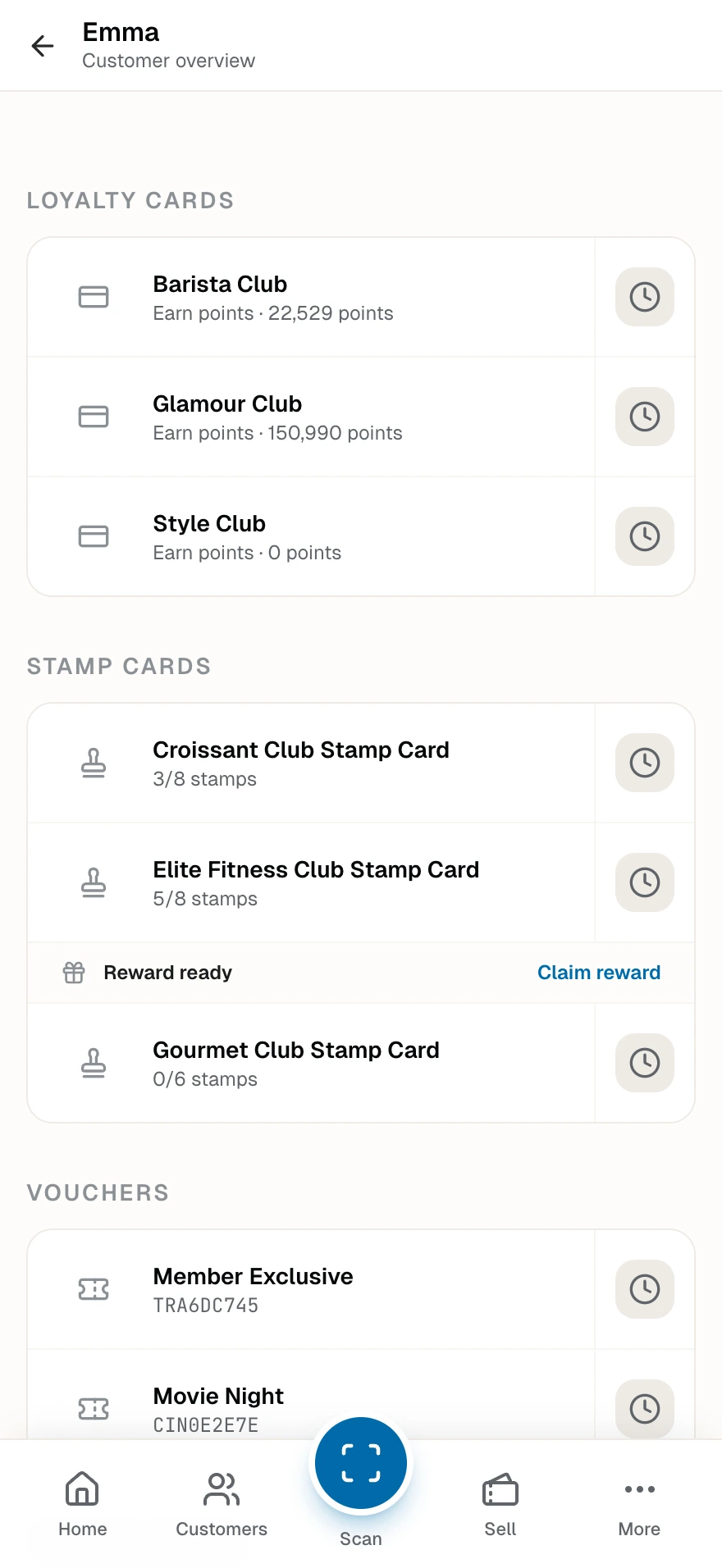
Once scanned, you'll see:
- Customer's name
- Their current points balance
- Which loyalty card they're using
- Options to award points or process redemptions
Common issues
Code won't scan:
- Ensure good lighting
- Ask the customer to increase screen brightness
- Make sure the entire code is visible
- Clean your camera lens
Wrong card:
- The customer may have multiple cards. Ensure they're showing the correct one.
Not authorized:
- The card may belong to a different club. Only cards in your club will work.
Barcode scanner shows garbled URL
If scanned URLs contain wrong characters (e.g., Ñ instead of :, or - instead of /), the scanner's keyboard country does not match your operating system's keyboard layout.
USB barcode scanners send key positions, not characters. When the scanner uses US layout but your computer uses Spanish or another layout, the operating system substitutes special characters.
To fix this:
- Open your scanner's user manual (paper or from the manufacturer's website)
- Find the "Country" or "Keyboard Language" programming section
- Scan the barcode that matches your keyboard layout (e.g., "Spain" or "Germany")
- The scanner beeps to confirm. The setting saves permanently.
You only need to do this once. QR codes will scan correctly after the change.
Tips
- Keep your device charged. You will use it often.
- Practice with a test account before busy periods
- Have customers prepare their code while waiting in line