Support tickets.
Read and answer partner and contact-form messages from one admin inbox.
Support tickets is your inbox for everything people send you through the platform. Partner Help & support messages and website contact-form messages land in the same place, so you read and answer them from one screen instead of digging through email.
You find Support tickets near the top of the admin sidebar, below Dashboard, so it stays one click away.
The inbox
The list starts with the subject and reference, then requester, status, priority, assignee and latest activity. Search by reference, requester, subject or assignee, including Unassigned, and by status, priority or channel labels in your current language. Filter by Assignee, including Unassigned, or by status, channel and priority. Export the list when you need a copy.
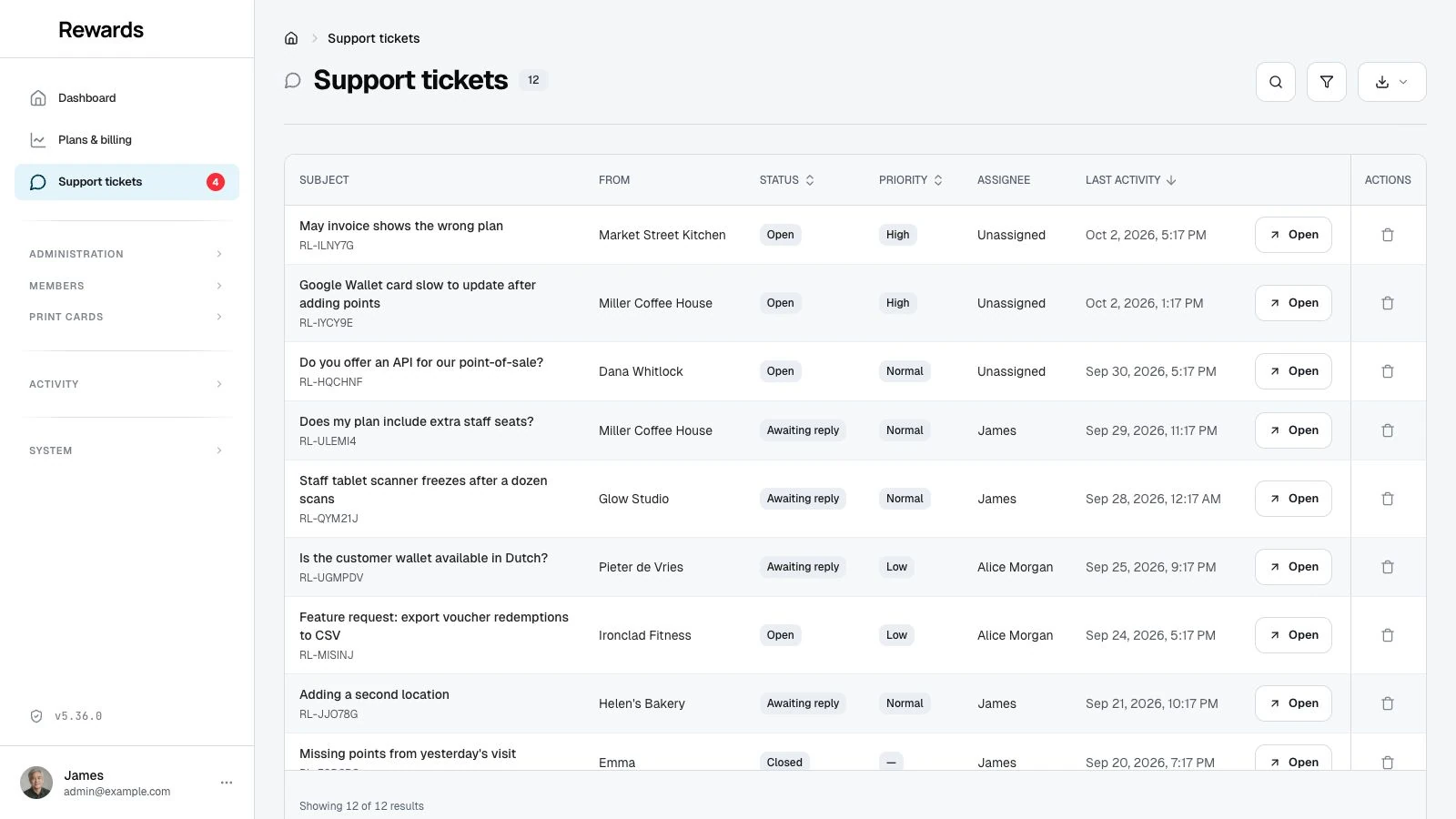
Each row has an Open button that takes you into the conversation.
Answering a ticket
Open a ticket to see the full thread. The panel at the top gives you the context to help without asking: the person who wrote in and their email, their business, their plan, language, time zone, and the app version they are on.
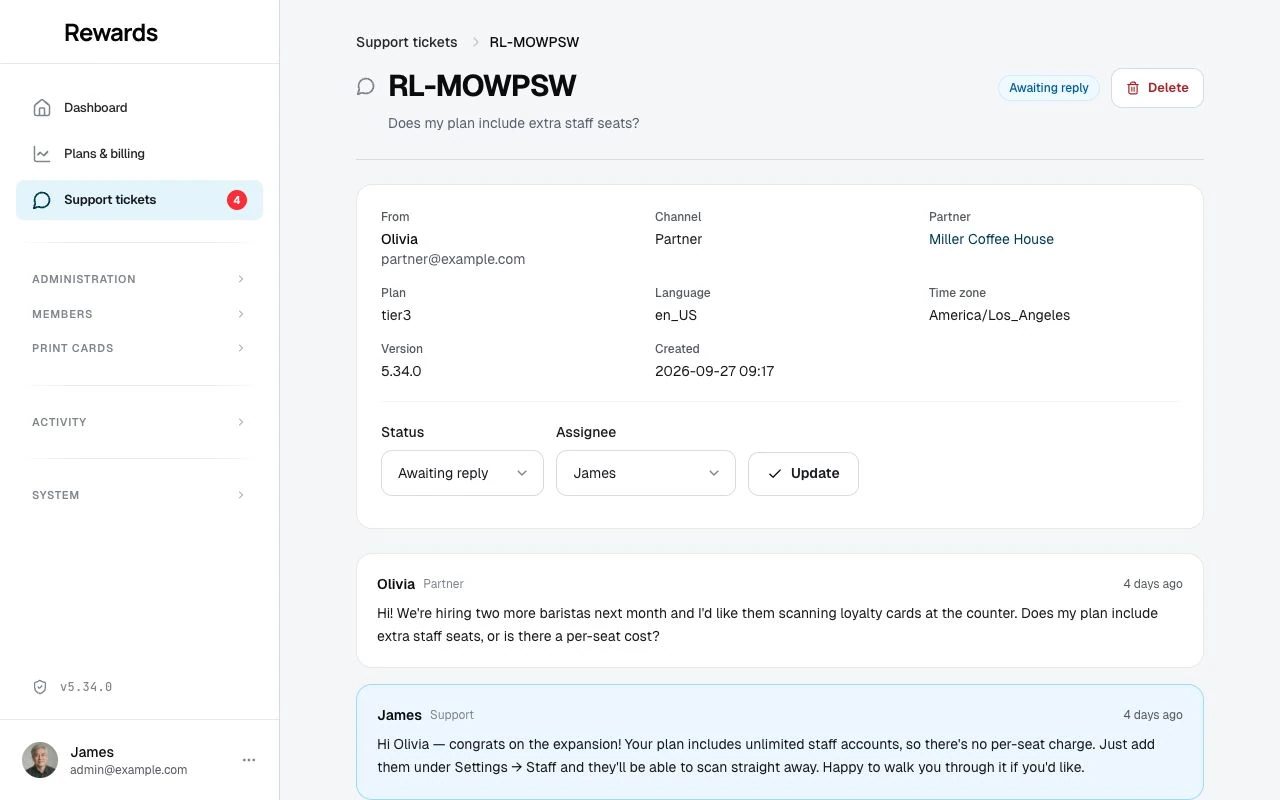
Write your reply in the box and press Send reply. The sender gets your reply by email. When the message came from a partner, your reply also appears in their dashboard thread, where they can reply. Sending a reply moves the ticket to Awaiting reply.
Internal notes
Tick Internal note before you send to record a note for yourself or another admin. Internal notes stay in the admin inbox. The app never emails them, and the sender never sees them.
Status and assignee
Set the status and the assignee from the controls above the thread.
- Open: Needs your attention.
- Awaiting reply: You have replied and are waiting on the sender. A reply from the sender reopens it.
- Closed: Handled. A reply reopens it.
Assign a ticket to yourself or another admin so it is clear who is handling it.
Deleting a ticket
Use Delete in the inbox row or open conversation, then confirm the ticket shown. Administrators and managers can delete tickets.
Deletion hides the ticket from the inbox and closes access to its thread, including old reply links. The app retains the ticket and messages in storage; this is not permanent data erasure. There is no restore button. Deleting a ticket sends no notification to the sender.
Where messages come from
The Channel filter and ticket details identify where a ticket started.
- Partner: A partner used Help & support in their dashboard. These have an in-app thread the partner can reply in.
- Contact form: Someone used the website contact form (see below). You answer these by email. If the sender was a signed-in member, the ticket links to their account.
The website contact form
Your public site has a Contact page, alongside About, Terms, and Privacy, with a contact form that anyone can use without an account. It asks for a name, an email, a topic from a fixed list, and a message. Several safeguards protect it: a per-IP rate limit, server-side validation, a request token, and a hidden honeypot field that drops bots.
Every submission does two things: it lands here as a ticket on the Contact form channel, and it goes to your contact address by email with the sender as the reply-to. So a contact message appears in this inbox next to partner messages, and you can also reply to the email. Because a website visitor has no dashboard, you answer contact-form tickets by email only; they do not get an in-app thread. The visitor sees the confirmation as soon as the ticket is saved and the email follows right after. If that email cannot be delivered, the ticket is still here.
The wording of the Contact page itself, along with About, Terms, and Privacy, is editable per language. See Languages.
How replies reach people
Replies go out by email and live in the in-app thread. There is no inbound email processing: a sender cannot reply by email and have it appear in the thread, so partners reply from their dashboard instead. A plain email reply still reaches your own inbox, because your address is the reply-to, so you lose nothing.
Your contact address
Reward Loyalty sends messages to your operator contact address. It uses, in order:
APP_ADMIN_EMAILfrom your.env, if you set it.- The email of the first admin account, captured during installation.
This is the same address the website contact form uses. To avoid sending to a placeholder, Reward Loyalty never emails reserved example addresses (anything ending in @example.com, @example.org, or @example.net). If neither address is real, Reward Loyalty still stores the message as a ticket, so you can set a real address and answer it from the inbox.
💡 Tip: On a fresh install the seeded admin uses a placeholder address, so Reward Loyalty sends no email until you set a real
APP_ADMIN_EMAILor admin email. It saves the ticket either way, so you never lose a message.
The audit trail
The Activity Log records replies, status changes, assignments, and deletions under the support_tickets category. The log keeps the action, who did it, and the ticket reference. It never stores the message text.
Who can access it
Administrators and managers can open and answer tickets.