Awarding points.
How to add points to customer loyalty cards
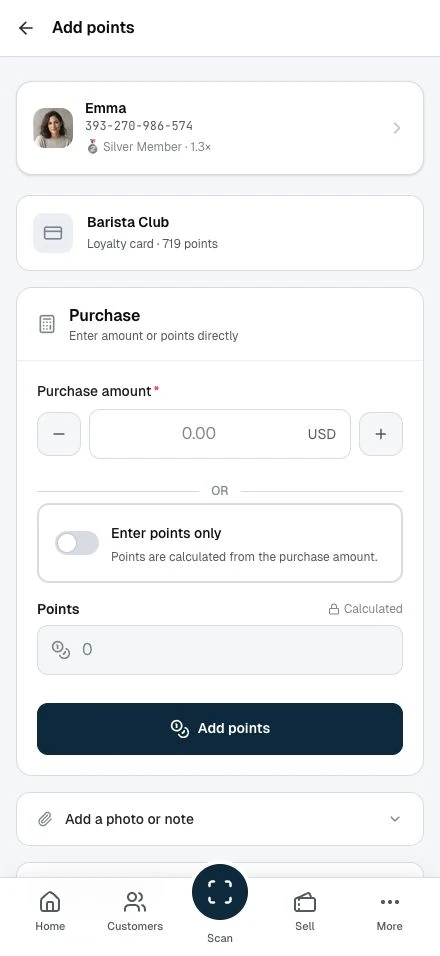
After scanning a customer's QR code, you land on the Add points page. The page shows the member's card at the top so you can confirm you're awarding points to the right person.
The purchase amount path (default)
Enter the purchase amount in the top field. The Points field below calculates and fills in on its own. A small lock icon and "Calculated" label confirm the value comes from your card's rules, not from hand entry. Tap Add points to confirm.
The points-only path
Below the purchase amount field you will see an or divider and an Enter points only switch. Toggle it on when you need to award a specific number of points without entering a purchase amount, for example to correct a previous transaction or award a promotional bonus.
When the switch is on:
- The purchase amount field greys out and is not required. A note under it reads "The purchase amount isn't used in points-only mode."
- The Points field becomes editable and is required.
- The hint under the switch changes to "Enter the points to award. The purchase amount isn't used."
When the switch is on, the Points field label badge changes from a lock icon with "Calculated" to an open-lock icon with "Direct entry", confirming the field accepts typed input.
Toggle the switch off to return to the default calculated mode.
Calculated vs. editable points field
In the default (purchase amount) mode the Points field has a muted background and cursor, and shows a lock icon with a "Calculated" label. This shows the value is read-only, computed from your card rules. You cannot type into it.
In points-only mode the field switches to an active white background and accepts direct input.
Tier multipliers
If the member belongs to a tier with a points multiplier, you will see a tier badge on their member card. The Points field preview reflects the multiplier. As you type the purchase amount, a bonus indicator fills in under the Points field, for example "+50 tier bonus (2.0x multiplier)", so you can confirm the extra points before you submit.
The card's maximum points per purchase still applies after the multiplier. You will never award more than the configured cap in a single transaction.
Optional: Photo and note
Tap Add a photo or note below the action area to expand a panel where you can attach a receipt photo and add an internal note. These are optional and not visible to the customer.
Card rules
Tap Loyalty card rules to expand a summary of the card settings: the points calculation rate, minimum and maximum points per purchase, welcome bonus, tier multiplier, and expiry period. This panel is collapsed by default to keep the page focused.
After awarding points
On the result screen, you see the points added and the customer's balance. Tap Done to return to the customer or History to open the loyalty card's record.
Correcting mistakes
When you key in the wrong amount, open History from the result screen or the loyalty card on the Customer overview. Tap Undo recent points and confirm. You can reverse your own most recent award, never a colleague's, and you see the original award beside its reversal. After the reversal, you see the customer's recalculated tier.
The undo is narrow by design. It covers points you awarded that are still unspent and unexpired, the common case where you keyed it wrong. Once the customer has spent those points or they have expired, or when the award was a colleague's, the correction needs a partner or admin from the dashboard.
For the full picture across points, stamps, vouchers, and passes, see Undoing and reversing.