
Partner setup and pass design.
Turn Google Wallet on per card, and see how each pass type appears in a member's wallet.
On this page
Enabling Google Wallet on a card
Google Wallet is available to your account when your plan includes it (Gold and Platinum by default) or your admin grants it to you. Then you enable it on individual cards.
- Go to Loyalty cards, Stamp cards, Vouchers, or Prepaid passes
- Click Edit on the card you want to enable
- Go to the Details tab
- Find the Google Wallet toggle and switch it on
- Save
If you do not see the Google Wallet toggle, Google Wallet may not be part of your plan, your admin may not have granted it to your account, or the app's Google Wallet credentials may not be configured yet. Contact your administrator.
Members can use Add to Google Wallet when the item and their account meet the conditions below.
How your card appears in Google Wallet
Google Wallet passes reuse the visual elements you already configured on your cards. You need no extra design work. Here is which field each pass type uses.
Loyalty cards
┌─────────────────────────────────────┐
│  [Logo]  Partner Name               │  ← Logo image + partner name
│                                     │
│  Card Title                         │  ← Card title
│                                     │
│  points                             │
│  2,000                              │  ← Current point balance
│                                     │
│       ┌───────────┐                 │
│       │  QR Code  │                 │  ← Staff earn-points URL
│       └───────────┘                 │
│    Member Identifier                │  ← Member code
│─────────────────────────────────────│
│   Background Image                  │  ← Background image (hero)
│                                     │
└─────────────────────────────────────┘
| Card Setting | Google Wallet Field | Notes |
|---|---|---|
| Logo | Pass logo (top-left circle) | Falls back to a default icon if not uploaded |
| Card title | Program name (large text) | Uses the member's current locale |
| Background color | Top half of the pass | The solid color area behind the title and QR code |
| Background image | Hero image (bottom half) | Displayed below the QR code. Optional; if not uploaded, the color fills the full card |
| Partner name | Issuer name (next to logo) | Taken from your partner/business name |
| Point balance | Points display | Updates when points change |
| QR code | Barcode | Contains the staff earn-points URL, which staff can scan from Google Wallet |
Logo and background image are the images you upload on the card's Design tab. See Creating Cards for image requirements.
Stamp cards
┌─────────────────────────────────────┐
│  [Logo]  Partner Name               │  ← Logo image + partner name
│                                     │
│  Partner Name                       │  ← Subheader
│  Stamp Card Title                   │  ← Card title (large)
│                                     │
│       ┌───────────┐                 │
│       │  QR Code  │                 │  ← Staff add-stamps URL
│       └───────────┘                 │
│                                     │
└─────────────────────────────────────┘

  Progress: 3 / 10                     ← Current stamps / required
  Reward: Free Coffee                  ← Reward title
| Card Setting | Google Wallet Field | Notes |
|---|---|---|
| Logo | Pass logo (top-left circle) | Falls back to a default icon if not uploaded |
| Stamp card title | Header text (large) | Uses the member's current locale |
| Background color | Full pass background | The solid color behind everything |
| Reward title | "Reward" text module | Shows what the member earns when completed |
| Partner name | Card title + subheader | Displayed above and below the main title |
| Stamp progress | "Progress" text module | Shows e.g. "3 / 10"; updates when stamps are earned |
| QR code | Barcode | Contains the staff add-stamps URL, which staff can scan from Google Wallet |
Reward Loyalty's stamp-card passes use Google's Generic pass type. This release includes the background color and logo but does not add a hero image. See Designing Your Cards for logo specifications.
Prepaid passes
┌─────────────────────────────────────┐
│  [Logo]  Partner Name               │  ← Logo image + partner name
│                                     │
│  Partner Name                       │  ← Subheader
│  Pass Name                          │  ← e.g. "10-Visit Wash Pass"
│                                     │
│       ┌───────────┐                 │
│       │  QR Code  │                 │  ← Staff use-pass URL
│       └───────────┘                 │
│                                     │
└─────────────────────────────────────┘

  Visits left: 6 / 10                  ← Remaining / total (or Unlimited)
  Expires: Jul 10, 2026                ← Valid until date (if set)
| Card Setting | Google Wallet Field | Notes |
|---|---|---|
| Logo | Pass logo (top-left circle) | Tries the pass product logo, then a default icon |
| Pass name | Header text (large) | Uses the member's current locale |
| Background color | Full pass background | The solid color behind everything |
| Partner name | Card title + subheader | Displayed above and below the pass name |
| Visits left | "Visits left" text module | Updates after each scan; unlimited passes show Unlimited |
| Valid until | Expiry text module | Shown when the pass has a validity window |
| QR code | Barcode | Contains the staff use-pass URL, which staff can scan from Google Wallet |
Reward Loyalty's prepaid passes use Google's Generic pass type. This release includes the background color and logo but does not add a hero image. Each sold pass is its own Google Wallet object: a member holding two passes of the same product can save both. Enable the toggle per pass product on its Details tab.
Vouchers
┌─────────────────────────────────────┐
│  [Logo]  Partner Name               │  ← Logo + partner name
│                                     │
│  Voucher Title                      │  ← e.g. "Free Pastry"
│                                     │
│       ┌───────────┐                 │
│       │  QR Code  │                 │  ← Staff redemption URL
│       └───────────┘                 │
│    Voucher Code                     │  ← e.g. CAFDCBAB6
│─────────────────────────────────────│
│   Background Image                  │  ← Background image (hero)
│                                     │
└─────────────────────────────────────┘

  Expires: Feb 1, 2027                 ← Valid until date
  From: Miller Coffee House                ← Partner name
| Card Setting | Google Wallet Field | Notes |
|---|---|---|
| Logo | Pass logo (top-left circle) | Tries voucher logo → partner logo → default icon |
| Voucher title | Offer title (large text) | Uses the member's current locale |
| Background color | Top half of the pass | The solid color area behind the title and QR code |
| Background image | Hero image (bottom half) | Displayed below the QR code. Optional; if not uploaded, the color fills the full card |
| Voucher code | Barcode alternate text | Displayed below the QR code |
| Valid until | Expiration date | Shows when the voucher expires |
| QR code | Barcode | Contains the staff redemption URL, which staff can scan from Google Wallet |
Logo and background image are the images you upload on the voucher's Design tab. See Voucher Card Design for image requirements.
Design tips for Google Wallet
- Upload a logo. Passes without a logo show a generic icon or the first letter of your business name. A proper logo makes your pass recognizable.
- Choose a good background color. This is the most visible element. It fills the top half (or full card for stamp cards). Use your brand color.
- Add a background image. For loyalty cards and vouchers, the background image appears as a large hero below the QR code. Use a high-quality, relevant photo (product shots, your storefront, lifestyle imagery).
- Images must be publicly accessible. Google fetches your images from your server. Images served from
localhostor private networks will not load. See Local Development below.
What members see
- Add to Google Wallet on eligible items with Google Wallet enabled
- For loyalty and stamp cards, tapping the button enrolls the member if needed
- A voucher must be redeemable by that member
- A prepaid pass must already belong to the member and must not be dismissed; the button does not issue or sell a pass
- The pass shows the card name, current points, stamp progress, or visits left, and a QR code
- Pass data updates when points are earned, stamps are collected, or a voucher is redeemed
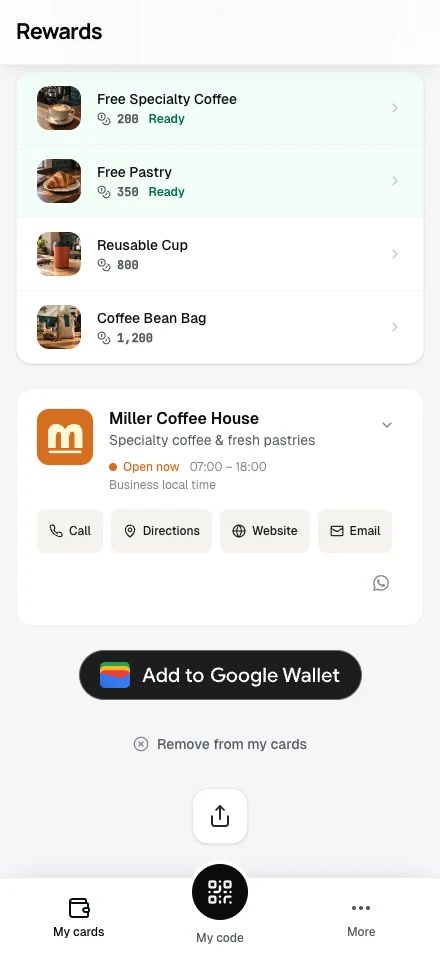
Loyalty and stamp cards do not require a prior transaction or follow. Saving to Google Wallet handles enrollment. Vouchers and prepaid passes have the eligibility limits above.
When the button does not appear
First check these installation and item settings:
- Platform credentials configured: the issuer ID and service-account credentials are set in Settings → Integrations or
.env - Plan entitlement: the partner's plan includes Google Wallet (Gold and Platinum by default), or an admin granted it per-partner
- Card toggle: partner has enabled Google Wallet on the specific card
Then check the member: a voucher must be redeemable, and a prepaid pass must be issued to that member and not dismissed.
Button behavior by member state
| Member State | Button Behavior |
|---|---|
| Logged in, enrolled in card | Provisions the pass and redirects to Google Wallet |
| Logged in, not enrolled in a loyalty or stamp card | Enrolls the member, provisions the pass, then redirects to Google Wallet |
| Voucher or prepaid pass | Requires voucher eligibility or a held, non-dismissed prepaid pass |
| Not logged in | Redirects to login page first, then continues the save flow |
Disabling Google Wallet
Toggle the switch off and save. All issued passes for that card will be revoked. Members' saved passes will show as inactive.