
Showcase homepage.
Lead with one brand, an editorial hero, and a selected set of loyalty programs.
On this page
Choose Showcase when one brand should lead the page, with its message and selected loyalty programs.
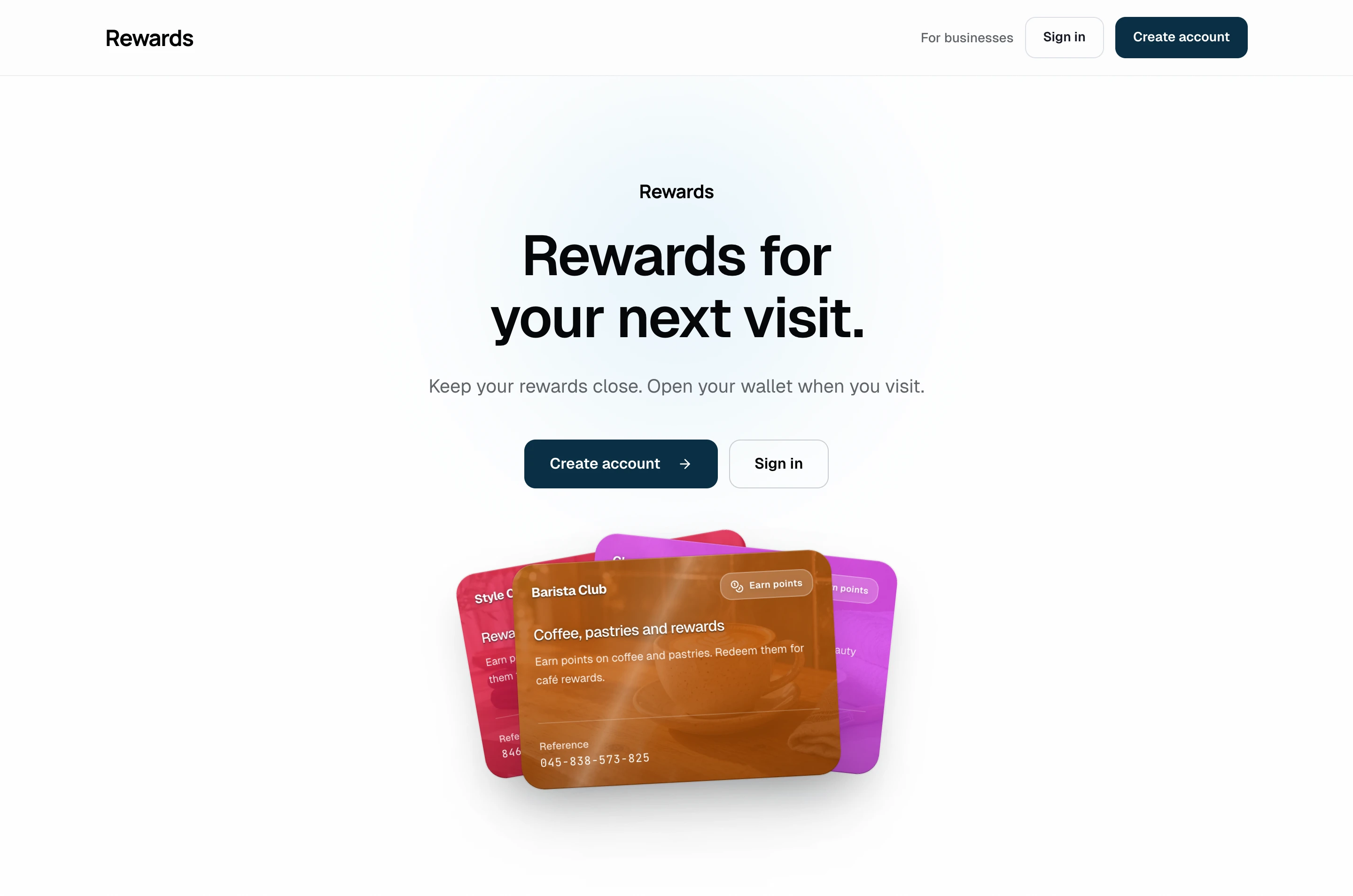
Desktop: The branded headline, join action, and program-card fan on desktop.
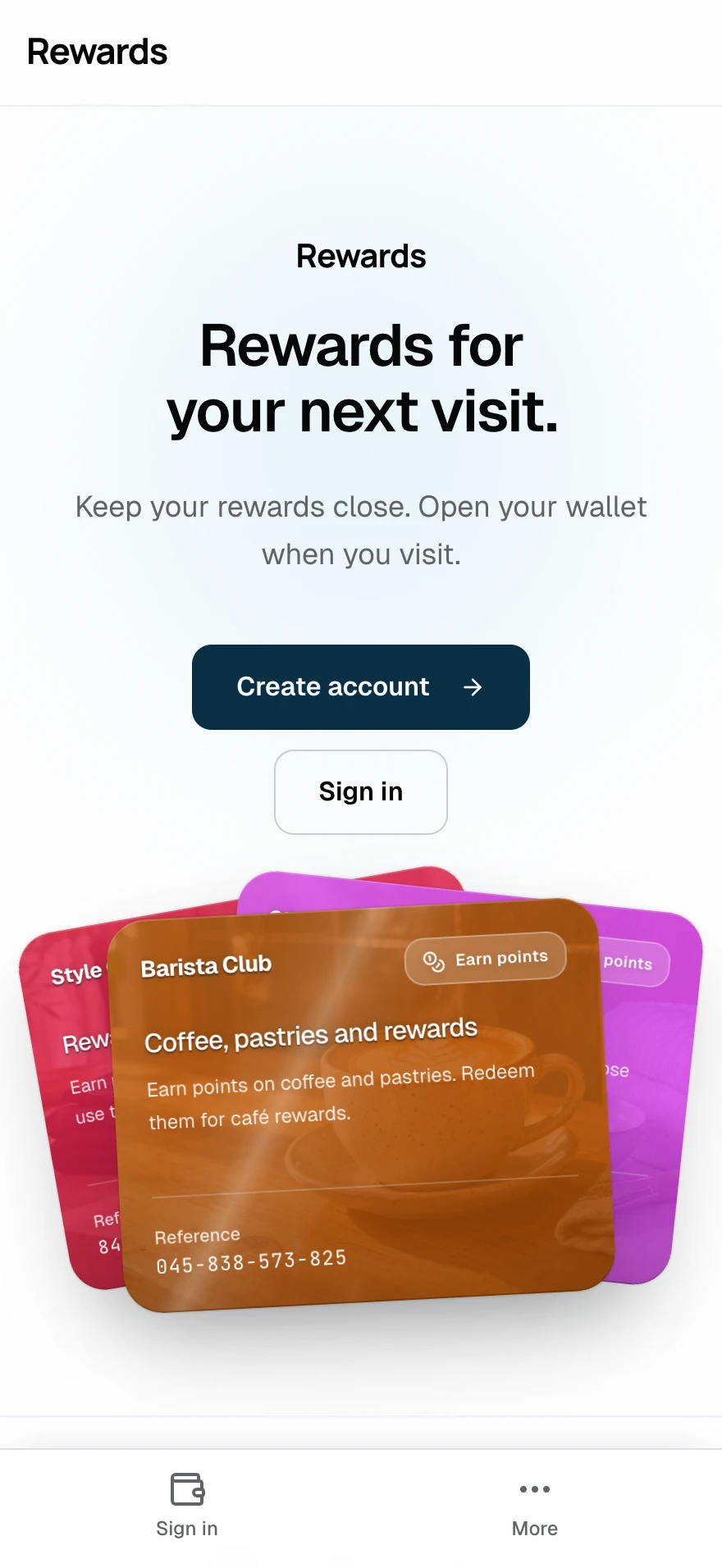
Mobile: The brand introduction and program cards arranged for a phone.
How this homepage works
Showcase turns the member homepage into a brand landing page. It leads with a strong headline and a fan of real program cards, then presents the published programs in a calmer editorial sequence.
It is the strongest fit when one business or one public-facing brand should own the story. A curated multi-business collection can also use it, but every published program appears beneath the same installation brand.
Best use cases
- A single business: Present a points program, stamp card, offers, and passes as parts of one branded loyalty proposition.
- A campaign-led installation: Lead with the reason to join before asking visitors to browse the programs.
- A franchise or brand group: Present selected programs under one shared identity when the association is intentional.
- A marketer building a landing page: Use a hero image and concise explainer sections to connect the loyalty offer to a wider campaign.
If visitors need to search a large set of businesses, use Public listing. If an external website already does the persuasion, Portal removes the repeated sales pitch.
What visitors see
- An editorial hero with the application name, translated headline, and supporting copy
- A fan of up to three published programs from the first available program type
- Published loyalty cards, vouchers, stamp cards, and prepaid passes, with up to six shown per type
- Optional How it works, membership tier, and member-count sections
- Join, sign-in, and wallet calls to action
Showcase uses the same approved program set as Smart wallet. Changing from one to the other changes the presentation, not the publication rules.
Showcase options
Showcase adds controls for a hero background image, the How it works section, membership tiers, and member count. The Homepage layouts guide lists the dashboard and .env settings. Edit the hero headline and subheadline for each language in Languages & translations: search for showcase_headline or showcase_subheadline.
Decide what appears
Showcase uses the shared homepage visibility controls. A partner must be eligible to publish, and each program must have Visible on homepage enabled.
For a single-business installation, this means the business can choose which campaigns support the homepage story. For a multi-business installation, remember that Showcase does not create separate brand sections: every approved program participates in one shared presentation.
Configure Showcase
Open Settings → Homepage, select Showcase, choose the supporting sections, and save.
Complete the public identity under Branding, then review the page while signed out and on a mobile screen. The public view should make sense before a visitor knows how the dashboard works.
Related
- Homepage layouts: Compare all four modes
- Smart wallet homepage: Make the cards and wallet the main story
- Portal homepage: Use a focused sign-in gateway
- Branding: Application name, logo, and colors