Staff overview.
Introduction to the staff portal: find a customer, run the counter actions, fix a mistake, and understand your club access.
As a staff member, you process customer transactions at the point of sale. Your main tasks are scanning customer QR codes, awarding points and stamps, selling prepaid passes, and processing reward redemptions. This guide splits that work into the tasks you do at the counter.
What is a staff member?
Staff members are employees who interact with customers to manage loyalty transactions. You might be a cashier, server, sales associate, or customer service representative.
What you can do
The staff portal lets you:
| Task | Description |
|---|---|
| Scan QR codes | Identify customers by scanning their QR codes |
| Award points | Add loyalty points based on purchase amounts |
| Add stamps | Record stamp card progress |
| Redeem vouchers | Process promotional code discounts |
| Sell prepaid passes | Sell visit packs, memberships, or monetary credit, then record visits or spending |
| Read a member card | Recognize a customer from a card they scan, swipe, or read out |
| Process redemptions | Fulfill reward claims |
| View customer info | See customer balance and history |
See Redeeming vouchers for voucher processing details.
The staff guide
- Finding a customer: Search, scan, a barcode reader, recent customers, or a member card.
- Counter workflow: Award points, add stamps, claim rewards, redeem vouchers, and sell and scan passes.
- Undoing and reversing: Fix your own most recent action.
- Your account and club access: Sign in, and what your club lets you reach.
Navigation
The staff portal adapts to the device. On a phone it uses a bottom tab bar that keeps the actions you reach for most within thumb range. On a tablet or desktop it uses a sidebar with the same destinations.
On a phone, the bottom bar holds:
| Tab | What it does |
|---|---|
| Home | Shift view with your club, the main Scan action, customer search, and recent customers |
| Customers | Recent customers first, plus a search across customers linked to your club |
| Scan | The raised center button. Opens the camera QR scanner |
| Sell | Sell a prepaid pass. Appears when your plan includes passes |
| More | Redeem voucher, Redemption codes, account settings, language, theme, and logout |
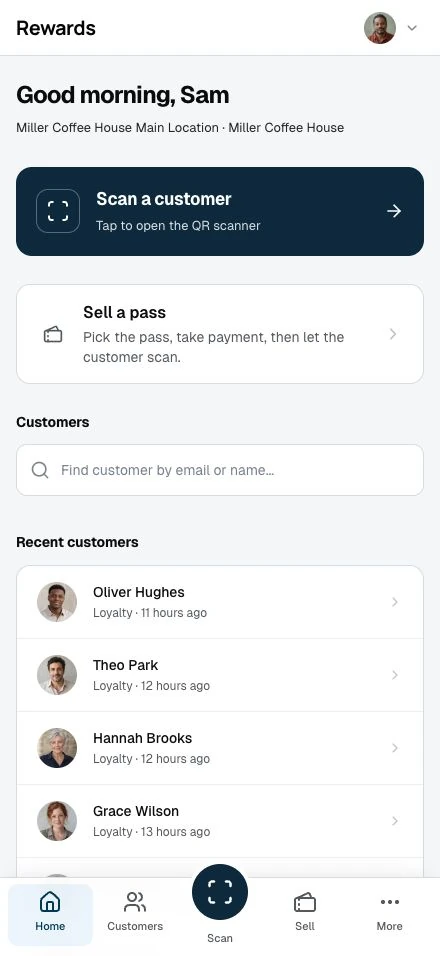
Scan sits in the center because identifying a customer starts almost every task. Tap it, scan the customer's code, and follow the matching counter action. The in-app scanner is convenient. On a phone the regular Camera app can be faster, and at a fixed counter a USB or Bluetooth scanner is often fastest.
On a tablet or desktop, these same destinations appear in the left sidebar, which you can collapse to a rail.
Install it on your phone
The staff portal is an installable web app. Open the staff sign-in page in Safari on an iPhone, choose Share → Add to Home Screen, then tap the Staff icon. On Android, open the browser menu and choose Install app or Add to Home screen. When you launch it from the icon, the phone navigation and scanner stay in their own window.
You still need an internet connection to record a transaction. If the connection drops, you see a reconnect screen and cannot record the checkout.
Reading a member card at the counter
Some customers carry a member card, printed or a Show my code QR on their phone. One code identifies the customer, and it can arrive by scan, swipe, or typed number. See Finding a customer for how each one resolves and what presenting a card does.
Tips for great service
Start with search: The fastest workflow is always: search/scan customer → choose action.
Keep it quick: Practice the scanning workflow to serve customers during busy times.
Promote the program: Remind customers to show their card with every purchase.
Handle issues with care: If something goes wrong, stay calm, explain, and get manager help if needed.
Stay charged: Keep your device charged. You'll use it a lot.
Getting help
If you run into problems:
- Check the Troubleshooting guide
- Ask your manager for help
- Contact the partner (business owner) for account issues
Related topics
- Scanning QR codes: QR scanning basics
- Awarding points: Processing point transactions
- Processing redemptions: Handling reward claims