Using member cards.
Claim a printed card, show your code when you have no card, and manage the cards linked to your account, including reporting one lost.
A member card is how a business recognizes you at the counter. You might carry a printed card a business gave you, or you might carry nothing and show a code from your phone. Either way it points at the same you.
Claiming a printed card
A business hands you a card. To make it yours:
- Scan the QR on the card, or open the link printed on it. Both land on
/c/{code}. - Sign in, or create an account if you are new. Claiming is email-first: you use your email, and the card links to your account.
- The card is now in your wallet and identifies you at that business's counter.
A member claims their own card; staff never claim it for you. A card that someone else already claimed, or one that has been disabled, will not resolve, so a fresh blank card from the counter is the one to claim.
After claiming, you land on the business's own page when it has one, or on a list of its current programs when it does not. The business also appears under your personal QR (see below), and your personal QR itself does not change.
Show my code, your one QR
Every member has one personal QR code. Think of it as your face at the counter: show it to a staff member, they scan it, the system recognizes you, and they can do whatever the business offers for you. You never search your wallet for the right card, stamp card, voucher, or pass; the staff member picks the program on their side, including one you have never used before. You do not need a plastic card for any of this.
The sheet also watches the counter for you. The moment the staff member acts, your screen celebrates and moves on its own to the card that changed: points land on the loyalty card, a first stamp opens your new stamp card, a voucher or a pass opens itself. You show one QR and end up looking at the result.
The QR is one tap away:
- On your phone, it is the round button in the middle of the bottom bar.
- On a computer, it is the QR button at the top of every page, next to your name.
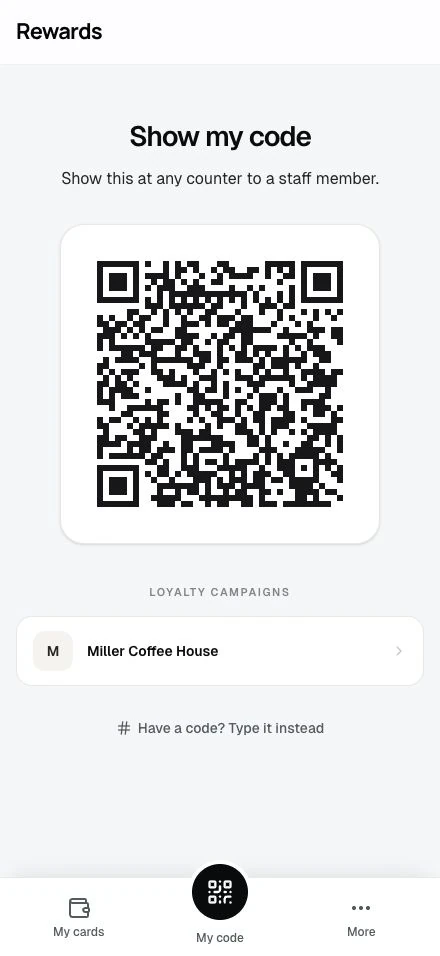
Tap the QR to open a larger view. Your identifier sits beneath it: your own number, safe to read aloud. When a counter cannot scan, staff can type that number instead. The code itself stays inside the QR.
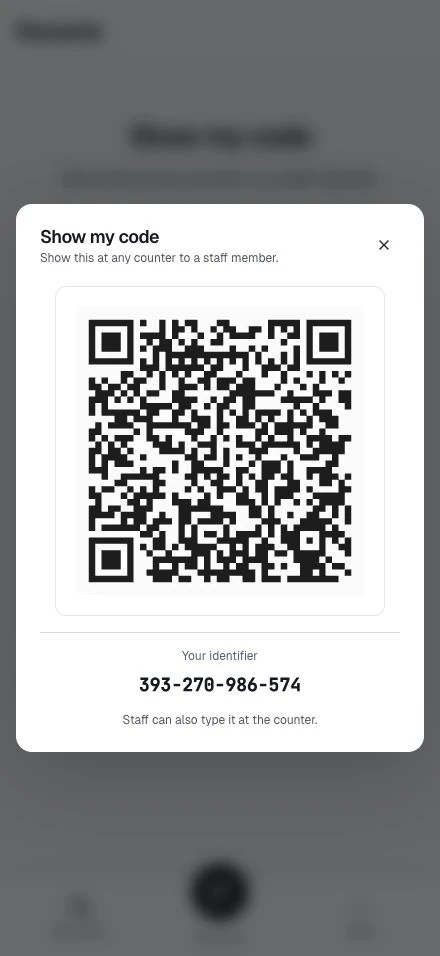
Two things matter here:
- Your QR never changes when you link a card. When a business hands you its own printed card and you claim it, that card becomes an extra way to recognize you. Your personal QR keeps working as before; nothing is replaced or overridden.
- Your QR works before any card is linked. It is your identity in the system, not a card from one business.
On the same page, if the camera is awkward, a small "Have a code? Type it instead" link lets you type a code by hand.
Your businesses
Under your QR you see the businesses whose cards you have linked, one row per business. The heading follows how many you have: nothing shows until you link one, a single business reads as its loyalty campaigns, and several read as your businesses. If you link two cards from the same business, it still shows as one business, with a note like "2 cards linked". Tap a business to see it:
- If the business has a public business page, you land on that page.
- If it does not (some businesses hand out cards without a public page), you see a list of that business's current programs: its loyalty cards, stamp cards, vouchers, and passes.
Cards handed out by the platform itself, rather than by one business, do not appear here. The platform is not "a business" you joined.
The list mirrors your active cards. If you want a business to leave the list, report its card lost under Your cards (see below): when a business has no active card linked to you anymore, it disappears from this list on its own. Nothing else about your account changes.
Your cards
Your account has a Your cards section that lists the physical cards linked to you. For each card you see:
- The card number.
- Who issued it.
- When you linked it.
You only ever see and act on your own cards. A card another member holds is not visible to you.
Report a card lost
If you lose a card, open it in Your cards, choose Report lost, and confirm in the dialog; it names the card's code and reminds you that your points and rewards stay safe. Confirming disables that one card for good:
- It stops working everywhere, on every carrier (QR, barcode, NFC, magnetic stripe, and the typed number).
- It cannot be turned back on. Report lost is final.
- Your account and your other cards are untouched. The business can issue you a new card.
Because the card is the instrument and not your identity, disabling it never affects who you are in the system, only that one piece of plastic.
Your privacy
Your card list is your own. Deleting or anonymizing your account removes your card codes along with the rest of your data, and your data export includes your card list. The activity log records when a card is claimed or disabled using identifiers only; it never stores your card number and does not track individual scans. See Admin setup for the operator's side of this.
Related topics
- Overview: What a member card is
- Partner Card studio: How a business makes the card you claim