Shopify widget installation.
How to embed the loyalty rewards widget on your Shopify store.
Early Access: The Shopify integration is available for early access. Try it out and share your feedback. Your input shapes how this feature evolves. Some functionality may change as we refine the experience.
The storefront widget shows your loyalty program on your Shopify store: the program name, how points are earned, and a preview of available rewards. Personal balances and in-widget redemption are not available in this release: a value the browser supplies cannot prove who the customer is, so the widget never shows or spends a customer's points without verified sign-in support.
Before you begin
You'll need:
- A connected Shopify integration
- Access to your Shopify theme files (Online Store → Themes → Edit code)
Getting your embed code
- Navigate to Integrations → Shopify in the partner sidebar
- Go to your connected store's dashboard
- On the Overview tab, expand Widget embed code
- Click Copy code. You'll see a "Copied!" confirmation
The generated snippet looks like this (yours arrives pre-filled with your integration ID, public API key, domain, and installed version):
<!-- Loyalty Widget v5.14.0 -->
<script>
  window.RewardLoyaltyConfig = {
    "integrationId": "019cc3a5-51cb-7315-97e1-69147399f94d",
    "apiKey": "rl_pub_xxxxxxxxxxxxxxxx",
    "apiBase": "https://your-loyalty-domain.com/api/widget"
  };
  window.RewardLoyaltyConfig.customerId = {{ customer.id | default: 'null' }};
  window.RewardLoyaltyConfig.customerEmail = '{{ customer.email | default: "" }}';
</script>
<script src="https://your-loyalty-domain.com/widget/rewards.js?v=5.14.0" defer></script>
<link rel="stylesheet" href="https://your-loyalty-domain.com/widget/rewards.css?v=5.14.0">
Three parts matter:
window.RewardLoyaltyConfigcarries your integration ID, yourrl_pub_public widget key (designed to be visible in storefront code), and the API base URL the widget calls.- The
{{ customer... }}tags are Shopify Liquid. They pass the signed-in customer's ID and email to the widget. The current release does not use them: values supplied by the browser cannot prove who the customer is, so the widget shows the same program view to everyone. - The
?v=query string matches your installed version, so browsers fetch fresh widget files after an upgrade.
Important: Copy the snippet from your dashboard instead of retyping this example. The generated version contains your real keys and URLs.
Installing the widget on Shopify
Step 1: Open Shopify admin
Sign in to your Shopify admin at your-store.myshopify.com/admin.
Step 2: Navigate to theme editor
- Go to Online Store → Themes
- Find your current theme and click Actions → Edit code
Step 3: Find theme.liquid
In the Layout folder on the left, click on theme.liquid. This is Shopify's main layout file that wraps every page.
Step 4: Add the code
Scroll to the bottom of theme.liquid and paste the copied snippet before the closing </body> tag:
    <!-- Loyalty Widget v5.14.0 -->
    <script>window.RewardLoyaltyConfig={...};</script>
    <script src="https://your-loyalty-domain.com/widget/rewards.js?v=5.14.0" defer></script>
    <link rel="stylesheet" href="https://your-loyalty-domain.com/widget/rewards.css?v=5.14.0">
  </body>
</html>
Step 5: Save and preview
Click Save in the top right corner. Then click Preview to see your Shopify store with the widget. It should appear in the corner of every page.
Widget placement
By default, the widget appears in the bottom-right corner. You can change this in Shopify Settings:
| Position | Description |
|---|---|
| Bottom Right | Default, unobtrusive corner position |
| Bottom Left | Alternative corner position |
| Top Right | Visible above fold |
| Top Left | Alternative top position |
What customers see
Every visitor sees the same program view in this release, whether or not they are signed in to your store:
- Your loyalty program name
- How many points they earn per unit of the linked card's currency
- The first three available rewards, with an expandable list for any others
The widget never shows a personal points balance and never redeems points. Customers collect and spend their points through your loyalty site and at your counter; the widget's job is to make the program visible where customers shop.
Why no member view? A public storefront key secures these widget endpoints, and a customer ID or email supplied by the browser cannot prove who the customer is. Rather than let anyone who knows a customer's email read their balance, the widget shows no personal data until it can verify the signed-in customer.
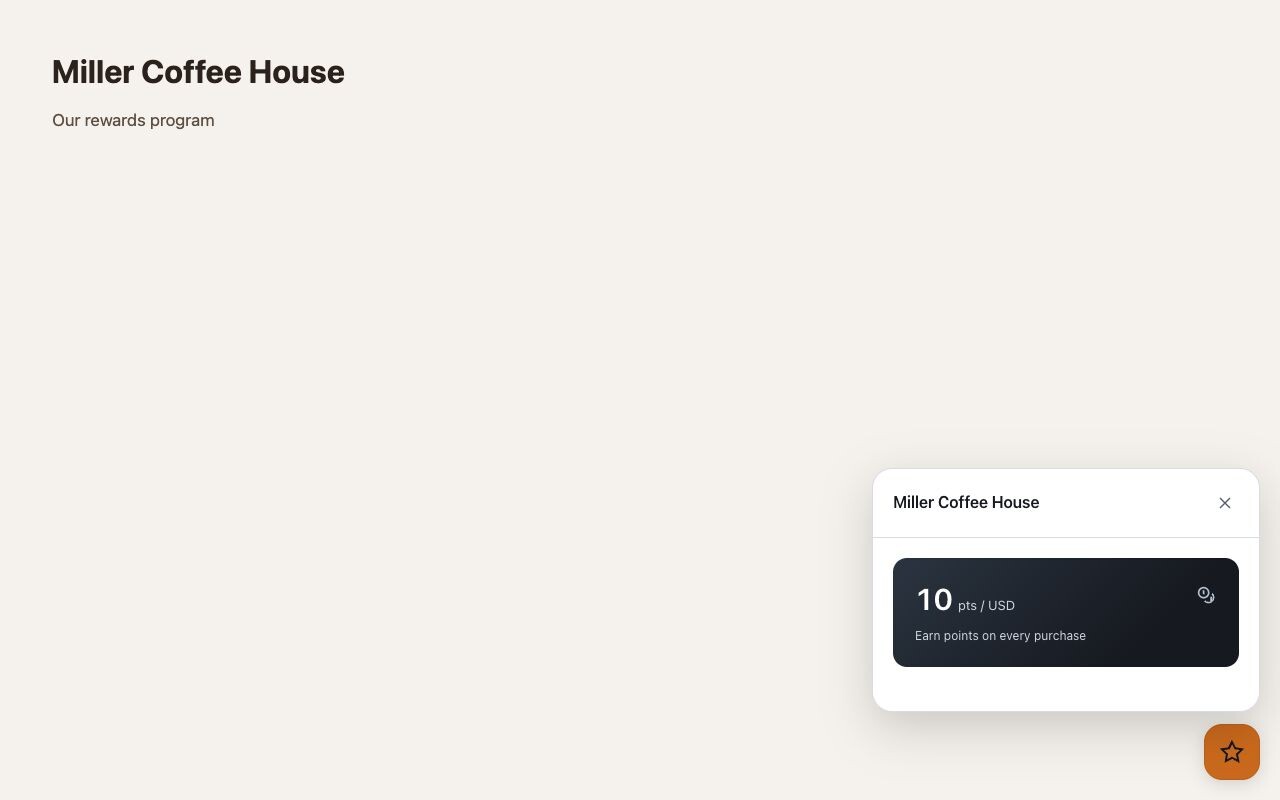
Example with sample rewards. The widget shows program information only.
On phones, the widget opens as a bottom sheet. Its header stays visible while the rewards scroll. Press Escape or use the close button to return to the launcher; keyboard focus stays inside the open panel.
Widget appearance
The widget loads your saved name, brand colour, mode, and position before it is opened. Customize these in Shopify Settings:
| Setting | Description |
|---|---|
| Program Name | Your loyalty program name displayed in the widget |
| Brand color | Colour of the launcher and primary actions |
| Mode | Auto (follows system appearance), Light, or Dark |
| Position | Which corner the widget appears in |
Testing your widget
After installation:
- Visit your live Shopify store in a new browser window
- Look for the widget icon in the configured corner
- Click to expand the widget
- Verify your program name, earn rate, and reward previews appear
Troubleshooting
Widget not appearing
Possible causes and solutions:
| Cause | Solution |
|---|---|
| Code not installed | Verify the code is in theme.liquid before </body> |
| Browser cache | Hard refresh (Ctrl+Shift+R) or clear browser cache |
| Shopify cache | Wait a few minutes for Shopify's CDN to update |
| Wrong file | Code must be in theme.liquid, not a section or snippet |
| JavaScript error | Check browser console (F12) for errors |
Widget shows wrong data
Cause: API key might be from a different integration.
Solution: Expand Widget embed code on the Overview tab, copy the snippet, and reinstall.
"Unable to load rewards" error
Possible causes:
- Integration is paused. Resume it in the dashboard
- Store was disconnected. Reconnect the integration
- Network issue. Try refreshing the page
Widget overlaps other elements
Solution: Try a different position in Shopify Settings, or adjust your Shopify theme's CSS.
Best practices
Test on mobile devices. The widget is responsive, but verify it works on your Shopify store's mobile layout.
Check dark mode. If your Shopify theme supports dark mode, test the widget in both light and dark themes. Set widget mode to "Auto" to follow the customer's system appearance.
Duplicate your theme first. Before editing theme.liquid, duplicate your theme in Shopify admin so you can revert if needed.
Test the full flow. Make a test purchase on your Shopify store and verify the points appear on the linked loyalty card.
Removing the widget
To remove the widget from your Shopify store:
- Go to Online Store → Themes → Edit code
- Open
theme.liquid - Find and delete the widget snippet (the comment, both script tags, and the stylesheet link)
- Click Save
The widget will no longer appear. Your Shopify integration remains connected, and you can reinstall the widget anytime.
Next steps
After installing the widget:
- Configure your settings to customize appearance
- Test the customer experience by making a purchase
- Monitor the Activity tab for webhook events
Related topics
- Connecting Your Shopify Store: Initial setup guide
- Shopify Settings: Customize point rules and widget
- Creating Rewards: Define what customers can earn
We'd love your feedback! We're improving the Shopify integration based on real-world usage. If you run into issues or have suggestions, share them through the feedback system. It helps us prioritize what to build next.