Managing voucher batches.
Track, pause, resume, and monitor batch-generated voucher campaigns.
After generating a batch, you can monitor its performance, pause claims during issues, resume when ready, or delete when campaigns end. This guide covers all batch management operations.
The batches dashboard
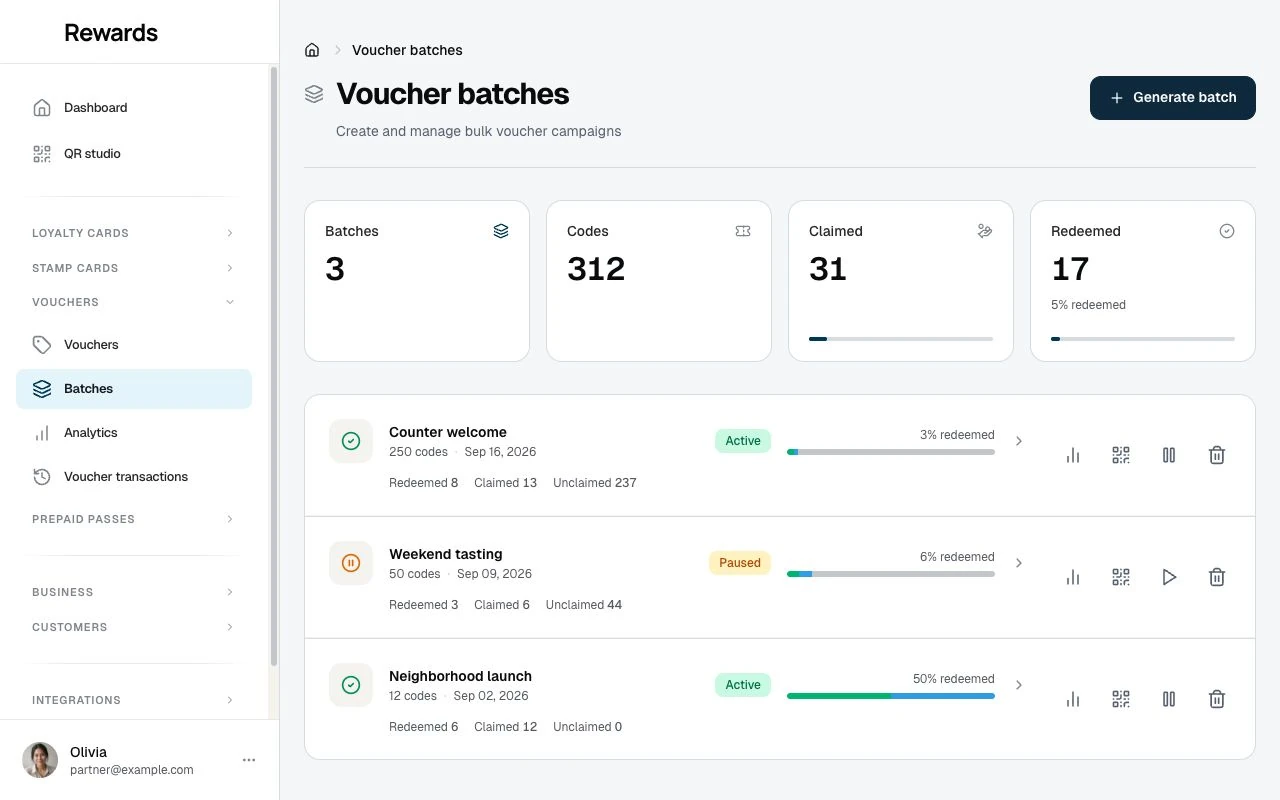
Go to Vouchers > Batches in the partner sidebar to see all your batch campaigns.
The summary totals Batches, Codes, Claimed, and Redeemed. Each campaign row below shows its distribution and actions.
What each row shows
A row shows the batch name, creation date, code count, and active or paused status. A composition bar separates redeemed, claimed but unused, and unclaimed codes. The displayed redeemed percentage is redeemed codes divided by total codes.
The row offers Batch analytics, a QR/share action, pause or resume, and delete. Select the batch name to open its individual codes.
Batch analytics
Select Batch analytics to review Codes, Claimed, Redeemed, and Total discount given. The report shows how the batch is being claimed and used. Select View codes to inspect individual vouchers.
Viewing batch vouchers
To see individual vouchers in a batch:
- Click anywhere on the batch's row
- The batch's codes open in a filtered list
- Each code shows its claim state, claimant, usage and availability beside the code. Claiming and using a voucher are separate: a claimed voucher may remain unused or have uses left.
The claimant is the member who claimed the voucher. A target member sets eligibility; it does not prove someone claimed it. On phones, the code, claim and use states, claimant, usage count, claim date and QR remain visible. Open Details for the claim channel and club. The existing row actions remain available.
Use this view to:
- Find a specific voucher code
- Check if a member claimed from this batch
- See which vouchers have been redeemed
- Export data for reporting
Exporting batch codes
Open the batch's codes, narrow the list with search or filters, then select Export and choose CSV, TSV, or JSON. The export contains the matching rows. See Data export for format and row-limit details.
Sharing your batch
Opening the QR modal
- Click the QR icon on the batch's row
- The modal opens with:
- Large QR code image
- Claim URL text
- Three action buttons
Copy link
Copies the claim URL to your clipboard:
https://yoursite.com/en-us/claim-voucher/BATCH-ID/TOKEN
Use for:
- Email campaigns (hyperlink)
- SMS messages
- Website buttons
Download
Downloads the QR code as a high-resolution PNG file.
Use for:
- Print materials (posters, flyers)
- In-store signage
- Product packaging
- Digital displays
💡 Tip: Download at minimum 500×500px for print. The downloaded file is print-ready.
Visit
Opens the claim page in a new tab so you can:
- Preview what members see
- Test the claim flow
- Verify the design looks correct
Pausing a batch
Pause a batch to temporarily stop new claims while keeping existing claimed vouchers valid.
When to pause:
- Found an issue with the promotion
- Reached intended campaign capacity early
- Need to adjust marketing messaging
- Temporary business closure
How to pause
- Find the batch in your list
- Click the pause icon on its row
- A spinner shows for a moment
- The status changes to Paused
What happens when paused
For new visitors:
- Claim page shows "Promotion Temporarily Paused"
- Batch title and description still visible
- No claim button available
- "Back to Home" option provided
For members who already claimed:
- Their vouchers remain valid
- Can still view in My Cards
- Can still redeem at checkout
- No impact on existing claims
Duration
Batches can stay paused indefinitely. There's no automatic timeout.
Resuming a batch
Resume a paused batch to allow new claims again.
How to resume
- Find the paused batch
- Click the play icon on its row
- A spinner shows for a moment
- The status changes to Active
What happens when resumed
- Claim page restored to normal
- New visitors can claim vouchers
- Metrics continue accumulating
- No notification sent to anyone (silent resume)
Deleting a batch
Delete a batch to permanently remove it and all its vouchers.
⚠️ Warning: Deletion is permanent. All codes in the batch are deleted, even ones members have claimed. This cannot be undone.
When to delete
- Campaign has ended and data retention is not needed
- Batch was created by mistake
- Need to clear test data
How to delete
- Find the batch
- Click the delete (trash) icon on its row
- A confirmation appears: "Are you sure you want to delete this batch? This action cannot be undone."
- Confirm to remove the batch and all its codes for good
What happens when deleted
- Batch record permanently deleted
- All vouchers in batch permanently deleted (force delete, not soft delete)
- Removed from dashboard
- Members who claimed lose access to those vouchers
- Analytics data for this batch is lost
Alternative: Pause instead
If you want to stop the campaign but keep data:
- Pause the batch (stops new claims)
- Let existing vouchers expire on their own
- Keep the batch for historical analytics
Batch metrics explained
Total vouchers
The quantity you specified during generation. This number is fixed after creation.
Claimed
How many unique members have claimed a voucher from this batch. Each member can claim only once per batch.
Redeemed
How many claimed vouchers have been used at checkout. A voucher must be claimed before it can be redeemed.
Redemption rate
Redeemed percentage = (Redeemed codes ÷ Total codes) × 100%
Compare redemption rates with your own earlier batches from the same channel. Offer terms, expiry dates and the audience affect the result; there is no single expected rate for every campaign.
A low redeemed percentage can mean few claims, few uses after claiming, or both. Check the separate claimed and redeemed counts, then consider:
- Is the discount strong enough?
- Is the minimum purchase too high?
- Are expiration dates clear?
Available vouchers
Available = Total - Claimed
When Available reaches 0, the claim page shows "No vouchers available."
Troubleshooting
"Batch shows 0 claims but I shared the QR code"
- Verify the QR code scans to the correct URL
- Check if members are signing in (required to claim)
- Test the flow yourself by scanning
"Redemption rate is low"
- Review the voucher terms. Minimum purchase may be too high
- Check if expiration date is soon (members may be waiting)
- Verify staff know how to redeem batch vouchers
"Members say they can't claim"
- Check if batch is paused
- Verify members are signed in
- Check if they've already claimed from this batch
- Confirm vouchers are still available (not all claimed)
"QR code won't download"
- Try a different browser
- Check if popup blocker is active
- Right-click the QR image and "Save As" manually
Best practices
Monitor the first 24 hours
Early metrics reveal if the campaign is working:
- Low claims? Visibility or messaging issue
- Claims but no redemptions? Offer or friction issue
- High everything? Scale up the promotion!
Use pause before delete
Before deleting, pause first. This lets you:
- Review final metrics
- Consider if data should be kept
- Avoid accidental data loss
Create one batch per channel
Track email vs. social vs. in-store separately:
- "Summer 2025 - Email List"
- "Summer 2025 - Instagram Post"
- "Summer 2025 - Store Signage"
Compare redemption rates across channels to optimize future campaigns.
Set realistic quantities
Generate more than you expect to claim. If you expect 200 claims:
- Generate 300-400 vouchers
- Accounts for testing and overrun
- Unused vouchers don't cost anything
Related topics
- Batch Voucher Generation: Creating new batches
- Voucher Analytics: Detailed performance tracking
- Creating Vouchers: Template voucher setup