Batch voucher generation.
Generate hundreds of unique voucher codes from a template for marketing campaigns.
Batch generation creates hundreds or thousands of unique voucher codes from a single template. Each code is unique, making it perfect for email campaigns, in-store promotions, social media giveaways, and printed marketing materials.
Batch generation is its own plan feature on top of Vouchers. If your account lacks it, the batch surfaces stay hidden; your administrator switches it per tier under Settings → Set up plans, or grants it to your business on its Permissions tab. In the Business → My plan comparison, batch generation shows only on tiers that include it, and drops out once no active plan offers it. Codes from batches you already generated keep working.
When to use batch generation
Email Campaigns Send unique codes to your email list. Each subscriber gets their own code, so you can track which emails converted.
In-Store QR Promotions Print a QR code on signage, receipts, or table tents. Customers scan to claim their unique voucher.
Social Media Giveaways Share a claim link or QR code. Followers claim vouchers on a first-come, first-served basis.
Event Handouts Generate codes for trade shows, grand openings, or special events. Each attendee gets a unique voucher.
Before you begin
Make sure you have:
- At least one active, non-expired manual voucher to use as a template
- Partner dashboard access
💡 Tip: Keep one voucher set aside as your batch template. Make it active so it appears in the picker, and turn off "Visible on homepage" so it stays out of public browsing. You use it only to define the settings each batch copies.
Creating a batch
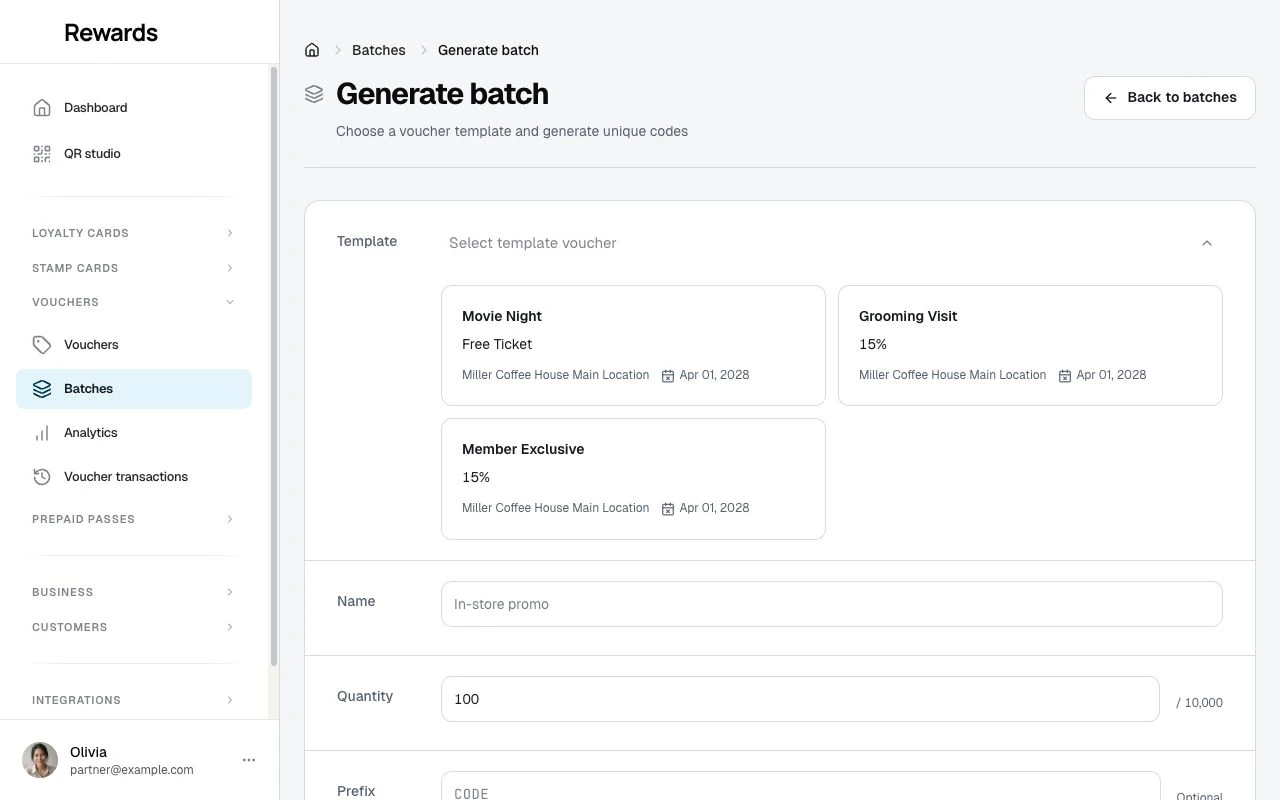
Generating a batch happens on one page. You pick a voucher to clone, choose how many codes, and generate. A preview at the foot of the page shows a sample code and the running count the whole time, so nothing hides behind steps.
- Go to Vouchers > Batches and click Generate batch.
- Pick a template. The picker lists your reusable vouchers, the active ones that have not expired. Click one to clone its discount, design, and rules. Vouchers you issued to a single member do not appear here, so the list matches the vouchers you manage.
- Name the batch. This name is for you; customers never see it. It fills in from the voucher you picked, and you can change it to whatever helps you find the campaign later.
- Set the quantity. Enter how many codes to create, from 1 to 10,000.
- Set a code prefix (optional). Codes read as
PREFIX-XXXXXXXX. The prefix is suggested from your business name, so Miller Coffee House suggestsMILLERand a code looks likeMILLER-7K2F9XQR. Edit it, or clear it for codes with no prefix. - Click Generate codes, confirm the count, and you are done.
What gets copied, and what the batch sets
| Copied from your template | Set by the batch |
|---|---|
| Discount type and value | A unique code for every voucher |
| Title, description, and design | Hidden from public browsing |
| Usage limits and validity dates | Active as soon as it is created |
| "New members only" and "first use only" rules | No single-member targeting, no tier limit |
Member targeting and tier limits stay off on purpose. A batch goes out to a wide audience, so it is not tied to one person or one tier.
What happens when you generate
The codes are created in a few seconds, and the batch goes live straight away. Every code is a real, unique voucher that someone can claim or redeem the moment you share it. There is no draft to publish later. The page asks you to confirm the count first, because this writes real codes you will hand out or print.
| Quantity | Time to create |
|---|---|
| Up to 500 | a few seconds |
| 500 to 5,000 | up to a minute |
| 5,000 to 10,000 | a minute or two |
Can you undo it?
A code cannot be edited once it exists, so check your template before you generate. The batch itself stays under your control:
- Pause it to stop new claims while every code already claimed keeps working.
- Delete it to remove the batch and all its codes for good.
See Managing voucher batches for both.
Try a small batch first
For your first run, generate a handful of codes, say 5 to 10, from a test voucher. Scan your own QR code, walk through the claim page, and redeem one at the counter. When it behaves the way you expect, generate the real campaign. Unused codes cost nothing, and you can delete the test batch afterwards.
How batch codes work
Each voucher in a batch gets its own code: an optional prefix, then eight characters from a readable set that leaves out look-alikes (no 0, O, I, L, or 1).
MILLER-7K2F9XQR
MILLER-MN4K8P3R
MILLER-W9PQ2RJK
Without a prefix, a code is only the eight characters, like 7K2F9XQR.
These codes are:
- Created for you, with no manual entry
- The same whether typed in upper or lower case
- Unique within the club the batch belongs to
- Hard to guess, because each one is random
Sharing your batch
After generation, share your batch with customers:
QR code
- Go to Vouchers > Batches in the partner sidebar
- Click the QR icon on your batch card
- In the modal:
- Copy link: Copies claim URL to clipboard
- Download: Downloads high-resolution PNG
- Visit: Preview the claim page
Best uses for QR codes:
- In-store signage (posters, table tents, window decals)
- Printed receipts
- Flyers and brochures
- Product packaging
Claim URL
The claim URL format: https://yoursite.com/en-us/claim-voucher/BATCH-ID/TOKEN (the locale, the batch's ID, and its secret token)
Best uses for URLs:
- Email campaigns (hyperlink "Claim your voucher")
- SMS marketing
- Social media posts
- Website banners
Both methods
Both QR code and URL lead to the same claim page. Use whichever fits your channel.
What members see
When members visit the claim page:
Not logged in
- See voucher preview (design, title, value)
- Claim My Voucher button
- Prompted to sign in or register
- After authentication, return to claim page
Logged in
- See voucher preview
- Click Claim My Voucher
- Loading animation
- 🎉 Confetti celebration!
- Redirected to voucher detail page
- Confirmation email sent
Already claimed
- "You've already claimed this voucher" message
- Link to view their voucher
- Link to My Cards
Batch paused
- "Promotion Temporarily Paused" message
- Batch details visible
- No claim button
- "Back to Home" option
Voucher allocation
Each claim assigns one unique voucher from the batch to that member.
Example: You generate 500 vouchers. After 150 claims:
- 150 vouchers are now assigned to specific members
- 350 vouchers remain available for new claimers
- If all 500 are claimed, the next visitor sees "No vouchers available"
Media optimization
Batch vouchers reuse their media files:
- Logo and background images stored once (not duplicated 1,000 times)
- First voucher holds the media
- Other vouchers reference it
- Members see identical designs, and storage stays low
Best practices
Use descriptive names
Name batches by campaign, like "Summer email" rather than "Batch 3."
Create separate batches by channel
Generate a separate batch for each channel. Comparing email against in-store then shows which one performs.
Set an expiry on the template
An end date on the template gives the codes a deadline and creates urgency. Thirty to ninety days is typical.
Watch the first day
Check the metrics in the first 24 to 48 hours. Low claims usually means the promotion needs more visibility.
Limitations
- Maximum 10,000 vouchers per batch
- Codes cannot be edited after generation
- Batch vouchers cannot target specific members
- Cannot combine two batches (create larger batch instead)
Next steps
- Managing Voucher batches: Pause, resume, and track campaigns
- Voucher Analytics: Measure campaign performance
- Creating Vouchers: Create template vouchers