Operations overview.
Learn how to award stamps and process rewards at checkout
As a staff member, you play an important role in the stamp card experience. Learn to scan QR codes, add stamps, and process reward redemptions to delight customers.
Your role
What you'll do
At checkout:
- Ask customers if they're collecting stamps
- Scan customer QR codes
- Add stamps to their cards
- Confirm successful addition
For reward redemptions:
- Scan reward QR codes
- Verify reward details
- Give physical rewards to customers
- Confirm redemption in the system
Customer service:
- Explain stamp card programs
- Answer questions about progress
- Help with technical issues
- Resolve simple disputes
How stamp cards work
Customer journey
- Customer makes purchase: Buys qualifying product or service
- Shows QR code: Opens stamp card and displays code
- You scan code: Use your device to scan
- You confirm: Check the details and tap Add stamp
- Customer sees update: Progress updates on their screen
When customers earn stamps
Qualifying purchases:
- Meet minimum purchase amount (if required)
- Within daily stamp limits (if applicable)
- During active program period
- At your club location
The system checks for you: You'll see eligibility status when you scan. If a customer doesn't qualify, the system explains why.
Your tools
Staff portal access
To reach stamp card features (there is no separate Stamps menu):
- Sign in to the staff portal
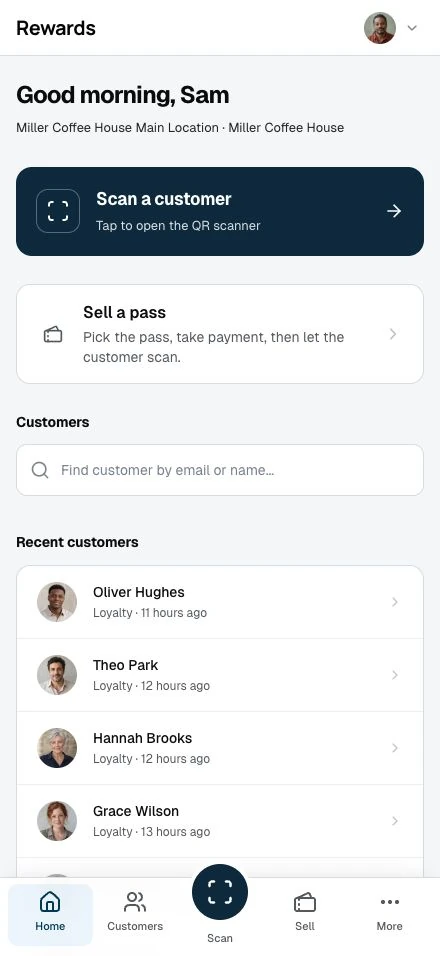
- Start from one of three entry points:
- Scan QR: Scan the customer's earn code
- Recent customers: Open a customer, then their stamp card
- The customer shows you their code and you scan it
- From the customer's stamp card you can add a stamp or view their history
Add stamp page
The Add stamp page opens after you scan a customer's QR code or look them up by hand. It shows:
- A compact customer card at the top so you can confirm you have the right person
- A stamp progress bar showing the customer's current count and what is required (for example, 4 / 10). A "Reward ready" notice appears here when a completed card is waiting to be claimed
- A purchase amount field (required only when the program has a minimum spend)
- A stamps to award selector (only visible when the card allows more than one stamp per visit)
- An Add stamp button, the only action on the page
- A collapsible Stamp card rules panel with the full program details
- A collapsible Add a photo or note panel for an optional receipt photo and an internal note
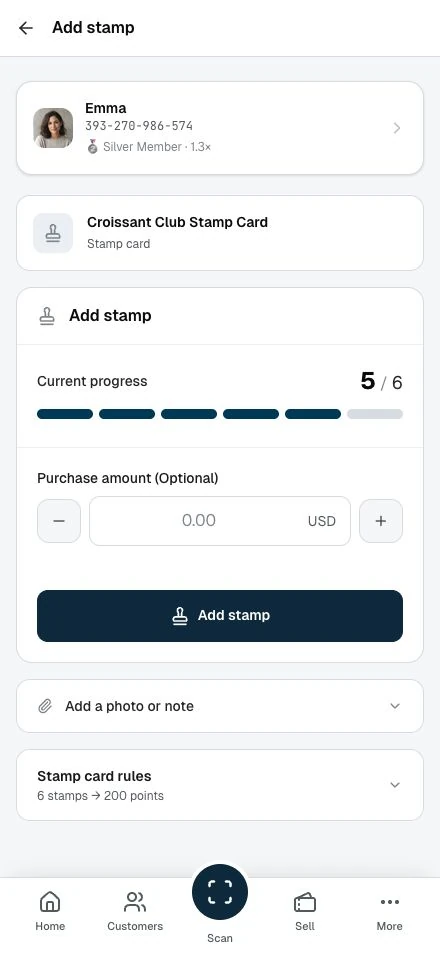
Tap the back arrow in the top bar to return to the customer without saving.
Mobile device
For QR scanning:
- Tablet or smartphone with camera
- Staff portal open in your browser, or installed to the home screen (see below)
- Good lighting for scanning
- Steady hand for quick scans
Best practices:
- Keep device charged
- Clean the camera lens often
- Adjust screen brightness
- Have backup manual process ready
Install to your device
The staff portal installs to a phone or tablet like an app. Open it in your browser, then add it to the home screen: Share → Add to Home Screen on iPhone or iPad, or the Install prompt on Android. It launches full screen with its own Staff icon, so the address bar stays out of the scanner's way and the screens you use every shift load fast.
If the connection drops mid-shift, a reconnect screen takes over and refreshes itself the moment you are back online. Issuing stamps, selling passes, and redeeming rewards always need a connection. The install makes the app faster and steadier, it does not let you record sales offline.
Quick reference
Adding stamps (QR scan)
- Customer shows QR code
- Scan with your device
- Verify customer and card
- Tap Add stamp
- Confirm success
Time: 3-5 seconds
Adding stamps (manual)
- Ask for customer identifier
- Search in members list
- Find customer's stamp card
- Tap Add stamp
- Enter details and save
Time: 30-60 seconds
Processing rewards
- Customer shows reward QR code
- Scan code
- See reward details
- Give physical reward
- Confirm in system
Time: 15-30 seconds
Undoing a stamp
If you added a stamp by mistake, open History from the result screen or the stamp row on the customer overview. Tap Undo recent stamp and confirm. You can reverse your own most recent stamp, never a colleague's, and you see the original entry beside its reversal. You can undo each stamp once.
Time: 3-5 seconds
Common scenarios
Scenario 1: Regular customer
Customer: "I'd like to collect a stamp, please."
You:
- Complete the sale
- Ask customer to show their QR code
- Scan the code, check the details, and tap Add stamp
- Say: "Great! You now have 8 of 10 stamps. Just 2 more!"
- Thank them and complete transaction
Scenario 2: New customer
Customer: "What's this stamp card program?"
You:
- Explain: "Collect 10 stamps and get a free large coffee!"
- Say: "You get one stamp with each coffee purchase."
- Add: "I can add your first stamp right now if you'd like."
- Scan their QR code, check the details, and tap Add stamp
- Confirm: "You're all set! You have 1 stamp now."
Scenario 3: Completed card
Customer: "I think I just completed my card!"
You:
- Scan their QR code
- System shows completion
- Say: "Congratulations! Your reward is ready!"
- If points: "1,000 points have been added to your account."
- If physical: "Come back anytime to claim your free coffee!"
Scenario 4: Reward redemption
Customer: "I'm here to claim my free coffee!"
You:
- Ask: "Great! Can you show me your reward QR code?"
- Scan the code
- Confirm reward details on screen
- Prepare the free coffee
- Give to customer
- Tap Claim reward
- Say: "Enjoy! Your card already started its next round, so keep collecting."
What to expect
Busy times
During rush hours:
- QR scanning is fastest
- Have device ready
- Keep process smooth
- Minimize conversation
Tips:
- Scan while preparing order
- Confirm out loud ("Got it!")
- Move on to the next customer
Technical issues
If QR code won't scan:
- Try again with better lighting
- Ask customer to increase brightness
- Use manual entry as backup
- Apologize for delay
If system is slow:
- Complete the sale first
- Add stamp when system responds
- Assure the customer you'll add it
- Follow up if needed
Customer questions
Common questions you'll hear:
- "How many stamps do I have?"
- "How many more do I need?"
- "What's my reward?"
- "Can I use this at other locations?"
- "Why didn't I get a stamp?"
Be prepared to:
- Check their progress
- Explain requirements
- Describe rewards
- Clarify eligibility
Best practices
Ask every time: Make it a habit to ask every customer if they're collecting stamps.
Be enthusiastic: Celebrate progress and completions with customers.
Stay informed: Know which stamp card programs are active.
Handle errors with grace: If something goes wrong, apologize and fix it.
Be clear: Explain what's happening and what customers should expect.
Training checklist
Before working on your own with stamp cards, ensure you can:
- Sign in to the staff portal
- Access the stamp card features
- Scan customer QR codes
- Add stamps by hand if needed
- Verify customer eligibility
- Process reward redemptions
- Handle common errors
- Answer basic customer questions
- Know who to ask for help
Getting help
For technical issues:
- Contact your manager
- Check troubleshooting guide
- Report system problems
For customer disputes:
- Listen to the customer
- Check transaction history
- Escalate to manager if needed
- Document resolution
For training questions:
- Ask experienced colleagues
- Review this documentation
- Request additional training
Next steps
- Adding stamps: Master the scanning process
- Adding stamps: Learn backup methods
- Processing Rewards: Handle redemptions