Your business page.
A branded public page for your business, with a permanent QR and a shareable link
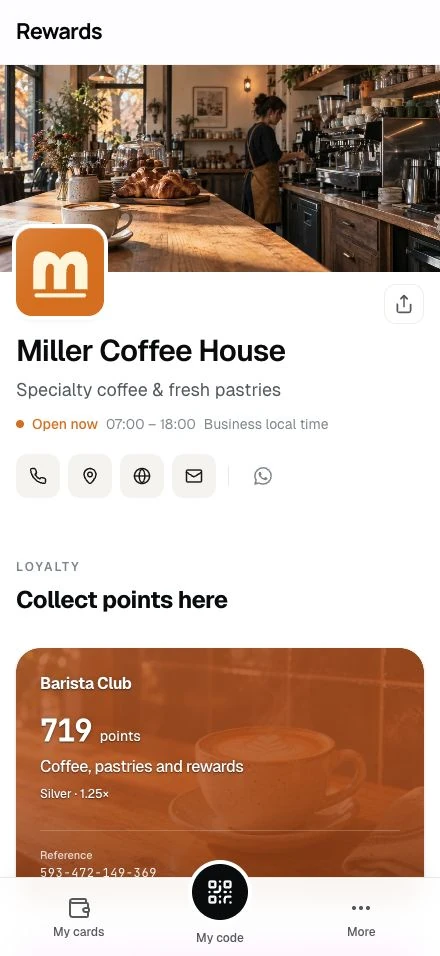
Your business page is one branded page that shows everything you run in one place: your active loyalty cards, stamp cards, vouchers, and prepaid passes, alongside your logo, cover image, tagline, contact actions, and opening hours.
It is the page to put behind a QR on the counter and a link in your bio. Customers see only your business, never anyone else's.
What the page shows
- Your business profile from Business settings: logo, cover image, name, tagline, open or closed status with today's hours, and the contact actions (call, directions, website, email) for the fields you publish.
- Your programs, grouped by type: loyalty cards, stamp cards, vouchers, and prepaid passes. Every active, in-date program you run appears here, whether or not you set it to show on the shared homepage. The homepage-visibility toggle is about the shared listing, not your own page. The private per-member rewards stay off: tier-only vouchers, and the birthday and win-back copies sent to individual customers.
- A share button and a Save contact link, so a customer can pass the page on or add your details to their phone.
- A Locations section, when the operator runs discovery and you gave a location its own public place in Business settings: each location shows its address, category, and open or closed status by its own hours, and the shared homepage links a program straight to its location on this page.
- Search-engine data. With discovery on and an address or map point set, the page describes your business to search engines with your public address, map point, category, and weekly hours. Only what you entered; never anything about your customers. When hours are unset, the page omits the schedule and its open-or-closed status.
If you have not published a program yet, the page still works and shows visitors a short "rewards are on the way" note. It updates the moment you publish your first program.
Two addresses, one page
Your page has two web addresses, and both open the same page:
- A permanent link built from a short code that never changes. This is what the QR encodes.
- A shareable link built from your business name. This is the friendly address for bios, chats, and printed material where a person reads the link. Scanning the QR sends customers here too, so the address they see and pass on is the readable one.
The split matters: the permanent link is safe to print because nothing you do day to day can change it. Rename your business, launch a new campaign, and every sticker and counter card you already printed keeps working.
You can rename the shareable link under Business settings → General → Page link. A rename keeps what you shared working: the old friendly link forwards to the new one, so bios, posts, and messages that used it still reach your page. The printed QR keeps working too, because it uses the permanent address, and the permanent code itself is never editable.
Turn the page off
The page is live from the start. To hide it, turn off Show my business page under Business settings → General. Visitors then see a "page not available" screen, no different from a page that never existed. Your QR still works: the code stays in the QR studio, and turning the page back on restores it at once. Hiding the page is a pause, never a delete.
Print the QR
Your business page is a target in the QR studio, pinned at the top of the list. Open the studio, pick Business page, and you get the same tools as every other QR: colours, a centre logo or emoji, and PNG, SVG, or print-ready export.
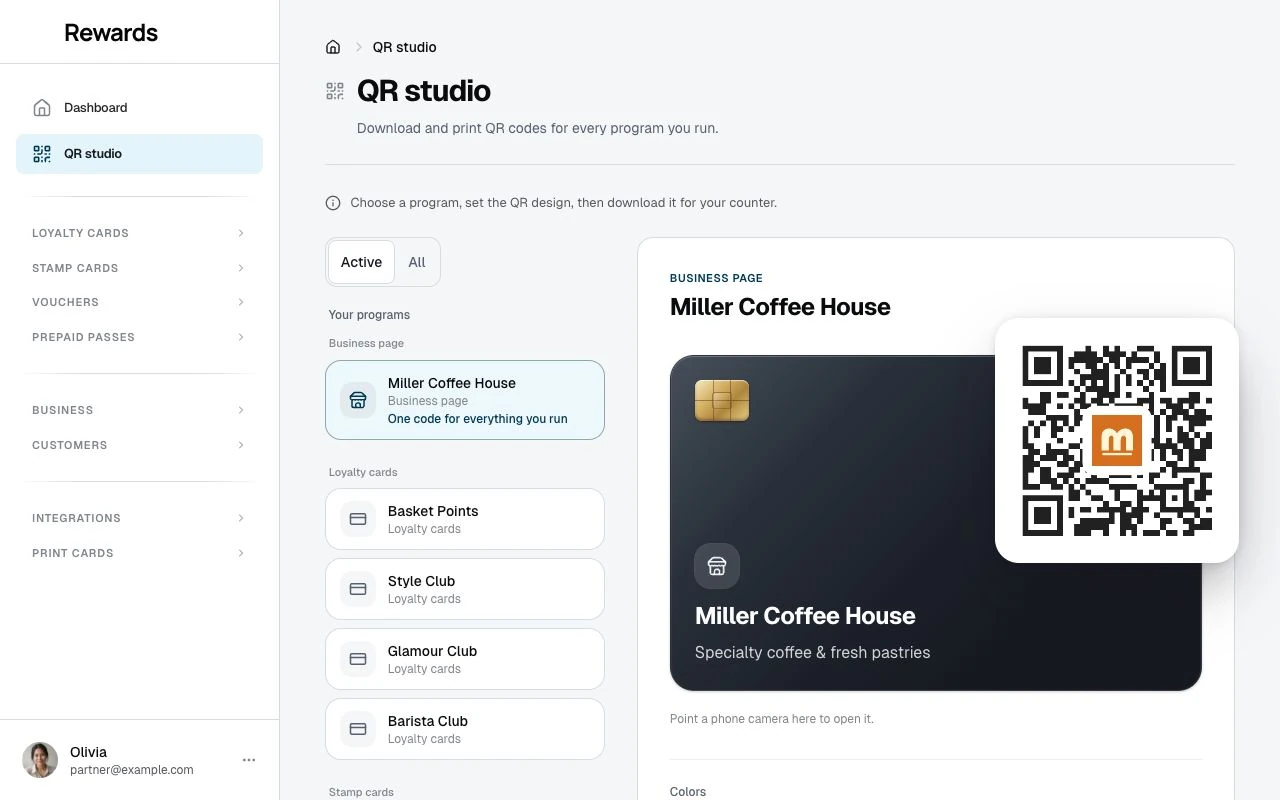
- The QR uses the permanent link. It keeps working while your installation uses the same domain and the business page remains available.
- Copy link copies the friendly, shareable address.
- Open page shows you what a customer sees.
- One QR serves every language. It detects each visitor's language and opens the page in theirs, so you never print a separate code per language.
You can print the code the day you set up, even before you publish a program. The link never changes, so the sticker you print today keeps working as your programs come and go.
What can go wrong
- The QR opens a "page not available" screen. The business account is inactive, or you have turned off Show my business page in Business settings. The QR itself is fine and keeps working the moment the page is available again.
- A program is missing from the page. Check that the program is active and within its dates. Tier-only vouchers and the birthday and win-back copies sent to individual customers never appear here, by design.
Where to check
Open the QR studio and select Business page, then use Open page to view your live page as a customer sees it.