
Cookie consent & compliance.
Configure the cookie consent banner and connect custom scripts to each visitor's choice.
On this page
The cookie consent banner lets visitors accept or decline optional cookies. Custom tracking scripts must check this choice before they run. Turning on the banner alone does not block scripts you add to the site.
Accessing compliance settings
- Navigate to Settings in the admin sidebar
- Click the Compliance tab
You can also configure these settings via environment variables in your .env file.
Enable cookie consent banner
Controls whether visitors see the cookie consent banner.
Default: Disabled (false)
Via admin dashboard
- Navigate to Settings > Compliance tab
- Toggle Enable Cookie Consent Banner on or off
- Click Save Changes
Custom tracking: Ask your developer to connect optional scripts to the consent helper below. The banner does not scan or block arbitrary scripts.
Via environment file
# Show cookie consent banner
APP_COOKIE_CONSENT=true

# Hide cookie consent banner (default)
APP_COOKIE_CONSENT=false
How it works
When enabled, visitors see a banner asking them to accept or decline cookies.
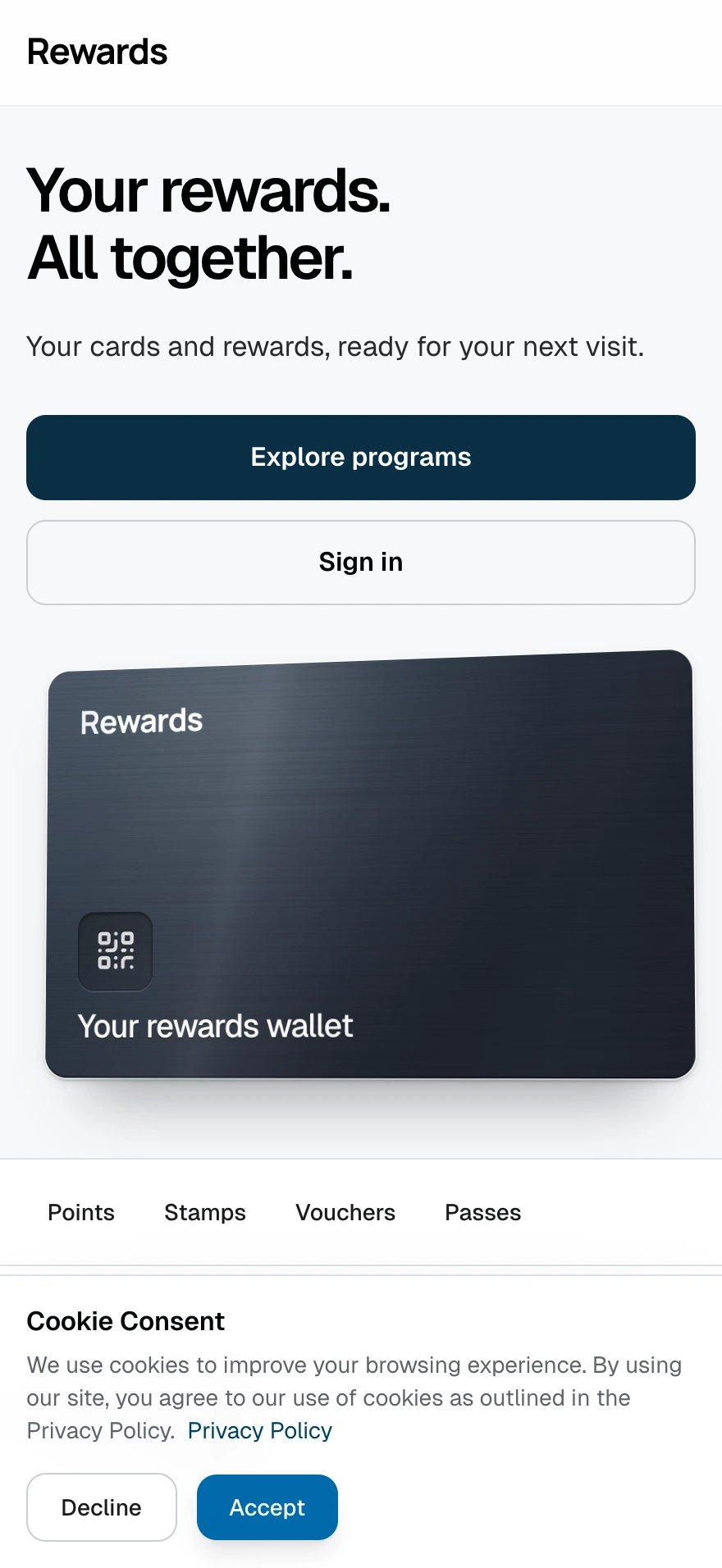
When a user makes a choice, the system saves their preference in a cookie_consent cookie:
- Accept: The consent helper returns
true - Decline: The consent helper returns
false
A cookie stores the consent choice and expires after 30 days; after that, the banner reappears. The preference also resets earlier if the user clears their cookies.
Developer integration
Checking consent in PHP
If you're developing custom features, you can check for consent in your PHP code:
use App\Http\Controllers\Cookie\CookieController;

if (CookieController::userConsentsToCookies()) {
    // The visitor accepted optional cookies, or the banner is disabled.
}
Checking consent in Blade templates
Conditionally load scripts (like Google Analytics) based on consent:
@if (\App\Http\Controllers\Cookie\CookieController::userConsentsToCookies())
    <!-- Load Analytics Script -->
    <script>...</script>
@else
    <!-- Do not load optional tracking scripts -->
@endif
Default behavior
If APP_COOKIE_CONSENT is set to false (disabled), the system assumes consent is granted by default, and userConsentsToCookies() returns true.
Privacy policy
The consent banner links to your Privacy Policy. Ensure this policy accurately reflects your data usage.
To edit the Privacy Policy:
- Open Languages in the admin sidebar, under System.
- Select the name of a language your visitors use to open its translation editor.
- Search for
privacy, select the Privacy page, update the text to match your legal requirements, and select Save changes.
Repeat this for every available language. Your edits survive updates. See Edit a content page or the FAQ for the page editor and its Markdown rules.
Testing the banner
After enabling cookie consent:
- Open your application in a private/incognito browser window
- Verify the banner appears on page load
- Test both Accept and Decline options
- Confirm the banner doesn't reappear after making a choice
Tip: Use your browser's developer tools to delete the
cookie_consentcookie if you want to test the banner again.
Privacy regulations & compliance
Configure consent for the scripts you use and keep your privacy policy accurate. The banner records a choice; it does not establish that your installation meets every privacy requirement.
External integrations and member data
When you enable integrations, member data crosses system boundaries. Your Privacy Policy should name each integration you use and what it shares:
| Integration | Data shared outward | Data received | Why |
|---|---|---|---|
| Shopify | Discount creation requests | Order details with billing name and email | Match customers to members, award points, create reward discounts |
| WooCommerce | Coupon creation requests, including the member's email address as a usage restriction | Order details with billing name and email | Match customers to members, award points, create discount coupons |
| Google Wallet | Card design, member name, balance and pass state | Save and removal events | Generate and update wallet passes |
| Stripe | Partner billing details (handled by Stripe Checkout) | Subscription status | Partner subscription billing |
Two points deserve special attention with the store integrations:
- Members can be created from store orders. A customer who orders in a connected Shopify or WooCommerce store gets a loyalty account from their billing email. The account starts with Loyalty updates on, so it receives email about its own activity: a welcome message, points received, and coupon codes. Offers and news starts off, and a store order is never treated as marketing consent: the member receives no campaigns or offers until they opt in themselves. Every loyalty email carries a manage-preferences link, and members can switch loyalty updates off in their account. Whether this fits the consent rules in your jurisdiction is your responsibility as the operator; mention it in your store's privacy policy and checkout terms where required.
- Credentials stay on your installation. The installation keeps store API keys encrypted and deletes them when a partner disconnects. Webhook logs store order metadata and hashed email addresses, never the address itself.
See WooCommerce and Google Wallet for each integration's data table.
Troubleshooting
Banner not appearing
Possible causes:
- Setting wasn't saved
- Browser cached the old page
- User already made a choice (cookie exists)
Solutions:
- Verify the setting is enabled and saved
- Hard refresh:
Ctrl+Shift+R(Windows/Linux) orCmd+Shift+R(Mac) - Delete the
cookie_consentcookie in browser developer tools - Try in a private/incognito window
Banner appears every time
Cause: The cookie_consent cookie isn't being saved.
Solutions:
- Check your browser allows cookies
- Verify your
SESSION_DOMAINin.envmatches your actual domain - Ensure you're not running on
localhostwith a domain mismatch
Important notes
- Settings configured in the Admin Dashboard override environment file values
- Changes take effect right away for new visitors
- Existing visitors retain their previous consent choice
- The banner is not shown if consent cookie already exists
Related topics
- System settings: Overview of all admin configuration
- Branding: Customize your installation appearance
- Languages & translations: Edit Privacy Policy content