Viewing customer history.
Access customer stamp collection history and progress
View customer stamp card transaction history to answer questions, verify progress, and provide excellent customer service.
Accessing customer history
From members list
- Open Recent customers in the staff portal, or search the Customers tab by name or email (email shows masked; there is no phone lookup)
- Click the customer's name to open their overview
- Locate the Stamp cards row
- Click History on the stamp card to view its record
What you'll see
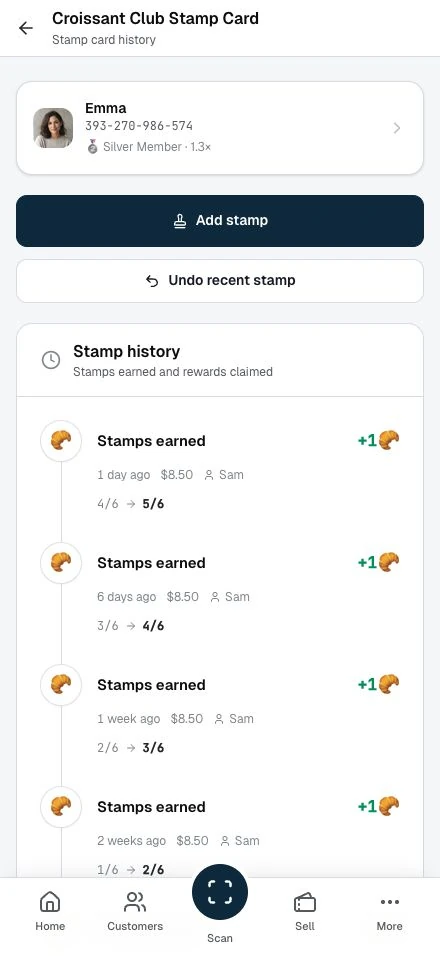
Member information card:
- Customer name
- Membership tier
- Club affiliation
- Quick stats (points, tier progress)
Stamp card preview:
- Visual stamp grid
- Current progress (X/Y stamps)
- Completion percentage
- Status (active, completed, etc.)
"Add Stamp" button:
- Quick access to add stamps
- Pre-filled with customer info
- Useful for manual entry
Transaction timeline:
- Complete history of stamp activities
- Chronological order (newest first)
- All transaction types
- Full details for each entry
Understanding the timeline
Transaction details
Each entry shows:
Event type:
- Stamp earned
- Bonus stamps
- Card completed
- Reward redeemed
- Stamps adjusted
- Stamps voided
Stamp change:
- How many stamps added or removed
- Positive (+1, +2) or negative (-1)
- Running total
Before/after counts:
- Stamps before transaction
- Stamps after transaction
- Easy verification
Date and time:
- When transaction occurred
- Precise timestamp
- Sorted by most recent
Staff attribution:
- Which staff member processed
- Your name appears on your transactions
- Accountability and tracking
Purchase amount:
- Transaction value if recorded
- Optional field
- Internal use only
Internal notes:
- Context about transaction
- Special circumstances
- Staff comments
- Not visible to customers
Common use cases
Verifying customer claims
Customer says: "I should have 8 stamps, but I only see 7."
You do:
- Look up customer
- Open stamp card history
- Count transactions
- Verify current count
- Explain any discrepancies
If customer is correct:
- Add missing stamp
- Add note explaining correction
- Apologize for error
If system is correct:
- Show customer the history
- Explain each transaction
- Help them understand
Checking recent activity
Customer says: "Did my stamp from yesterday get added?"
You do:
- Open customer history
- Look at recent transactions
- Find yesterday's date
- Confirm stamp was added
- Show customer if needed
If stamp is there: "Yes, I see it here. You earned a stamp yesterday at 2:30 PM. You're at 6 of 10 now."
If stamp is missing: "I don't see a transaction from yesterday. Let me add it for you now."
Understanding progress
Customer asks: "How many more stamps do I need?"
You do:
- Open stamp card
- Check current progress
- Calculate remaining stamps
- Tell customer
Example: "You have 7 of 10 stamps, so you need 3 more to complete your card!"
Investigating issues
Customer reports: "Something seems wrong with my stamps."
You do:
- Review complete history
- Look for unusual patterns
- Check for voids or adjustments
- Identify any errors
- Escalate to manager if needed
Common issues to spot:
- Duplicate stamps
- Missing stamps
- Incorrect voids
- System errors
Information you can see
As staff, you have access to:
Customer information
- Full name
- Account identifier
- Membership tier
- Club affiliation
- A masked email address (privacy: you never see the full address)
Transaction details
- All stamp activities
- Purchase amounts
- Staff who processed
- Internal notes
- Before/after counts
- Timestamps
Program information
- Stamp card name
- Stamps required
- Current progress
- Completion status
- Reward details
Information customers don't see
Purchase amounts: Customers don't see transaction values in their history.
Staff names: Customers don't see which staff member added stamps.
Internal notes: Customers don't see staff comments or notes.
This information is for:
- Internal tracking
- Customer service
- Quality control
- Analytics
Using history for customer service
Answering questions
"When did I earn my last stamp?"
- Look at most recent transaction
- Tell customer the date and time
"How long have I been collecting?"
- Scroll to first transaction
- Note the enrollment date
- Calculate time period
"How many times have I completed this card?"
- Count completion transactions
- Tell customer their total
"What happened to my stamps?"
- Review timeline for voids or expirations
- Explain what occurred
- Resolve if error
Resolving disputes
Customer claims error:
- Listen to their concern
- Review history together
- Look for evidence
- Verify their claim
- Resolve it
If customer is right:
- Apologize
- Correct the error
- Add note documenting resolution
- Thank them for bringing it up
If system is correct:
- Explain what happened
- Show evidence
- Help them understand
- Offer to escalate if they're unsatisfied
Providing context
Customer confused about transaction:
- Read the internal note
- Explain what happened
- Provide context
- Clarify any confusion
Example: "I see a note here that says 'Birthday bonus.' It looks like you received an extra stamp for your birthday!"
Best practices
Accuracy
Verify:
- Customer identity before sharing information
- You're looking at correct stamp card
- Transaction details before explaining
Never:
- Share information with wrong person
- Guess if you're unsure
- Make up explanations
- Modify history without manager approval
Privacy
Protect customer data:
- Don't discuss with other customers
- Don't share your screen in public
- Keep information confidential
- Follow privacy policies
Only access when:
- Customer requests help
- Resolving an issue
- Processing a transaction
- Manager directs you to
Communication
Be clear:
- Use simple language
- Avoid technical jargon
- Explain what you're seeing
- Confirm customer understands
Be helpful:
- Offer to show them
- Walk through history together
- Answer all questions
- Provide solutions
Limitations
What you cannot do
Cannot delete transactions:
- Corrections add void entries. Staff cannot delete history; member privacy deletion is a separate account action
Cannot edit past transactions:
- Records are immutable
- Ensures accuracy
- Prevents tampering
Cannot see other clubs:
- Limited to your club
- Can't access other locations
- Privacy and security
Corrections
Your own latest stamp: use Undo recent stamp on this history page. It reverses only your own most recent stamp, once, as an audited void entry.
A colleague's latest entry: ask the business owner to check the history before using Delete last stamp. For older or multiple corrections, contact the administrator. Pass on the customer's name and the affected transactions; do not repeat a correction that already has a reversal.
Troubleshooting
"Cannot find customer"
Possible causes:
- Misspelled name
- Wrong identifier
- Customer at different club
Solutions:
- Try different search terms
- Ask customer for correct spelling
- Verify club location
- Check with manager
"Stamp card not showing"
Possible causes:
- Customer not enrolled
- Wrong club selected
- Program was deleted
Solutions:
- Verify customer has stamps
- Check if program is active
- Ask manager for help
"History not loading"
Possible causes:
- Network issue
- System maintenance
- Large transaction volume
Solutions:
- Refresh the page
- Wait a moment and try again
- Check internet connection
- Report to manager if persists
Training tips
Practice looking up customers
Before working on your own:
- Practice with test accounts
- Try different search methods
- Review various histories
- Get comfortable with the layout
Learn to read timelines
Understand transaction types:
- What each event means
- How to interpret changes
- What to look for
- How to explain to customers
Develop customer service skills
Practice explaining:
- Transaction history
- Stamp counts
- Completion status
- Reward details
Role play scenarios:
- Customer disputes
- Missing stamps
- Confusion about progress
- Questions about history
Next steps
- Troubleshooting: Solve common problems
- Processing Rewards: Handle redemptions
- Adding stamps: Add stamps without QR codes