Creating cards.
Design and configure your loyalty card
Loyalty cards are central to your rewards program. Each card defines how customers earn points, what they can redeem, and how it looks.
Prerequisites
Before creating a card:
- Create at least one club
- Create at least one reward
Creating a card
Select From new card to first scan above the list to open the guide. It starts collapsed on each page load; its QR studio link remains available inside.
- Go to Cards in the partner sidebar
- Click Create Card
- Configure each section (detailed below)
- Click Save
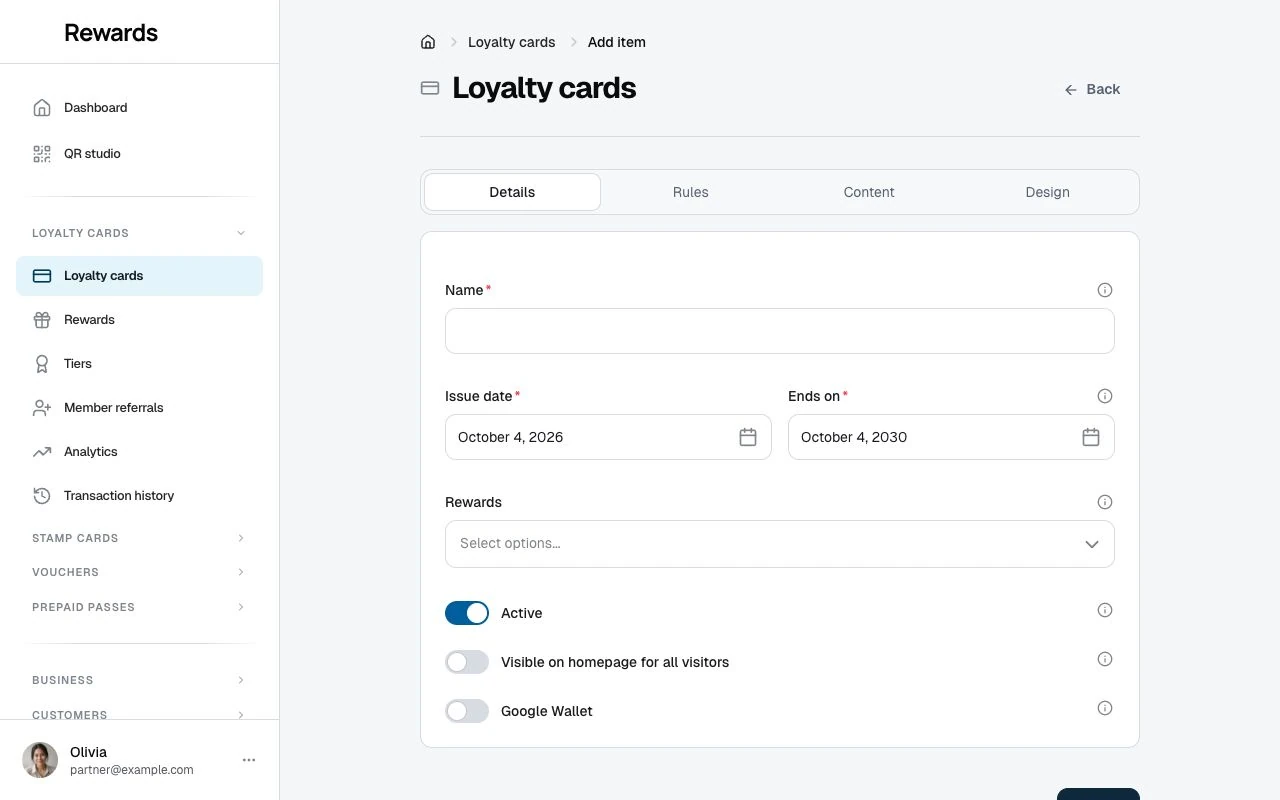
General settings
| Setting | Description |
|---|---|
| Name | Internal name for the dashboard. The translated Head in Content is the name members see. |
| Club | Which club this card belongs to |
| Issue Date | When the card becomes available |
| Ends on | Required end date. The creation form starts with a date four years ahead; you can change it. |
| Active | Whether the card is active |
Active vs. expired
The list and details show Status from the active setting and issue/expiry dates. Scheduled means the issue date is ahead. Inactive takes priority when you retire the card. Unavailable means the card cannot be offered under its current club or business state. Homepage visibility remains separate.
- Available: The card is active and within its issue/expiry dates, with an available club and business.
- Inactive: The card is retired. It leaves public listings and accepts no new members and no new points. Members who still hold a balance keep the card in their wallet's Winding down section and can spend it, at the counter and online, until it runs out.
- Expired: Card shows "Expired" label. Members can still see it in My Cards but can't earn new points.
Visibility
Visible on Homepage: When enabled, anyone visiting the site can discover your card on the public homepage.
Hidden (QR only): Customers reach the card only by scanning its QR code or a direct link. Use this for exclusive programs.
Your administrator controls whether you have permission to show cards on the homepage.
Point rules
Define how customers earn points:
| Setting | Description |
|---|---|
| Initial bonus points | Bonus points a customer earns with their first transaction on the card |
| Issued points expire after | How many months earned points stay valid, counted from each transaction (default 12) |
| Purchase amount | Purchase amount used by the earning rule |
| Currency | Currency of the purchase amount |
| Points earned | Points awarded for that purchase amount (e.g., 100 points for 1 EUR) |
| Round points up? | On: fractional results round to the nearest whole point. Off: they round down |
| Min Points Per Purchase | Floor on points per transaction (leave empty for no minimum) |
| Max Points Per Purchase | Ceiling on points per transaction (leave empty for unlimited) |
Example: 1 point per $1 spent, with a 10-point initial bonus.
Max Points Per Purchase is the hard ceiling on points awarded in a single transaction. This limit applies after tier multipliers. If a card caps points at 1,000 and a Gold tier member has a 2× multiplier, a purchase that calculates to 1,200 points after the multiplier still earns 1,000.
Leave "Max Points Per Purchase" empty if you want no ceiling. This is common for high-value programs where you want multipliers to scale without restriction.
💡 Tip: Set "Points earned", "Min Points Per Purchase," and "Max Points Per Purchase" to 0 if you want a referral-only card where points come from bonuses rather than purchases.
Points expiry
Each batch of points takes its expiry date from Issued points expire after above at the moment a member earns it. A card's balance never includes expired points, so nothing here changes what a member can spend. The sweep and the reminder below make that fact visible on the ledger and in the wallet.
- The nightly sweep. Once a day at 03:30, the app closes out points past their expiry date and records each expiry as its own "Points expired" entry on the ledger, visible in the member's card history and in your transactions list. Balances never move when it runs; it records what already happened. On installs without cron, the first admin, partner, or staff activity of the day triggers it instead, and you can run it by hand from the Health center's Scheduled tasks panel.
- The expiry reminder. A member with points expiring within 30 days gets one email per card, naming the total points expiring and the date the earliest batch expires. It sends once per batch: a new batch entering the 30-day window triggers the next reminder. Members who turned off Loyalty updates in their email preferences get none.
- The wallet signal. On My Cards, a card with points expiring within 30 days shows a small amber line ("120 points expire August 1") linking straight to the card. This is the in-app cue for expiring points.
- What "reminders sent" means. The counter on the Scheduled tasks panel is the number of reminder emails sent, never a count of members reached.
See Health center for how the scheduled tasks panel works.
Content
The Content tab holds the customer-facing text: the card's head (the name members see), an optional title, and a description. All three use the shared translation controls: write in the primary language, then open Show more languages (optional) when you need another translation.
Design
Customize your card's appearance:
| Setting | Description |
|---|---|
| Background color | Main card color |
| Text color | Color of text on the card |
| Background image | Optional image behind the card |
| Background opacity | How visible the image is (100 = solid color) |
| Logo | Your business logo |
Design tips:
- Use your brand colors
- Ensure text is readable against the background
- Keep the logo simple and recognizable
- If using an image, lower opacity for readability
The Design tab also holds the card's contact details: a website link, a route link (for example a Google Maps URL), and a phone number.
Google Wallet: If you enable Google Wallet on this card, the wallet pass reuses your logo, background color, and background image. Upload a logo to avoid a generic icon. See Pass Design in Google Wallet for details.
Apple Wallet: Open Apple Wallet in the partner sidebar to offer this card, choose Wallet artwork and colors, and download a safe sample. The Apple pass carries a staff QR and links to live details without printing the member's changing balance. See Business controls and pass design.
Artwork upload limits
Card backgrounds and logos accept JPEG, PNG and GIF files up to 20 MiB per file, subject to a lower hosting limit. The upload field shows the effective file limit and required dimensions. Backgrounds must be 320×240 to 1920×1440 pixels; loyalty-card logos must be 20×20 to 1920×1440 pixels.
The same file-size policy applies to stamp cards, vouchers, prepaid passes and reward photos. Each field keeps its own dimension limits. Smaller, compressed images help pages load faster.
PHP and web-server limits still apply to each upload and the total form submission. If hosting allows less, ask your server administrator to review those limits; changing card settings cannot raise them.
Rewards
Select which rewards this card offers. Each choice shows its name and point cost, for example Reward name (100). You can choose multiple rewards at different point levels.
The Rewards list shows the internal names of linked cards. Use its Loyalty card filter to check the rewards assigned to this card.
After creation
On phones, the list keeps the card name, status and QR visible. Details shows secondary information. Show all columns reveals secondary columns on narrower table views.
Once saved, your card has:
- A unique link: Share this URL
- A QR code: Download and display in your location
- Analytics: Track performance from day one
- Optional (Early Access) store integrations: Link it to a Shopify or WooCommerce store for online point earning (if enabled)
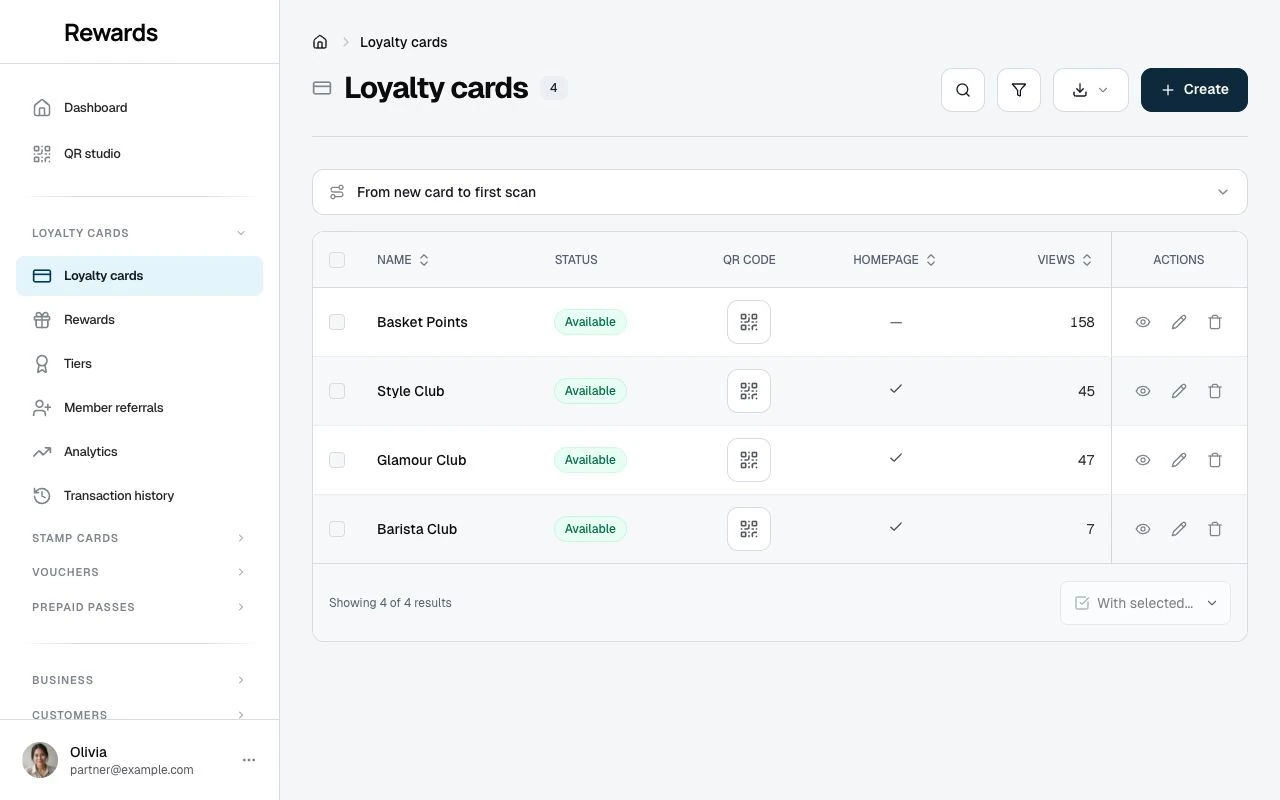
When you save a card, the cards list greets you with a short card naming what went live and pointing at the next step. Brand the QR code opens the QR studio already selected on your new card, and Print member cards opens the Card studio when your plan includes member cards. That card shows once and clears when you move on. The list itself also carries a calm, dismissable guide that walks a card from idea to the first scan at checkout, so the whole path stays in view.
Store integrations
Early Access: The store integrations are in early testing. Each one must be enabled by the installation owner (
FEATURE_SHOPIFY=trueorFEATURE_WOOCOMMERCE=truein the.envfile).
You can link cards to a Shopify or WooCommerce integration for automatic point earning on online purchases. When connected, customers earn points using this card's rules whenever they shop in the linked store: the same points per unit, the same minimum and maximum per purchase, and the same initial bonus points for first-time customers. Tier multipliers apply to counter purchases only, not to online orders.
See Connecting Your Shopify Store or WooCommerce to set up automatic online point earning.
Editing cards
You can edit cards anytime. Changes take effect at once for:
- Design changes
- Rule changes
- Reward selection
- Visibility settings
Existing member balances stay put when rules change.