
Approvals.
Which changes wait for your approval, how the review page works, how long a request lasts and what each state means.
On this page
An approval is how a risky change from an AI client waits for you. The client asks, Reward Loyalty prepares a request, and nothing changes until you decide on the review page. This page is for the platform owner and business owners.
What needs approval
A change needs approval when the tool is marked Waits for approval in the Admin tools or Business tools tables. These are the groups.
- Deletes. Deleting records, such as a business, member, network, club, card, reward, stamp card, voucher, voucher batch, pass, tier, staff member, segment, email campaign or webhook endpoint.
- Removing history. For the platform owner, undoing a member's last transaction, stamps, voucher redemption or pass visit. For a business owner, deleting the last transaction, stamps or voucher redemption. Purging old activity logs and unused anonymous members.
- Sending email. Sending an email campaign or its next batch. For the platform owner, replying to a support ticket, because the reply emails the person who wrote it.
- Changes that start emails to members.
- Switching on an automatic email.
- Starting or resuming the achievements program.
- Changing a tier in a way that moves members, when tier emails or tier vouchers would reach them.
- Creating or changing a voucher that would be emailed to tier members at once.
- Reactivating a voucher or club that an automatic email depends on.
- Money. Spending from a stored-money pass, reversing a spend and selling a stored-money pass.
- Access and plans. Moving a business to another plan, deactivating a business, and editing or resetting a plan.
- Sensitive settings. The app URL, who can sign up, the mail sender, homepage layout and a few feature switches.
- Outside systems. Disconnecting a store, and redeeming points for a store coupon.
Changes that run without approval are everyday ones: creating and updating records, running the counter, saving drafts. Each is recorded in the activity log.
Where the call comes from decides part of this:
| Path | What waits for approval |
|---|---|
| Over MCP | Tools marked Waits for approval or Waits for approval over MCP, and a change marked waits for approval for a condition when that condition applies. |
| Over the HTTP Agent API | Tools marked Waits for approval, and a change marked waits for approval for a condition when that condition applies, such as one that starts emails to members. Deletes and stored-money moves marked Waits for approval over MCP run at once. |
How a request moves
- The AI client asks for the change.
- Reward Loyalty checks access and the plan, records the request, and answers with a review link. Nothing has changed.
- The AI client gives you the link. You can also open Approvals yourself.
- You open the review page and read the change.
- You click Approve or Reject.
- If you approve, the AI client runs the change.
Before it runs, Reward Loyalty checks again that the connection is still active, the owner is still active and holds the role, the access still allows the change, and the record is as you reviewed it. The change runs at most once. If the AI client repeats the same call, it gets the stored result. Any other repeat is refused.
The review page
The page opens on your phone or your computer. It shows:
- A sentence that names the change, for example Delete the club "Main Street pop-up".
- Which client asked, through which connection, and when.
- What this touches: what the change takes with it, counted before you decide. A delete says how many programs, members or records it removes.
- What changes: the value now and the value after.
- For stored money, Money on the pass with the balance before and after.
- For an email, the recipient count, the subject and the full text.
- How much time is left, with a countdown.
- Approve and Reject.
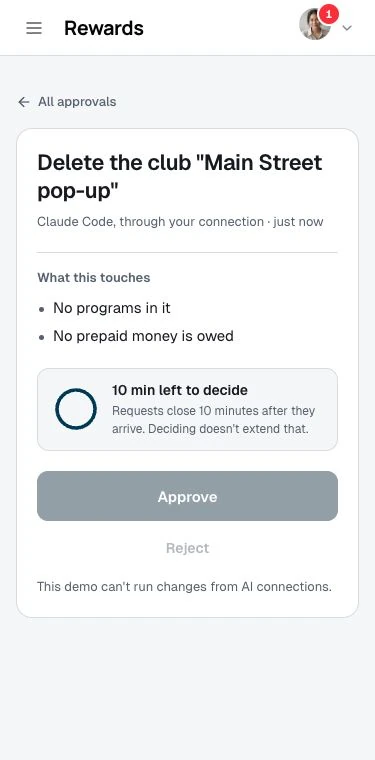
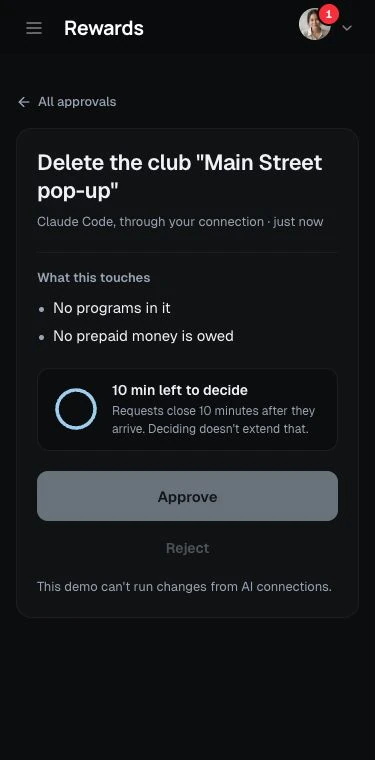
These screenshots use the demo, where decisions are disabled. On your installation, the connection owner can approve or reject an open request.
Read the change before you click. If the sentence or the counts surprise you, click Reject. Nothing changes.
Only the owner of the connection can decide. Another admin or business owner gets a not found page for your request.
Time limits
A request closes 10 minutes after the AI client prepared it. Deciding doesn't extend that. The page shows N min left to decide. After you approve, it shows how long the AI client has left to make the change.
If the 10 minutes pass, the request expires. Ask the AI client to prepare the change again.
States
| State | What it means |
|---|---|
| Waiting for your decision | You haven't decided yet. |
| Approved | You approved it. The AI client can now make the change. |
| Done | The change ran. |
| Rejected | You rejected it. Nothing changed. |
| Expired | The 10 minutes passed before the change ran. |
| Not run: the record changed | The record changed after you reviewed it, or a run failed partway: on the server, at a store, or because it stopped before it finished. It can't run again. Check the record, then ask the AI client to prepare it again. |
If Reward Loyalty refuses the change, for example because a field is wrong, the activity log records AI change couldn't run. Nothing changed, so the request stays approved until its 10 minutes end and the AI client can fix the call and try again. A change that fails on the server closes instead, because part of it may have run. The review page of an approved change updates itself and moves to Done when the change runs.
Where to find requests
- A red count on your account avatar means a request is waiting for your decision. Open the account menu, then choose Approvals; the same count appears beside it. On desktop the account menu is at the bottom of the sidebar. On a phone, tap your avatar at the top.
- Approvals appears in the account menu only while decisions are waiting. Opening the menu does not clear the count. Expired and already decided requests do not count.
- Pending decisions remain accessible if your plan changes or AI connections are turned off. You can also open the full request history from the Approvals button on the AI connections page.
Each page lists what is Waiting for you and what is Recent. The activity trail of each connection shows one line per request, such as Prepared: Delete the club "Main Street pop-up" → approved by you → done.
What the AI client sees
The AI client gets the request's id, a short summary, the review link and a secret code (a nonce) that it needs to run the change. It also gets a preview.
The preview that you see names the people a change concerns. The preview the AI client gets drops those names unless its access already lets it read members. A connection that can't read members learns who a change is about only from what you tell it.
What Reward Loyalty logs
Each step of a request appears in the activity log, and requests follow your activity log retention. The activity trail describes what is logged.
Related topics
- Access and security
- Limits, errors and retries: what an AI client gets while it waits.
- Activity logs