
Loyalty cards settings.
Configure member limits, default points expiry, redemption codes, reward claim QR expiry, and staff visibility settings.
On this page
The Loyalty cards settings control how your loyalty program behaves, including member limits, redemption code expiration, reward claim QR expiry, and staff visibility rules.
Accessing loyalty cards settings
- Go to Settings in the admin sidebar
- Click the Loyalty cards tab
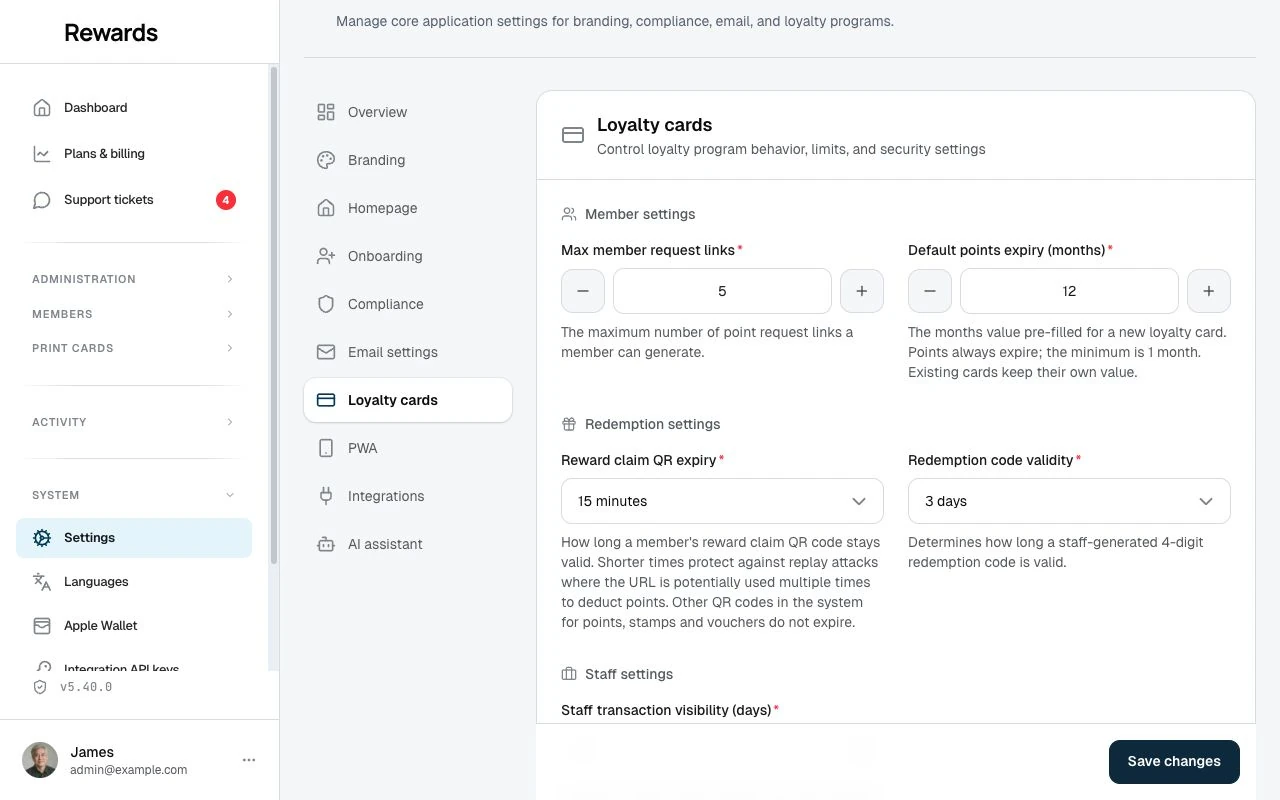
You can also configure these settings via environment variables in your .env file.
Member settings
Max member request links
Controls how many point request links a member can generate at one time.
Default: 5 links
Purpose: Limits how many request links a member can hold. Members share these links to receive points from other members. Links can be reused and have no automatic expiry. Active and inactive links both count toward the limit.
Via admin dashboard
- Go to Settings > Loyalty cards tab
- Find Max Member Request Links under Member Settings
- Use + / - buttons or type a number in
- Click Save
Via environment file
MAX_MEMBER_REQUEST_LINKS=5
Default points expiry (months)
Sets the number of months that earned points stay valid on a new loyalty card. When a partner creates a card, its Points expiration field starts on this number; they can still choose a different value for that card.
Default: 12 months
Purpose: Lets you set a house-wide expiry period once instead of every partner re-entering it on each new card. It leaves existing cards untouched. Points always carry an expiry. The minimum is 1 month, so you can't create a card that never expires by accident.
Via admin dashboard
- Go to Settings > Loyalty cards tab
- Find Default points expiry (months) under Member Settings
- Enter the number of months (1–1200)
- Click Save
Via environment file
DEFAULT_POINTS_EXPIRATION_MONTHS=12
Redemption settings
Redemption code validity
When a staff member generates a redemption code, it doesn't last forever. This setting is the default validity. When generating a code, staff can pick a different validity for that one code, from 1 hour to 1 month; this setting is the value the Valid for field starts on. See Redemption codes.
Default: 3 Days
Purpose: Expiring old codes prevents misuse, so no one can share or reuse them.
Via admin dashboard
- Go to Settings > Loyalty cards tab
- Find Redemption Code Validity under Redemption Settings
- Select your preferred duration from the dropdown:
- 1 Hour
- 12 Hours
- 1 Day
- 2 Days
- 3 Days (default)
- 1 Week
- 1 Month
- 1 Year
- Click Save
Via environment file
The expiration time is defined in minutes:
# Default: 3 Days = 4320 minutes
CODE_TO_REDEEM_POINTS_VALID_MINUTES=4320
| Duration | Minutes Value |
|---|---|
| 1 Hour | 60 |
| 12 Hours | 720 |
| 1 Day | 1440 |
| 2 Days | 2880 |
| 3 Days | 4320 (default) |
| 1 Week | 10080 |
| 1 Month | 43200 |
| 1 Year | 525600 |
Reward claim QR expiry
When a member claims a reward, the app generates a claim QR code for staff to scan. This setting controls how long that QR code stays valid.
Default: 15 minutes
Purpose: Limits how long a generated reward-claim code remains valid. Staff cannot use it after expiry. A time limit is separate from the checks that prevent a completed claim from being reused. Ordinary member codes used to identify a card are separate from this setting.
Via admin dashboard
- Go to Settings > Loyalty cards tab
- Find Reward claim QR expiry under Redemption Settings
- Select your preferred duration from the dropdown:
- 5 minutes
- 10 minutes
- 15 minutes (default)
- 20 minutes
- 30 minutes
- 1 day
- 1 week
- 1 month
- 1 year
- Click Save
Via environment file
The expiration time is defined in minutes:
# Default: 15 minutes
REWARD_CLAIM_QR_VALID_MINUTES=15
| Duration | Minutes Value |
|---|---|
| 5 minutes | 5 |
| 10 minutes | 10 |
| 15 minutes | 15 (default) |
| 20 minutes | 20 |
| 30 minutes | 30 |
| 1 day | 1440 |
| 1 week | 10080 |
| 1 month | 43200 |
| 1 year | 525600 |
Staff settings
Staff transaction visibility (days)
Sets how far back the staff dashboard's Recent customers section looks for that staff member's interactions.
Default: 7 days
Purpose: Keeps the Recent customers list focused on recent interactions. This setting does not set a retention period or block access to an authorized customer's history. Staff access follows the customer's relationship with their club or a card presented at the counter.
Via admin dashboard
- Go to Settings > Loyalty cards tab
- Find Staff Transaction Visibility (Days) under Staff Settings
- Enter the number of days (0 leaves no lookback period in Recent customers)
- Click Save
Via environment file
APP_STAFF_TRANSACTION_DAYS_AGO=7
Privacy considerations
Use a window that fits how often staff need to return to recent interactions. The default is seven days. Changing this value does not restrict the history staff can open for an authorized customer.
Real-world examples
Coffee shop chain
| Setting | Value | Why |
|---|---|---|
| Max Member Request Links | 3 | Prevents abuse |
| Redemption Code Validity | 1 Day | Members redeem during their visit |
| Staff Transaction Visibility | 7 days | Lets staff recognize regulars |
Spa & wellness center
| Setting | Value | Why |
|---|---|---|
| Max Member Request Links | 5 | Members book in advance |
| Redemption Code Validity | 1 Week | Flexible scheduling |
| Staff Transaction Visibility | 30 days | Keep less frequent visits in Recent customers |
Retail store
| Setting | Value | Why |
|---|---|---|
| Max Member Request Links | 5 | Weekly shoppers |
| Redemption Code Validity | 1 Week | Gives time to return |
| Staff Transaction Visibility | 30 days | Keep recent shoppers easy to find |
Troubleshooting
"Maximum request links reached" error
Cause: The member has reached the maximum number of request links.
Solutions:
- Ask the member to delete an old link from Request links before creating another
- Increase the Max Member Request Links setting
Redemption code expired
Cause: The code validity period has passed.
Solutions:
- Extend the Redemption Code Validity if it's too short for your business
- Educate members about validity periods when they redeem
- Consider sending reminder notifications before codes expire
Staff can't see recent transactions
This setting only affects the Recent customers list. Possible cause of a missing customer: The interaction is outside the Staff transaction visibility (days) window. Staff may still find an authorized customer through search or a presented code.
Solutions:
- Increase the visibility days setting
- Verify the transactions exist in the system
- Check that staff are viewing the correct member's card
Important notes
- Settings configured in the Admin Dashboard override environment file values
- Changes take effect right away for new transactions
- Existing codes retain their original expiration time
- If you change settings via
.env, clear your configuration cache:php artisan config:clear
Related topics
- Redemption codes: How staff and members use redemption codes
- System settings: Overview of all admin configuration
- Staff overview: Managing staff accounts
- Creating rewards: Setting up rewards