Collecting stamps.
How to earn stamps with your purchases using QR codes
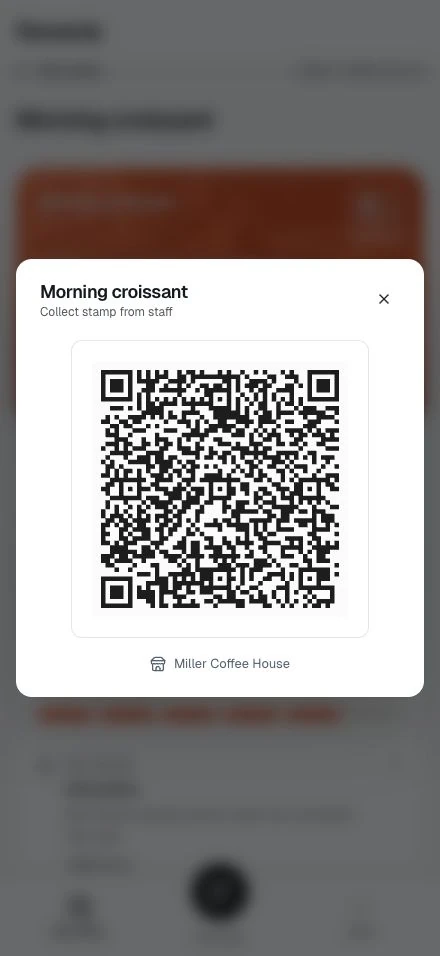
Open your stamp card and show its code at checkout. Staff scan it, check the purchase, and confirm the stamps to add.
The stamp collection process
Every time you make a qualifying purchase, you can earn stamps:
- Complete your purchase at the register
- Open your stamp card in your account
- Tap "Show code"
- Staff scan your code and check the purchase
- Staff select Add stamp
- Your stamp and progress update
Watch it land live. With your wallet open, a new stamp appears on your card within a couple of seconds, and a finished card shows its reward, each with a small celebration in the business's colours. See Live updates and celebrations.
Showing your QR code
Accessing your QR code
From My Cards:
- Sign in to your account
- Open My cards from the bottom tab on a phone or the header on a larger screen
- Tap the stamp card you're collecting for
- Tap the "Show code" button
- A large QR dialog shows the card title and business
Presenting your code
Hold your phone screen toward the staff member's scanner. The QR code should be:
- Bright enough: Turn up your screen brightness if needed
- Steady: Hold your phone still while scanning
- Unobstructed: Remove any screen protectors that might interfere
- Open: Keep the large QR dialog visible while staff scan
Staff will scan the code with their tablet or phone. You'll see a success message when the stamp is added.
Your QR code is personal and does not change. You can open it ahead of time, and it stays valid for as long as you need it at the counter.
When stamps are added
Your stamp appears after staff select Add stamp to confirm it. You'll see:
- Success confirmation on your screen
- Updated progress (e.g., "6 of 10 stamps")
- Visual update with the new stamp filled in
- Milestone messages if you've reached 50% or 80% completion
If your card is now complete, you'll see a "Reward Ready!" celebration message.
Qualifying purchases
Not all purchases earn stamps. Check the program requirements:
Minimum purchase amount
If the program has a minimum purchase requirement, your transaction must meet or exceed that amount.
Example: Program requires $5 minimum
- Purchase $7 → ✅ Earns stamp
- Purchase $3 → ❌ Doesn't qualify
The program terms tab shows the minimum amount.
Maximum stamps per transaction
Most programs award 1 stamp per purchase. Some allow multiple stamps per visit, for example when you buy several qualifying items at once. Staff choose how many stamps to add, up to the program's per-transaction maximum.
Example: Program allows up to 3 stamps per transaction, minimum purchase $10
- Purchase $8 → Doesn't qualify (below the minimum)
- Purchase $50 → Qualifies; staff add 1 to 3 stamps depending on what you bought
The minimum purchase is a gate, not a multiplier: spending more does not raise your stamp count on its own.
Daily limits
Some programs limit stamps per day to prevent abuse.
Example: Maximum 3 stamps per day
- First purchase today → ✅ Earns stamp
- Second purchase → ✅ Earns stamp
- Third purchase → ✅ Earns stamp
- Fourth purchase → ❌ Daily limit reached
Limits reset at midnight in the timezone of the business's installation. You can earn more stamps tomorrow.
Stamps can expire after inactivity
Some programs clear your collected stamps if you stop visiting. When a card uses this rule, each new stamp restarts the countdown, so regular visits keep your stamps safe. The card's Terms tab shows the rule, for example "Stamps expire after 90 days".
If you don't have your phone
Alternative methods
If you forget your phone or it's not working, you can still earn stamps:
Provide your identifier:
- Your name
- Email address
- Membership ID
Staff can look up your account and add stamps without scanning a QR code.
Note: This takes a little longer than QR scanning, but ensures you never miss earning stamps.
Earning multiple stamps
Some programs allow earning multiple stamps in a single transaction:
Bulk purchases: If you buy multiple qualifying items, you might earn multiple stamps at once (up to the program's maximum per transaction).
Example: Coffee shop allows 1 stamp per coffee, max 3 per transaction
- Buy 1 coffee → 1 stamp
- Buy 3 coffees → 3 stamps
- Buy 5 coffees → 3 stamps (capped at maximum)
The program rules specify if multiple stamps are allowed.
Checking eligibility
Before checkout, you can verify if you'll earn a stamp:
- Review the program requirements in the Terms tab
- Check if your purchase meets the minimum amount
- Confirm you haven't reached daily limits
- Ensure the program is still active (not expired)
Staff will also see eligibility status when they scan your code. If you don't qualify, they'll explain why.
What happens when you collect a stamp
After each stamp is added:
Your stamp card updates:
- Progress bar advances
- New stamp appears filled in the grid
- Current count increases (e.g., 7 → 8)
You might receive notifications:
- Milestone achievements (50% complete!)
- Completion celebrations (Card complete!)
- Reward ready alerts
Transaction is recorded:
- Date and time logged
- Stamp count before and after
- Purchase amount (internal only)
You can view your complete stamp history in the History tab.
Milestone celebrations
As you progress toward completion, you'll receive encouraging notifications:
50% complete: "Halfway there!" 80% complete: "Almost there! Just a few more stamps!" 100% complete: "Reward Ready! Congratulations!"
These milestones keep you motivated and engaged with the program.
Troubleshooting
"QR code won't scan"
Try these solutions:
- Increase screen brightness
- Hold phone steady
- Remove screen protector if it's damaged
- Provide your identifier by hand instead
"Stamp wasn't added"
Possible reasons:
- Purchase didn't meet minimum amount
- Daily limit already reached
- Program has expired
- Technical issue during scanning
Ask staff to check the error message. They can see why the stamp wasn't added and help resolve the issue.
"Wrong stamp card was updated"
If you have multiple stamp cards from the same business, make sure you're showing the correct QR code. Each stamp card has its own unique code.
To fix:
- Open the correct stamp card
- Show the right QR code
- Ask staff to add the stamp to the correct program
Tips for smooth stamp collection
Open your QR code before reaching the register: Have it ready when it's your turn to pay.
Mention the stamp card program: Let staff know you're collecting stamps so they remember to scan.
Check your progress after each visit: Verify stamps were added.
Watch for expiration dates: Complete cards before programs end.
Ask questions: Staff can explain program requirements if you're unsure.
Next steps
- Tracking Your Progress: Monitor your stamp collection
- Redeeming Rewards: Claim your earned rewards
- Stamp cards FAQ: Common questions answered