Partner permissions & limits.
Control which features partners can access and set usage limits.
How permissions work
In Reward Loyalty, partner permissions come from two layers:
- Plan tier defaults: Each plan tier defines base feature flags and resource limits (see Plans & pricing). When you assign a partner to a tier, they receive those defaults.
- Per-partner overrides: Administrators can fine-tune individual limits and feature access from the Permissions tab without changing the partner's plan.
Selecting a different plan first updates the visible permissions and limits to that plan's defaults. You can then adjust those controls before saving. Save stores the final values shown in the form, including your changes. With the plan unchanged, editing permissions preserves the other saved values.
💡 Tip: For most deployments, the plan tier system handles permissions for you. Use per-partner overrides only when a specific partner needs different limits than their plan provides.
Why use partner permissions?
Not every partner needs access to every feature. With partner permissions, you can:
- Restrict features: Hide features a partner shouldn't use
- Set creation limits: Cap how many cards, vouchers, or staff a partner can create
- Customize experiences: Each partner sees only what's relevant to them
- Control growth: Match feature access to partnership tiers or plans
Understanding permission types
Partner permissions come in two forms:
| Type | What It Does | Example |
|---|---|---|
| Feature Toggles | Enable or disable entire features | Turn off Email Campaigns for a partner |
| Numeric Limits | Cap how many items a partner can create | Limit a partner to 3 loyalty cards |
Feature toggles
When you disable a feature for a partner:
- The feature disappears from their navigation sidebar
- Dashboard widgets for that feature disappear
- Direct URLs to that feature return an access denied error
- Existing items remain, but the partner can't manage them
Numeric limits
Limits control how many items a partner can create:
- Unlimited removes the creation limit
- 0 means the partner can view existing items but can't create new ones
- Any positive number is the maximum they can create
Available permissions
The Permissions tab groups settings into Programs, Customers, Communications and Integrations. When editing a partner, open Saved access in a group to inspect its saved override or Inherits plan, followed by Effective access. The summary reflects saved values. Save to apply your edits. A saved grant can show Effective access: No when the installation is not ready for that feature. This keeps the grant available without treating it as usable access.
Feature permissions
| Setting | Description |
|---|---|
| Cards on Homepage | Allow partner's cards to appear on the public homepage |
| Loyalty cards | Enable loyalty card creation and management |
| Stamp cards | Enable stamp card creation and management |
| Vouchers | Enable voucher creation and management |
| Voucher batches | Enable batch voucher generation |
| Prepaid passes | Enable prepaid pass products: staff-sold multi-visit cards and memberships. See Prepaid Passes Admin Setup. |
| Member segments | Enable saved member segments: named audiences for the member list and email campaigns. See Member segments. |
| Member cards | Enable the partner Card studio for printed member cards and code batches. See Member cards admin setup. |
| Email campaigns | Enable email marketing features |
| Activity | Enable activity logs and analytics |
| Agent API | Enable Agent API access for machine-to-machine integrations |
| Google Wallet | Grant or revoke Google Wallet passes for this partner on top of their plan. Google Wallet itself comes from the plan (Gold and Platinum include it by default; Bronze and Silver do not, see Plans & pricing); use this toggle to grant it to a partner whose plan lacks it, or revoke it from one whose plan includes it. This override is always available. See Google Wallet Integration. |
| Apple Wallet | Grant or revoke Apple Wallet passes for this partner on top of their plan. Gold and Platinum include it by default; the installation also needs a healthy Apple signing identity. See Apple Wallet passes. |
| Webhooks | Grant or revoke access to outbound webhook endpoints on top of the partner's plan. Webhooks itself comes from the plan (Gold and Platinum include it by default; Bronze and Silver do not, see Plans & pricing); use this toggle to grant it to a partner whose plan lacks it, or revoke it from a partner whose plan includes it. See Webhooks overview and setup. |
| Achievements | Allow this partner to run the member achievements program, on top of the plan default (Silver and up include it; Bronze does not). Revoking it stops new progress but never deletes earned achievements, and rewards already on their way still arrive. See Achievements overview. |
| Invite businesses | Let the partner invite other businesses and see their referral scoreboard. Find it in the Customers group. See Invite businesses. |
Creation limits
| Setting | What It Limits |
|---|---|
| Maximum loyalty cards | Maximum loyalty cards the partner can create |
| Maximum rewards | Maximum rewards the partner can create |
| Maximum stamp cards | Maximum stamp cards the partner can create |
| Maximum vouchers | Maximum vouchers the partner can create |
| Maximum prepaid passes | Maximum pass products the partner can create |
| Maximum member segments | Maximum saved segments the partner can keep |
| Maximum member card codes | Maximum member card codes the partner can issue |
| Maximum staff members | Maximum staff accounts the partner can create |
| Maximum integration API keys | Maximum Integration API keys the partner can create |
Turn Unlimited on to remove a creation limit. Turn it off to enter a maximum. Switching it back off restores the number you entered. A maximum of 0 prevents new items while preserving access to existing ones. Turning the feature off removes access under its permission rules.
Configuring partner permissions
Prerequisites:
- You must be logged in as an Administrator
- The partner account must already exist
To configure permissions:
- Go to Partners in the admin sidebar
- Open the business row to edit its account
- Switch to the Permissions tab
- Toggle feature permissions on or off as needed
- Set a finite limit for each feature or select Unlimited
- Click Save to apply changes
Save changes and Cancel stay within reach while you move through the long partner form.
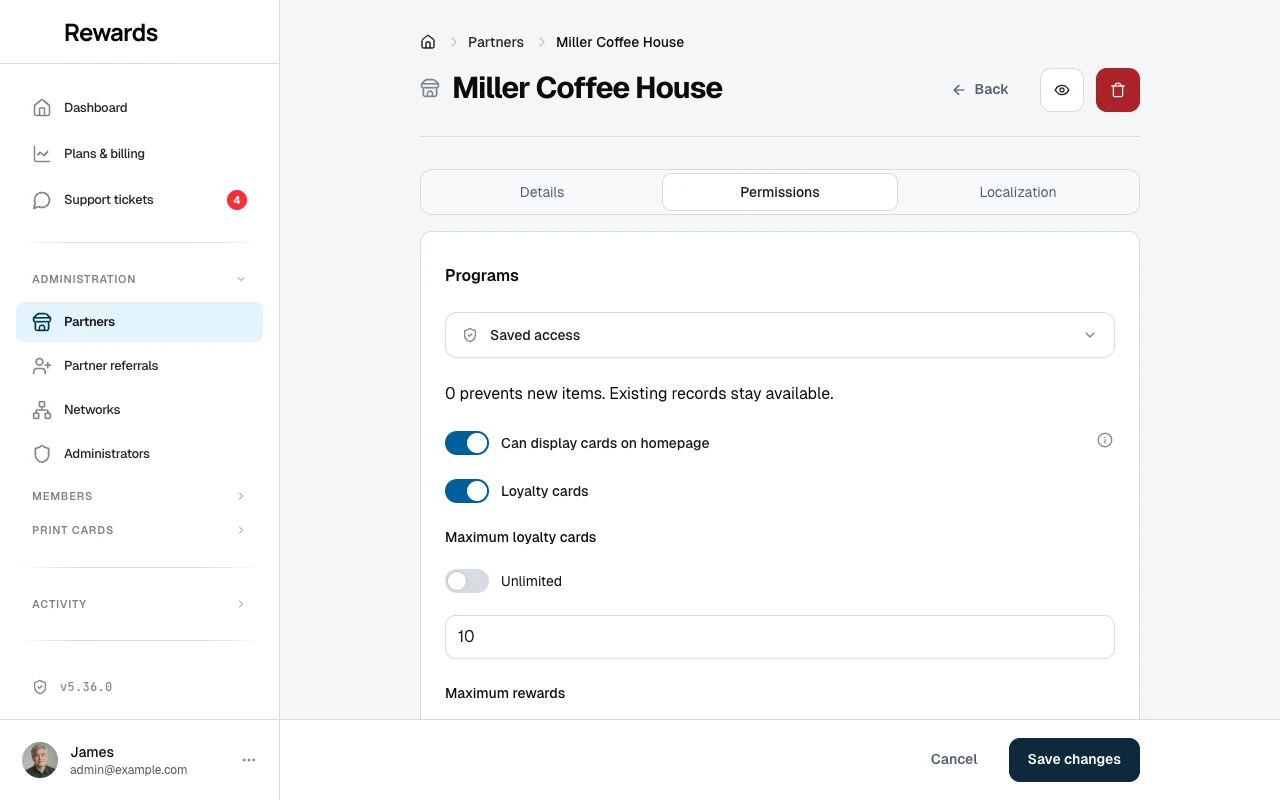
Changes take effect right away. The partner's dashboard and navigation will update the next time they load a page.
What partners experience
When a feature is disabled
The feature disappears from the partner's view:
- The navigation menu item disappears
- The dashboard widget disappears
- Direct URL returns an error
Cross-feature effects
Some permissions affect related features beyond the primary toggle:
| Permission Disabled | Effect on Other Features |
|---|---|
| Cards on Homepage | Hides the "Visible on homepage for all visitors" toggle on loyalty cards, stamp cards, and vouchers. Partners cannot feature content on the public homepage. |
| Loyalty cards | Stamp cards hide "Also reward points" and "Reward card" fields. Email campaigns hide "Card members", "Points below", "Points above", and "Tier" segments. Dashboard hides the "Set up Tiers" promotion. |
| Stamp cards | Email campaigns hide "Stamps in progress" segment |
| Vouchers | Email campaigns hide "Has voucher" segment |
When a limit is reached
When a partner tries to create an item but has reached their limit:
- The Create button disappears from the list view
- If they open the create URL, the app sends them back to the list
- A warning message appears: "You have reached your limit of X [Item Type]. Please contact the administrator to increase your limit."
Existing items keep working; the limit blocks only new ones.
Troubleshooting
"You have reached your limit of X..."
Cause: The partner tried to create an item but has hit their configured limit.
Solutions:
- As an administrator, increase the limit for that partner
- The partner can delete unused items to free up space
- Consider whether to raise the limit for good
Feature missing from partner navigation
Cause: This partner's feature permission is false.
Solution: Edit the partner account and enable the permission in the Permissions tab.
Partner sees all features despite restrictions
Cause: The partner can receive access from their plan or a saved per-partner override.
Solution: Check both the plan and the partner's Permissions tab. Save an explicit override to restrict that partner.
Permission changes not taking effect
Solution: Confirm you saved the correct partner account, then reload the partner page. Check the saved override and assigned plan if access still differs from what you expect.
Best practices
| Practice | Why It Matters |
|---|---|
| Set limits with care | Consider each partner's needs before restricting |
| Select Unlimited | Use this switch when the partner has no creation limit |
| Communicate with partners | Consider informing partners what their limits are |
| Leave some headroom | If you expect a partner needs 5 cards, give them 7 |
| Document your decisions | Keep track of why certain partners have certain limits |
Related topics
- Plans & pricing: The plan tiers that set each partner's defaults
- Billing configuration: Manual, Stripe, and PayPal billing setup
- Plans & billing dashboard: Monitor partner subscription health
- The shared wallet concept: Why partner isolation matters
- Administration overview: Full admin capabilities
- Managing managers: Delegate network administration
- User Roles: Understanding the user hierarchy