
Your wallet (My Cards).
Your wallet holds every card you collect: loyalty cards, stamp cards, passes, vouchers, tiers, and the cards a business is winding down.
On this page
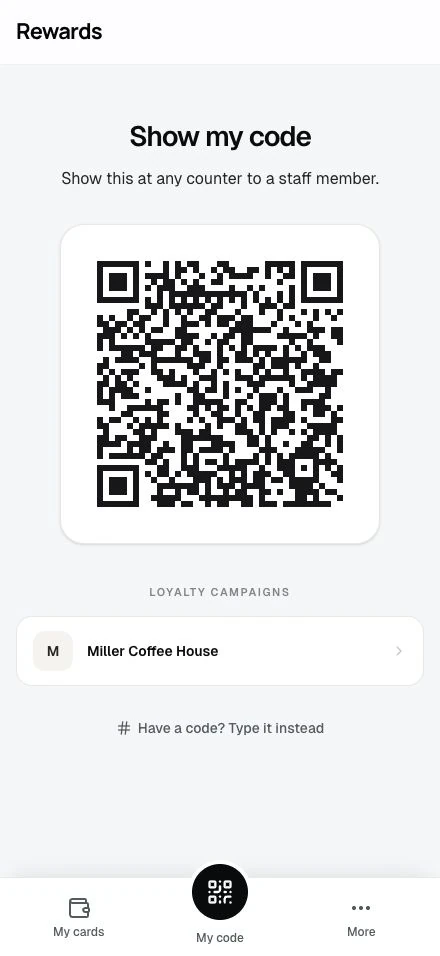
On a phone, the wallet works like an app. A bottom tab bar carries the essentials, and a More sheet holds the rest:
Bottom tab bar:
- My cards: Your wallet
- My code: The raised center button. It shows your wallet QR code, the one code that identifies you at any counter
- More: Opens the sheet below
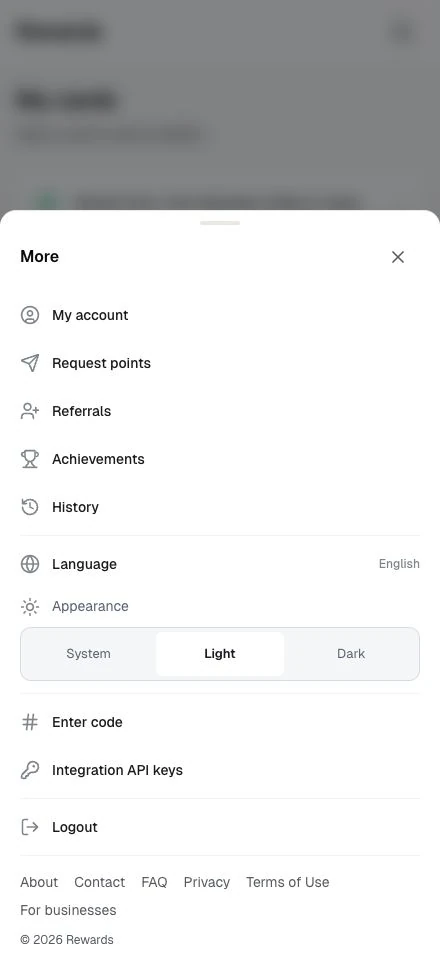
More sheet:
- My account, Request points, Enter code, language, Appearance (System, Light, or Dark), and sign out
- Referrals when you have an eligible offer or received referral history, Achievements when available, and History once you have past programs
- Integration API keys for registered members when the installation enables the Agent API
- Help and legal links (about, contact, FAQ, privacy, terms)
Open More → Enter code to type a code. The My code page also offers Have a code? Type it instead. On larger screens, use Enter code in the account menu. Referrals appears in those menus when you have an available offer or received referral history.
On larger screens, the header links to your wallet. The profile menu holds My account, Request points, Enter code, language, Appearance, and sign out, plus History, Referrals, and Integration API keys when available. Help and legal links also appear in the footer.
My Cards is your personal collection of loyalty programs. It shows only the cards you've added or used.
Home opens the homepage chosen by the site owner, including when you launch the installed app. Use My cards to open your wallet.
Page layout
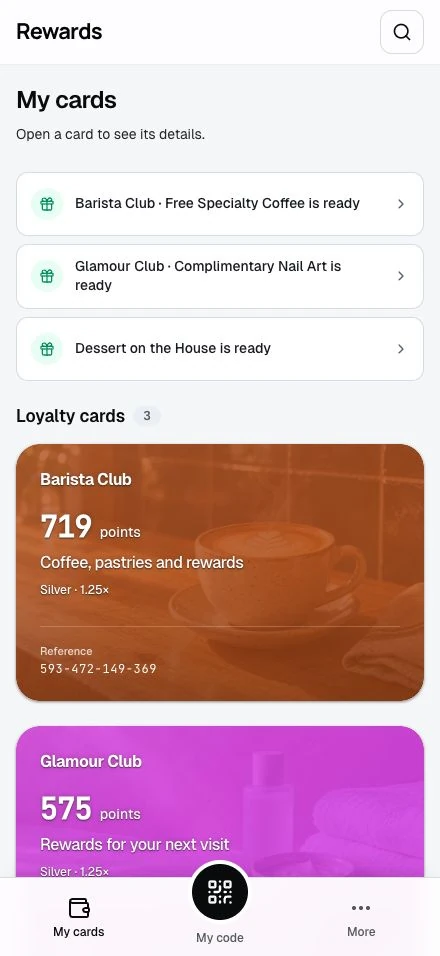
Up to three links above your cards point to rewards you can afford, stamp rewards waiting to be collected, and usable passes or vouchers ending within seven days. Green gift icons identify ready rewards; amber clock icons identify approaching expiry. These lines update when your wallet changes and disappear when there is nothing to show.
The cards follow in this order:
- Loyalty cards
- Winding down (when a business retired a program you still hold)
- Stamps
- Passes (when you hold or held a prepaid pass)
- Vouchers
When a business you visit runs achievements, a compact row below your cards shows your next milestone or latest one earned. Achievements also appears in the More menu.
The My cards heading and short introduction appear on every screen size. Larger screens also show a compact summary above the cards and quick actions below them.
An empty wallet explains how to add a card and offers Explore programs or Home, plus Show my code when wallet codes are enabled.
Summary (larger screens)
On a larger screen, a compact line summarises your collection:
| Summary | What it shows |
|---|---|
| Active programs | How many loyalty cards, stamp cards, vouchers, and passes you hold |
| Vouchers used | How many vouchers you've redeemed |
| Stamps collected | Sum of stamps across your stamp cards |
There is no "total points" figure. Points belong to each program on its own, so adding them across different businesses would not mean anything. On a phone, the per-section counts in the headers do this job instead.
Quick actions
Shortcuts to common tasks. They appear in the quick-actions block on a larger screen. On a phone, use the More sheet for account settings, request points, entering a code, and referrals when available:
- Account settings: Update your profile, set your language, and manage your privacy and data
- Request points: Create a link to receive points from other members
- Enter code: Enter a code you received to add points to your card
- Refer a friend: Share your referral link and earn bonus points
How cards get added
Cards appear in My Cards in three ways:
- When you use them: When you first use a program (earn points, collect a stamp, redeem a voucher), the app adds the card for you
- When you sign in from its page: Open a loyalty card, stamp card, or voucher page and sign in or register from there; the app drops the card into My Cards the moment you sign in, and you land back on the page you came from
- By hand: Click Add to My Cards on any card to bookmark it for future use
Prepaid passes are the exception: you have to buy a pass, so viewing its page or signing in never adds it to your wallet.
Whenever a card lands in My Cards, a short confirmation appears at the top of the page with an Undo button. One tap removes the card again.
Your loyalty cards
Your points balance is the largest figure on a loyalty card. The card keeps its reference, and shows an expiry reminder during its final 30 days. Open the card for its full expiry date, rewards, and history.
The centered summary beneath an active card names the available reward with the highest point cost your balance covers. If you cannot afford any reward yet, it shows how many more points you need for the lowest-cost available reward. Every reward stays in the Rewards list, so you can choose the one you want.
Tier on your card
Your earned tier and points multiplier appear on the card itself, for example "Gold · 2×". Your points history marks purchases that earned a bonus-hours or tier multiplier.
Winding down
When a business retires a program you still hold, your card does not disappear. It moves to a Winding down section, between your loyalty cards and stamp cards, with a short note: the program is closing, but your balance still counts. Points stay spendable and a completed stamp reward stays redeemable, at the counter and online, as before. Nothing new can start here: no more earning, no new members. The section can only empty out. Once the card ends for good (you spend the balance, it expires, or you remove it), it moves to History.
Your stamp cards
Punch card programs where you collect a specific number of stamps. Complete the card to earn a reward, then start again.
Your passes
Prepaid passes you bought at the counter: visit packs, unlimited memberships, or monetary credit. Visit passes show remaining uses and any expiry date. Monetary passes show the remaining balance and have no expiry. Open a pass for its code and history. See The member view.
Your vouchers
Discount codes and promotional offers you've added or claimed.
Removing and re-adding cards
If you no longer want a card visible in My Cards:
- Open the card
- Click Remove from My Cards
- Confirm the removal
A confirmation appears at the top of the page with an Undo button that puts the card straight back. Removing a pass shows the confirmation without Undo.
The app always saves your progress. Removing a card hides it from view. Your points, stamps, history, and rewards remain intact. Re-add an eligible card and continue where you left off. Used or unavailable vouchers cannot be added again.
Membership tiers
Some businesses offer membership tiers that reward your loyalty with bonus benefits. It works like airline frequent flyer status or hotel elite membership.
How tiers work
The business sets its tier rules. You can qualify through points earned, spending, purchase counts, or a combination. Spending points on a reward does not reduce the points you have earned toward a tier. A reversed award can reduce your qualifying total and change your tier.
One tier per club
A tier belongs to a club, not to an individual card. Most businesses run one club, so in practice your tier reads as business-level status: if a business has multiple loyalty cards (e.g., Classic, Premium, Student), your tier applies to all of them, and points earned on any of them count toward the same tier.
When tiers appear
You won't see tier information until you've started earning points with a business. Tiers only display when:
- You have earned at least some points with that business
- The business has configured a tier system
- You're viewing cards from that business
What tiers show
Each loyalty card shows your tier name and its multiplier when greater than 1×. A whole-number multiplier reads "2×" for double points.
Multiplier benefits
Higher tiers can offer points multipliers that boost your earning rate:
| Multiplier | Effect |
|---|---|
| 1× | Standard earning (base tier) |
| 1.5× | 50% bonus points |
| 2× | Double points |
Multipliers apply to future purchases only, not past transactions.
Where tiers display
Your tier appears on loyalty card faces in My Cards and on the card detail page.