Prepaid passes partner setup.
Set up visit passes or monetary credit per club, with fixed member terms and separate records for every sold pass.
You design pass products in the partner dashboard under Prepaid passes. Each product belongs to one club, so staff sell and scan only the passes of their own club.
Monetary setup
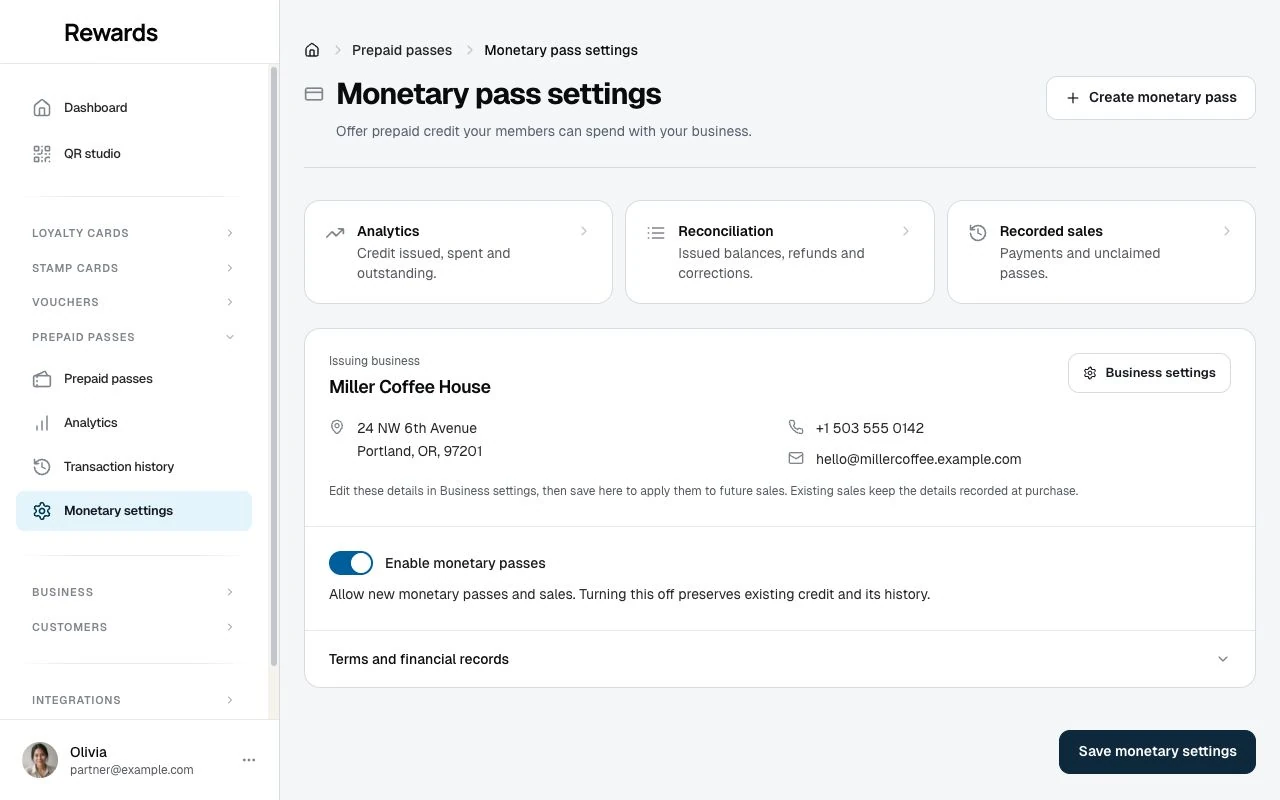
Open Prepaid passes → Monetary settings. The form shows the issuing business from Business settings, using your account name if no Business name is set. It copies the business address and contact details you allow for public display. Country and contact details are optional; private account email and phone stay private. Use the Business settings link to change those details.
Member terms and the record-storage explanation stay visible in the form. The member terms are fixed and cannot be edited. New monetary settings include the supplied translations for every installed main language, including languages you have not enabled for the interface. Regional languages use their parent translation when no distinct saved text exists. Existing saved terms and regional translations stay intact.
There is no retention-period setting. The application does not automatically delete monetary financial records based on age, including records for fully spent, refunded or cancelled passes. Monetary credit has no expiry. Keep database backups and authorized financial exports; continued access depends on your installation and hosting. Financial reports use the timezone in your Partner account settings; use that timezone when reconciling day and month boundaries.
Monetary sales start disabled. Choose Enable monetary passes to save these settings and allow sales. Collect payments and make refunds at the counter. Handle VAT and fiscal documents in your accounting system. After changing Business details, return here and save monetary settings again before future sales use the new details.
In the product editor, choose Monetary balance and enter the face value in the selected currency. The price equals that credit exactly. There is no validity window or price override. Counted visits and unlimited access remain choices in the same editor and share the same product quota.
Each issued pass preserves its value, currency, issuer and terms. You cannot convert a money product into visits or change its currency after issuance. Retiring a product stops sales; the remaining credit still belongs to its holder. Turning off monetary sales has the same servicing rule. Sold passes and recorded sales keep their original issuer details and terms. Any stored retention metadata remains part of the audit record; it does not schedule deletion. Retain a way to handle claims under those terms.
Creating a pass product
- Go to Prepaid passes and choose Create.
- On Details, pick the club, name the product (for example "10-Wash Card"), and choose Pass type: counted visits, unlimited access or monetary balance. Keep the product active. The name appears in the member wallet, on staff screens and on the receipt.
- On Value, set the fields for the selected type. For visit products, set:
- Number of uses. How many visits the pass covers. Leave it empty for unlimited visits.
- Valid for. Days the pass stays valid after the sale, between 1 and 366. Required when uses is empty; optional for counted passes. A counted pass without a window never expires.
- Set the price your counter charges. The platform records it with each sale for receipts and reports; payment happens at your counter. Monetary price equals its face value.
- On Content, write one sentence on what the pass covers.
- On Design, style the pass the way members will see it in their wallet: background and text color, an optional background image, the overlay opacity that blends the color over the image, and an optional logo shown next to the pass name. The same options exist on loyalty cards, stamp cards, and vouchers.
- Save.
Two shapes cover the common products:
| Product | Uses | Valid for |
|---|---|---|
| 10-wash card | 10 | empty, or e.g. 365 days |
| Monthly unlimited | empty | 30 days |
Backgrounds and logos accept JPEG, PNG or GIF files up to 20 MiB, subject to lower hosting limits. Backgrounds must be 320×240 to 1920×1440 pixels; logos must be 20×20 to 800×800 pixels. See artwork upload limits.
The counter QR code
The pass list and detail view carry a QR code per product, like every other card type. It opens the pass's public product page: what the pass covers, the validity, the price, and that staff sell it at the counter. Print it for the counter or a window sticker; a customer who scans it sees the offer before they reach the register, and a member who already holds the pass gets a shortcut to their remaining count.
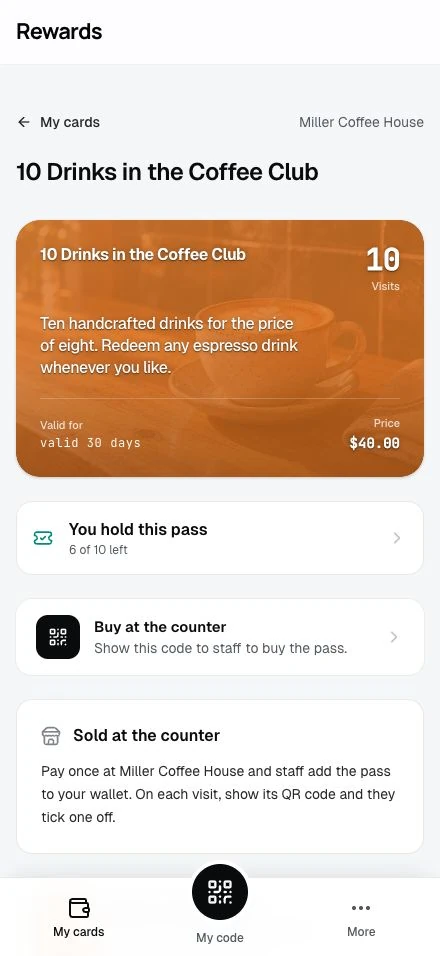
The page is link-only by default: the address contains an unguessable ID, and the pass stays out of every public listing until you switch on homepage visibility. Deactivating or deleting the product takes the page offline.
Homepage visibility
Each product carries a Visible on homepage for all visitors toggle on Details, off by default. With it on, the pass appears on the public homepage for anyone to discover; with it off, the product page stays unlisted. This is one distribution choice, not a gate: the printable counter QR and the direct link work either way, as they do for vouchers.
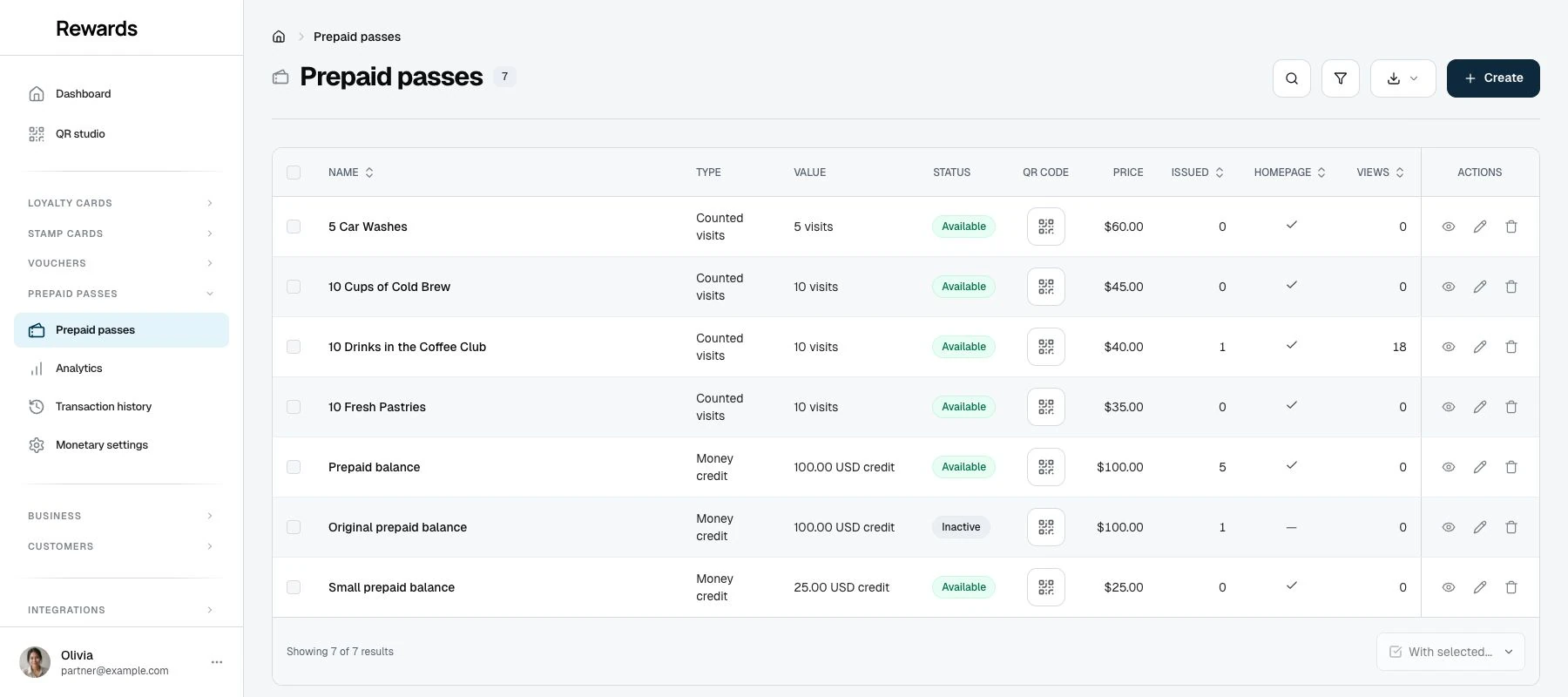
The toggle appears only when your administrator granted you the homepage permission, the same permission that governs homepage listing for your other card types. With the permission granted, the product list adds a Homepage column so you can see at a glance which passes are published.
Analytics and transaction history
The Prepaid passes menu includes Analytics and Transaction History. Visit products show views, recorded sales, visits used, active passes and unused expired visits. Monetary analytics separates currencies and shows recorded collections, credit used, refunds, remaining obligations and unclaimed sales, with ledger exports. Analytics & History covers both in depth, including what each metric tells you.
Editing and deleting
Open View to inspect Details, Value, Content, Design and History. Select a displayed background or logo to open its full image. Monetary details retain the original value, currency and sales availability. Counted-pass details show No expiry when no validity window is set. Unlimited describes unlimited visits; monetary credit remains a fixed amount without expiry.
Every sold pass froze the product values at its moment of sale. Edits apply to future sales. Lowering the use count, raising the price, or shortening the validity touches no pass a member holds.
Deleting a product removes it from sale and from your list. Sold passes keep working until they are used up or expire. There is no way to revoke a pass a member paid for from the dashboard; that conversation belongs at your counter.
Deleting a Club shows its retained monetary obligations by currency and requires an acknowledgement before deletion. The warning links to your business's outstanding-value export, which can also include other Clubs. Deletion preserves the financial claims; it does not refund or cancel unused credit.
Plan limits
The number of pass products you can create depends on your plan, the same way voucher limits work. When you reach the limit, the create button explains the block; existing products and sold passes stay untouched. Your administrator can raise the limit per partner.
Google Wallet
When the administrator granted your account the Google Wallet permission, each pass product has a Google Wallet toggle on Details, off by default. With the toggle on, members see an "Add to Google Wallet" button on their pass, and the wallet copy updates after every visit. See Google Wallet for the integration setup.
Apple Wallet
Open Apple Wallet in the partner sidebar to offer a prepaid-pass product, choose Wallet artwork and colors, and download a safe sample. Each sold pass becomes a separate Apple pass for its owner. The Apple pass links to current visits and status instead of printing values that could become stale. See Business controls and pass design.
What partners see
The product list shows Type, Value and Status beside the product name. Value describes the original offer: for example, 10 visits, unlimited access for 30 days, or 100.00 USD credit. An issued pass shows its member's remaining visits or credit separately.
On phones, select Details for Issued and secondary product information. Show all columns reveals secondary columns on narrower table views. The product's type, value, status and QR stay visible.
Issued counts passes issued to members, including claimed monetary passes. Paid monetary sales awaiting a claim stay outside this count. Monetary issuance stays counted after refund, cancellation or removal of the wallet pass. Sort by Issued to compare product issuance; use monetary reports for recorded collections, refunds and outstanding credit.
Status shows whether a product is available for new sales, inactive or unavailable. An active monetary product still needs enabled, complete monetary settings and sales access. Visit validity starts with each issued pass; it does not set the product's end date. Monetary credit has no expiry. Retiring a product preserves existing passes and financial records. Homepage visibility remains a separate choice.
Sales, visits and corrections appear in the activity log as pass events, with IDs only.