Business settings.
Configure your business branding, location, contact info, and opening hours
Business settings let you configure your public business profile: branding, location, contact info, and opening hours.
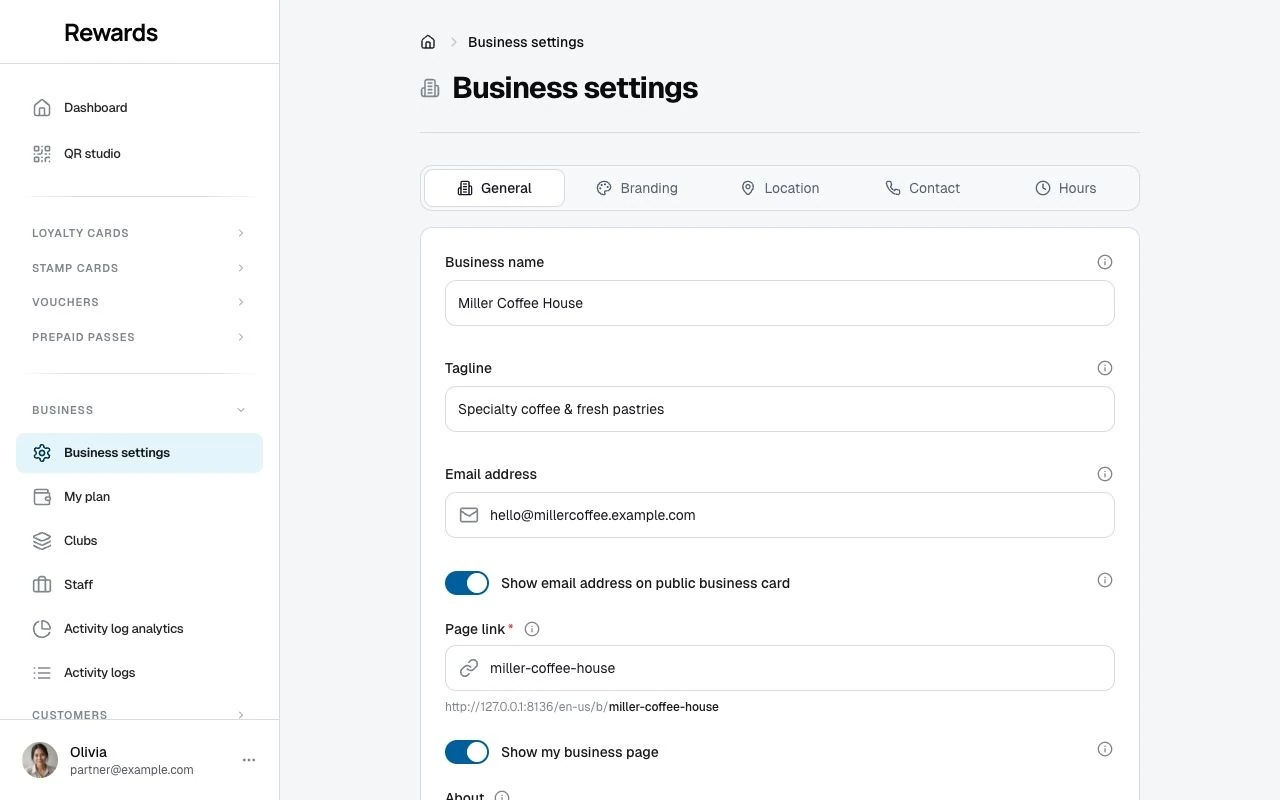
The General tab holds two controls for your business page, the public page that gathers your contact details and every public program in one place:
- Page link: The friendly, editable web address customers see. It cleans up what you type into a valid link as you go and shows the full address it produces live beneath the field. Changing it keeps the old link working: it forwards to the new one, so anything you already shared still reaches your page, and the printed QR keeps working because it uses a permanent address.
- Show my business page: One switch to hide the page behind a "page not available" screen, without affecting the QR. Turn it back on anytime to restore the page.
Where your business info appears
Once you set a Business name, a business card appears on member-facing pages:
Business card on member pages
The card appears below each of your:
- Loyalty card detail pages
- Stamp card detail pages
- Voucher detail pages
- Prepaid pass detail pages
The card displays:
- Logo and name with your brand color
- Tagline
- Open/closed status (real-time, based on your hours)
- Contact actions: call, directions (Google Maps), website, and email. Each appears only for a field you publish, with call first
- A Save contact link that downloads the business as a phone contact (.vcf)
- Social icons: Instagram, TikTok, Facebook, X, WhatsApp, LinkedIn, YouTube, Telegram, Twitch, and Dribbble
- Expandable section with about text, full address, and weekly hours
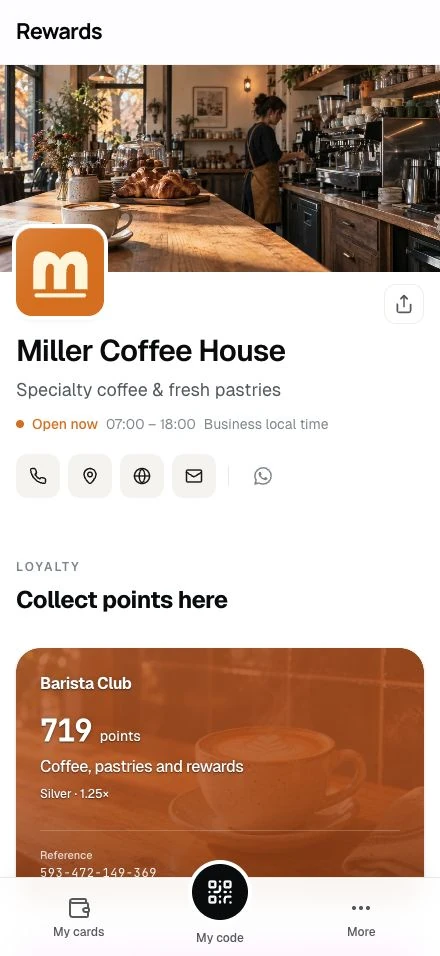
The layout is built for phones: actions are tap targets, not hover effects.
Tip: Without a business name, members won't see the card. There is no empty state to worry about.
Save contact (vCard)
The Save contact link gives a member a one-tap way to add your business to their phone's address book. It downloads a standard vCard (.vcf) built from your business profile only: business name, website, address, logo, tagline, your business phone, and your business email when its public toggle is on.
Accessing business settings
Sign in to your partner dashboard, then open Business → Business settings in the main navigation.
The five tabs
1. General
Your business identity, sender details, and public page:
| Field | Description |
|---|---|
| Business name | The public name customers see and the sender name on business emails |
| Tagline | A short description of your business, up to 160 characters |
| Email address | The reply-to address for emails to members; falls back to your account email when empty |
| Show email on public card | Publishes that email on your business card; off by default |
| Page link | The editable address of your public business page |
| Show my business page | Shows or hides the page without changing its permanent QR address |
| About | A brief description of your business, products, or services |
The public-email switch affects only the business card. Your business email remains the reply-to address for member emails when the switch is off.
2. Branding
| Field | Description |
|---|---|
| Brand color | Your primary color for themes, widgets, and public profile pages |
| Logo | Your business logo; recommended 512×512 px, PNG or SVG |
| Cover image | A banner for your profile; recommended 1920×960 px |
3. Location
Your physical address:
| Field | Description |
|---|---|
| Address line 1 | Street address |
| Address line 2 | Suite, unit, or floor (optional) |
| City | Your city |
| State / province | Your state or province |
| Postal code | ZIP or postal code |
| Google Maps URL | A direct link to your location on Google Maps |
| Category | Your business type, from the installation's fixed list. Shown with your programs on the shared homepage and used for its category filter. Appears when the operator has switched discovery on. |
| Precise location | An exact map point (latitude and longitude), collapsed until you open it. Appears when the operator has switched discovery on. |
Tip: Paste your Google Maps share link so customers can get directions with one click.
Setting your precise location. Open Precise location and either press Use current location (your browser asks for permission and fills the latitude and longitude, showing the reported accuracy), paste a map link that contains a plain @latitude,longitude pair, or type both values. One panel owns the coordinate pair. The panel previews the exact location before you save, and Clear location removes it. The page reads a pasted link on the spot; it contacts no map service.
Visitors can find this location on the Public listing homepage and your business page. The listing also uses it to sort nearby rewards by distance. Without a precise location, your business stays in the listing without distances.
Several locations? Each location (club) in Clubs can carry its own public place. With more than one location, the club form shows This location differs from your business profile: turn it on to give that location its own address, category, map point, time zone, and weekly hours. Programs in that location then carry its context on the shared homepage, and your business page lists it in a Locations section. With the switch off, the location uses the business profile above.
4. Contact
How customers reach you:
| Field | Description |
|---|---|
| Phone number | A public phone number members can call. It appears as a call button on your business card whenever you set it |
| Website | Your business website URL |
| Your Instagram profile URL | |
| TikTok | Your TikTok profile URL |
| Your Facebook page URL | |
| X (Twitter) | Your X/Twitter profile URL |
| Your WhatsApp link (wa.me) or profile URL | |
| Your LinkedIn company or profile URL | |
| YouTube | Your YouTube channel URL |
| Telegram | Your Telegram profile or channel URL |
| Twitch | Your Twitch channel URL |
| Dribbble | Your Dribbble profile URL |
All social fields are optional. Only add the platforms you use.
5. Hours
The Weekly schedule lists all seven days. Each day is Open, Closed or Not shown:
- Open: enter the opening and closing time (24-hour format)
- Closed: the business page shows the day as closed
- Not shown: the business page shows the day without hours, not as closed
Days start as Not shown until you set them. Use standard hours fills a suggested week to adjust, and Clear hours returns every day to Not shown. These buttons change the form; only Save publishes it. Saving another setting leaves your hours as they are, including custom and overnight hours.
Note: Opening hours are informational. They do not restrict when staff can award points or when members can access their wallet.
How your business info appears in emails
The app sends all emails about your loyalty cards, stamp cards, vouchers, and membership tiers using your business identity:
Sender name
The name recipients see in their inbox's "From" field:
- Business name (Business settings → General): if set
- Full name (Account settings): fallback if no business name
- System default: fallback if neither is set
Reply-to address
When members hit "Reply" on an email, the reply goes to:
- Email address (Business settings → General): if set
- Account email (Account settings): fallback
Which emails use your business identity
| Email type | Uses business identity? |
|---|---|
| Points earned notifications | ✅ Yes |
| Reward claimed confirmations | ✅ Yes |
| Stamp card progress & completion | ✅ Yes |
| Stamps expiring warnings | ✅ Yes |
| Tier upgrade/downgrade notices | ✅ Yes |
| Voucher received & claimed | ✅ Yes |
| Prepaid pass receipts & expiry reminders | ✅ Yes |
| Email campaigns | ✅ Yes |
| Store order welcome & points emails (WooCommerce) | ✅ Yes |
| Store discount coupon emails (WooCommerce) | ✅ Yes |
| Registration & password reset | ❌ No (system emails) |
| OTP / verification codes | ❌ No (system emails) |
Tip: Set your Business name and Email address in Business settings so members see your brand in every email.
Quick updates
Changes need no verification. Edit and save.
Change hours for holidays. Add a new social profile. Update your tagline for a promotion. Swap out your cover image.