
Connect Claude.
Add your Reward Loyalty address to Claude as a custom connector and sign in through the browser.
On this page
This page is for the platform owner or a business owner who wants to connect Claude on claude.ai or in Claude Desktop. You sign in once in your browser. You never paste a key.
The steps work the same in Claude Desktop. Claude's own menus can differ by plan and version. If a step doesn't match what you see, check Claude's help page Get started with custom connectors using remote MCP.
Before you start
- AI connections are on. See Overview.
- Your installation runs over HTTPS at the root of its domain. The AI connections page shows Browser sign-in is ready. when this holds.
- A business owner also needs the Agent API switch, the business's Agent API permission and a plan with the Agent API. See Overview.
- On a Claude Team or Enterprise plan, your Claude organization's owner adds the connector first, under Organization settings, then Connectors. Each member then opens Customize, then Connectors, finds the connector labelled Custom and chooses Connect.
- Your address is reachable from the public internet. Claude connects from Anthropic's cloud (Claude's help), so an address that only works on your own network or computer won't connect.
Connect Claude
- Open your account menu, then choose AI connections.
- Copy your address. It looks like
https://your-domain.com/mcp. - In Claude, open Customize, then Connectors.
- Choose Add, then Add custom connector.
- Enter a name and paste your address as the remote MCP server URL, then choose Continue.
- Review the sign-in settings Claude detected. Keep the ones it suggests and choose Continue. For the OAuth client, either Use Claude's published identity or Register automatically connects.
- Choose Add.
Claude opens Reward Loyalty in your browser. Sign in if you aren't already. If you are signed in as both the platform owner and a business owner, pick the account Claude should act for.
Choose what Claude can do
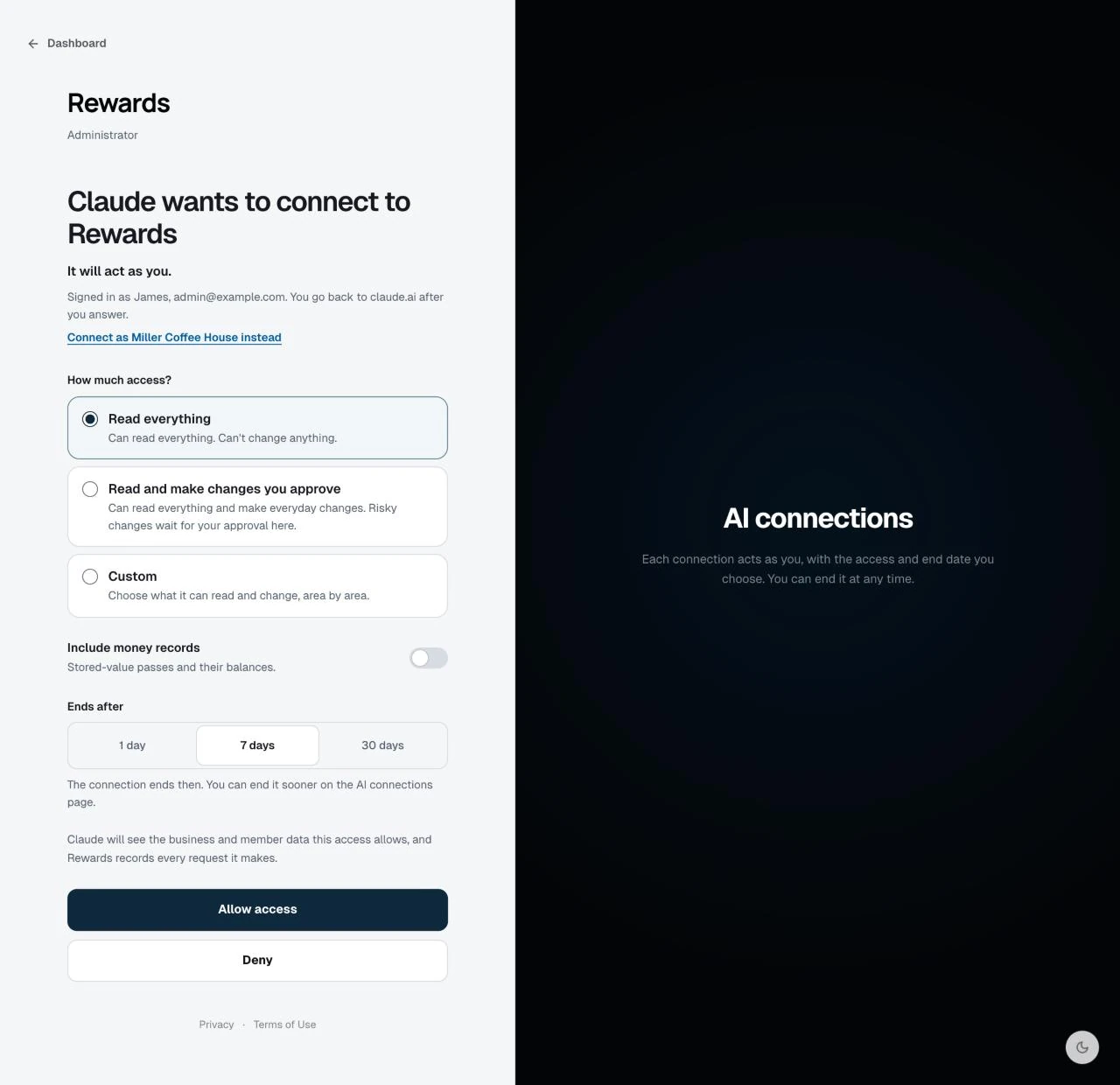
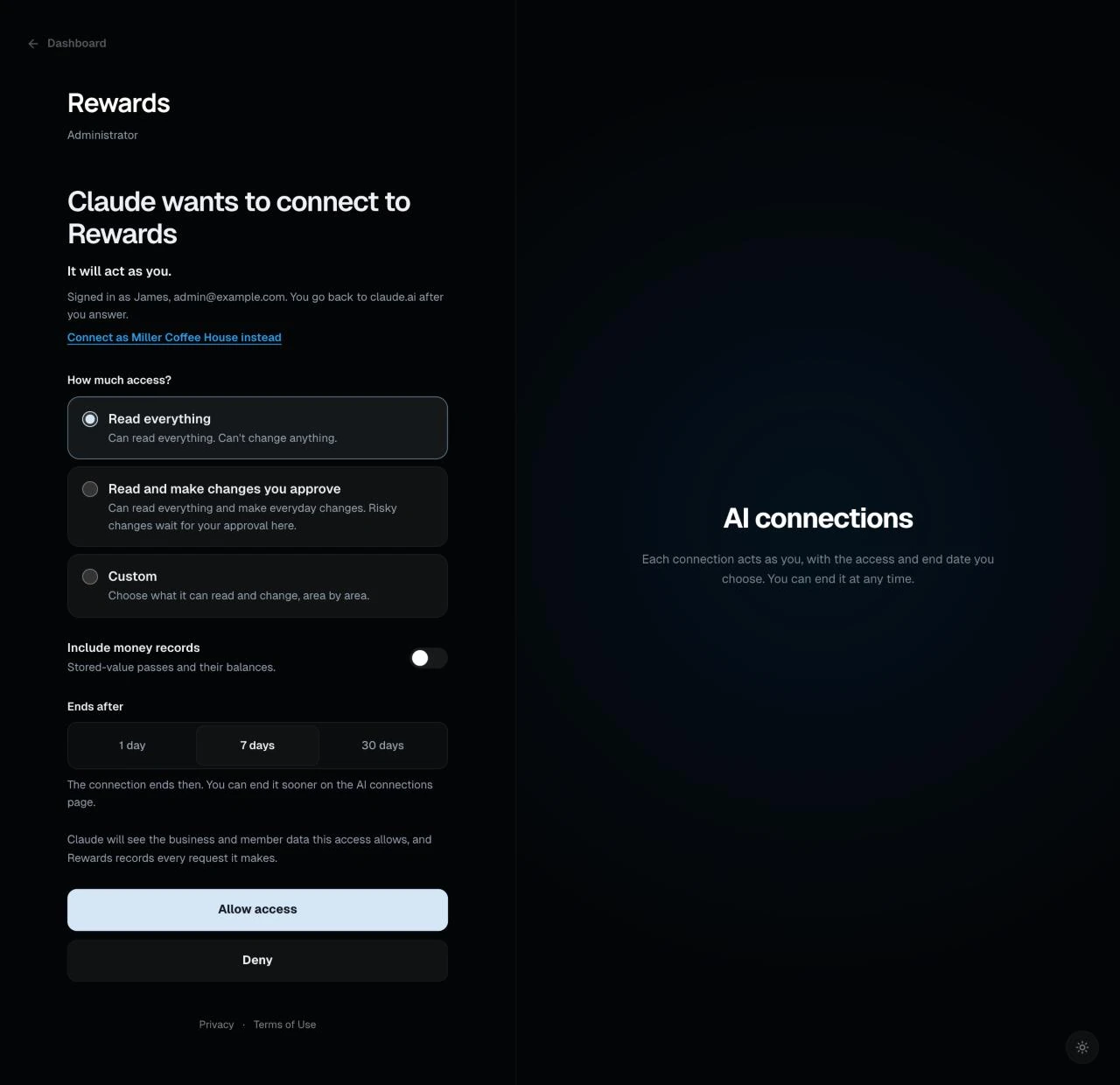
The consent page heading names the client and your app, for example "Claude wants to connect to Rewards", and says the client acts as you. Make three choices.
How much access?
- Read everything. Claude can read but can't change anything, or ask to. This is the default.
- Read and make changes you approve. Claude can read and make everyday changes. Risky changes wait for your approval.
- Custom. Choose, area by area, what Claude can read and change.
Include money records. Off by default. Turn it on to let Claude read stored-value passes and their balances.
When a business owner also allows changes, Claude can prepare money moves on those passes too. Each one waits for your approval.
Ends after. Choose 1 day, 7 days or 30 days. 7 days is the default.
Click Allow access, or click Deny to stop. You go back to Claude after you answer.
The connection ends on the date you chose. Claude's sign-in credential lasts 1 hour. A client that renews it keeps working until that date. You can end the connection sooner on the AI connections page.
Check that it connected
The AI connections page shows a waiting line while it listens. When Claude connects, the line turns into a connection card, for example Claude · connected just now. The card shows the access, the end date and when Claude last used it.
Ask your first question
Start with a read. A platform owner can ask "How did the platform do this week?" A business owner can ask "Which stamp card is doing best this month?" Claude answers with figures from your installation. Tool results include a short note on how Reward Loyalty calculated each figure and a link to the matching page.
End the connection
- Open AI connections.
- Find the connection card.
- Click End connection and confirm.
The connection stops working at once. What Claude already read stays with Claude. See Access and security.
If it doesn't connect
See Troubleshooting for failed sign-in, 401 and 403 answers, and missing tools. If it still doesn't connect, contact support with the message you saw.
Related topics
- Approvals: what happens when Claude asks for a risky change.
- Access and security: switches, presets, expiry and the activity trail.
- Connect other clients: clients that don't offer browser sign-in.