Achievements partner setup.
Set up the achievements program in three steps, choose the calendar, and understand the automatic history import.
One achievements program belongs to one business and covers all of its clubs. You set it up once from Customers → Achievements in the partner sidebar. If the menu entry is missing, your plan does not include the feature; ask the administrator or check which plans include it.
Before you start, make sure your business timezone is right, under Business settings. Loyalty days and weeks follow that timezone from the first day.
The setup wizard
The first visit opens Set up achievements, a three-step wizard. Nothing goes live until you confirm the last step, so you can explore without risk.
Step 1: Choose the experience
Every milestone your business qualifies for is listed by group, on by default. Switch off what does not fit your business. An entry your business does not qualify for yet shows Not available yet with the reason and a shortcut to fix it, for example Add a loyalty product or Set up referrals. It cannot be switched on until the condition is met.
Step 2: Add rewards
Rewards are optional. An achievement works without one: members still see their progress and the moment they earn it. For any enabled milestone, choose Add a reward and pick what it pays: points, stamps, a voucher, or a prepaid pass, drawn from your own active products. Each reward can carry a start date, an end date, and a grant cap. The What the member sees preview on each editor shows exactly how the promise reads in the wallet. Once a member earns the achievement, the reward reaches their wallet on its own, with nothing for you to approve; see How rewards reach members. Details and rules live in Rewards and limits. In a hurry, choose Skip rewards for now and come back later.
Step 3: Review and start
The review step shows the calendar, the enabled milestones, the rewards, an Estimated audience (registered members who hold something with you today), and the most members who could receive a reward. It also states what happens to past activity: your customers' history is recognized after setup, and history earns achievements, never rewards. Press Start program and the program is live.
If any enabled reward has no grant cap, the wizard asks once for confirmation (Continue without a cap) before starting. See Grant caps.
The calendar
The Calendar panel holds two settings:
- Business timezone: read from your business profile and shown here for reference. Change it on your business settings page. Loyalty days are counted in this timezone, so a purchase at 23:30 local time belongs to that local date, whatever the server clock says. When a program is active, your business settings page reminds you of this impact before you save.
- Week starts on: Monday or Sunday. This defines the weeks behind the 4, 8, and 12-week milestones. The wizard suggests a default that fits your language region (Sunday for US English, Japanese and Korean, Monday otherwise), and you confirm it on review.
Changing the week start on a running program asks for one confirmation (Change week start) and follows one rule: the new week rule applies from now on. Past weeks stay as counted, and no member loses an active run because you changed the calendar.
Changing the business timezone affects future activity only. Days already counted keep the dates they were recorded with.
What happens to old activity
The first time you start the program, the platform recognizes your customers' past activity on its own. This is the history import:
- It reads your existing points, stamp, voucher, and pass history, along with completed referrals, and awards the achievements that history already earned, dated when they were earned. A completed referral before setup earns First successful referral for the person who invited the friend.
- History earns achievements, never rewards, and never triggers a celebration, notification, or email. Members find their earned history in place.
- While it runs, the page status reads Importing history: "Past activity is being recognized. This finishes on its own." A progress line counts the members processed, and a Continue import button lets you push it along by hand.
- Closing the browser is safe. The import keeps its own place and continues in the background, on the next visit to the page, or when you press Continue import.
The import is partner-scoped and repeat-safe: running it again changes nothing that is already recognized.
Program statuses
The page header always names the program state:
| Status | Meaning |
|---|---|
| On | Members earn achievements as they collect loyalty days. |
| Importing history | Past activity is being recognized. This finishes on its own. |
| Paused | History is kept and rewards on their way still arrive. No new progress is counted. |
| Needs attention | Some rewards could not be delivered. See reward deliveries. |
Pausing and resuming
Pause stops new progress without deleting anything: members keep everything they earned, and rewards already on their way still arrive. While paused, no new loyalty days, runs, or awards are counted. Resume picks the program back up from that moment; it does not back-count activity from the paused period.
Pause to stop new progress. Weekly runs still follow the calendar: pausing does not freeze a run, and a missed week can end it. After a gap, the next qualifying week starts a new run.
Editing a running program
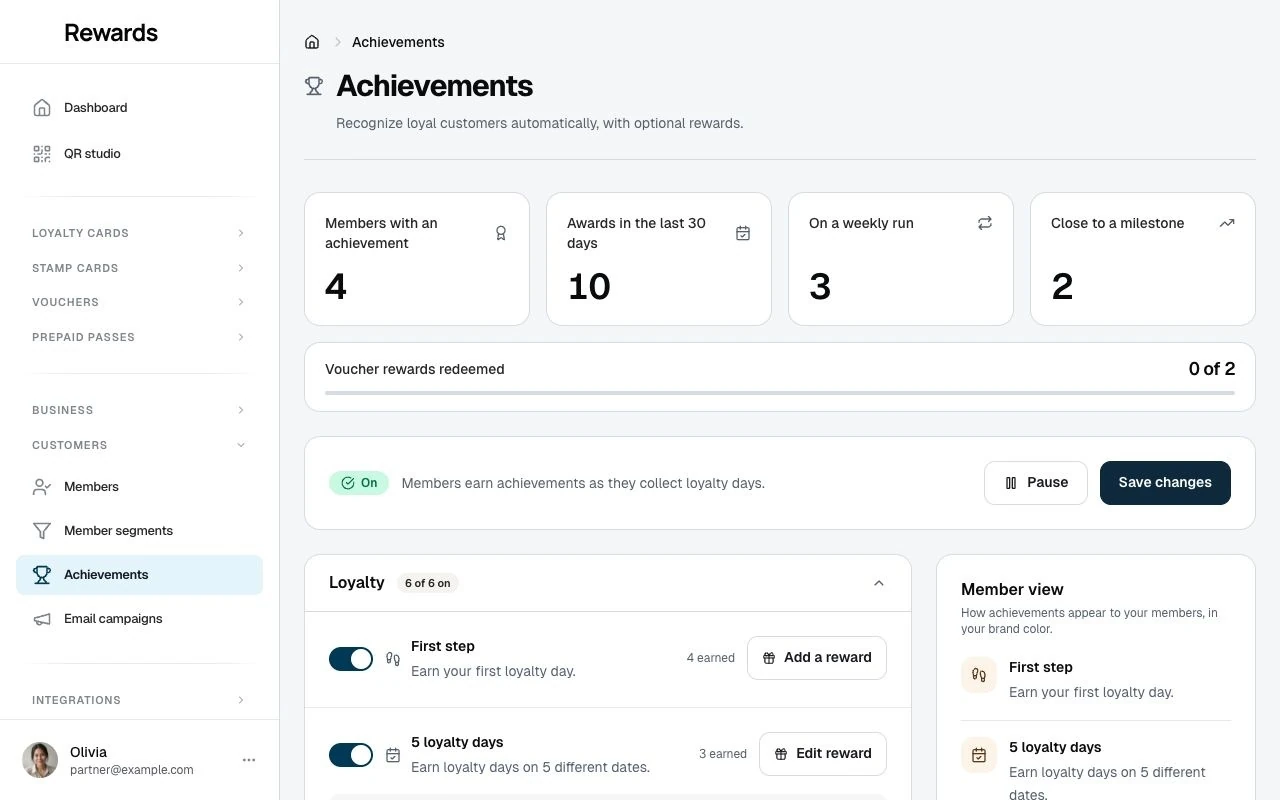
The same page manages a live program. Switch milestones on or off, edit rewards, and press Save changes; the changes apply from that moment. Milestones a member already earned are never taken away, and a reward already earned is delivered under the terms that applied when it was earned. Insights on the page show members with an achievement, awards in the last 30 days, members on a weekly run, members close to a milestone, and how attached voucher and pass rewards are being used.
Related topics
- Achievements overview: The milestone catalog and plan gating
- Rewards and limits: Reward types, caps, windows, and delivery
- Achievements troubleshooting: Repairs and operator tools