
Finding a customer.
Every way to bring up the right customer at the counter: search, scan, a barcode reader, recent customers, or a member card.
On this page
The staff portal uses a search-driven workflow. Instead of clicking through menus to find actions, you search for the customer first, then choose what to do.
Finding a customer
Option 1: Search
- Use the search bar on Home
- Enter the customer's name, email, or identifier
- Open the customer to see their overview: every program they hold with your business
- Choose a program to act on (add points, add a stamp, redeem a voucher, or use a pass)
The search clears old results as you change the text. Wait for the current results before choosing a customer. If the request fails, select Retry; a failed request shows an error instead of a no-results message.
Option 2: Scan QR
- Tap Scan in the bottom bar (or the sidebar on larger screens)
- Scan the program QR the customer shows (a loyalty card, stamp card, voucher, or pass)
- The matching action opens straight away (add points, add a stamp, redeem, or use a pass)
Option 3: USB or Bluetooth barcode scanner
- Connect a USB or Bluetooth QR scanner to your PC or tablet
- Open any staff page in your browser
- Scan the customer's QR code. The browser navigates to the right page.
See Scanning QR codes for setup details, hardware recommendations, and what to do if the browser blocks camera access.
Option 4: The Customers tab
The Customers tab (labelled Recent customers) opens on your recent customers, so the ones you see most are one tap away, and it doubles as a search surface.
- Tap Customers in the bottom bar (or the sidebar on larger screens)
- Tap a recent customer to open them, or
- Type in the search at the top to find a customer linked to your club, by name or email, then tap the match
- Either way, the customer overview opens, where you choose an action
What search finds
Search finds any customer with a relationship to your club: one a colleague served, however long ago, or one holding one of the club's cards without having used it yet. You can type a customer's identifier with or without dashes, and both find the same person. A customer who holds a card but has not transacted with the business shows Not active yet, in the results and on their member sheet, so you can recognize a first visit and welcome it. The first points, stamp, or voucher you record still brings them into the program.
You see only your own club. Customers of other clubs and businesses stay hidden. You can find recent customers on Home and the Customers tab.
The customer overview
Search and recent customers open a customer overview: the member, plus every program they hold with your business (loyalty cards, stamp cards, vouchers, and passes), each with a primary action and a History control to review past transactions for that program. Scanning a program QR skips straight to that program's action. When a customer's points already cover a reward, Reward ready names it, and the customer claims it from their phone.
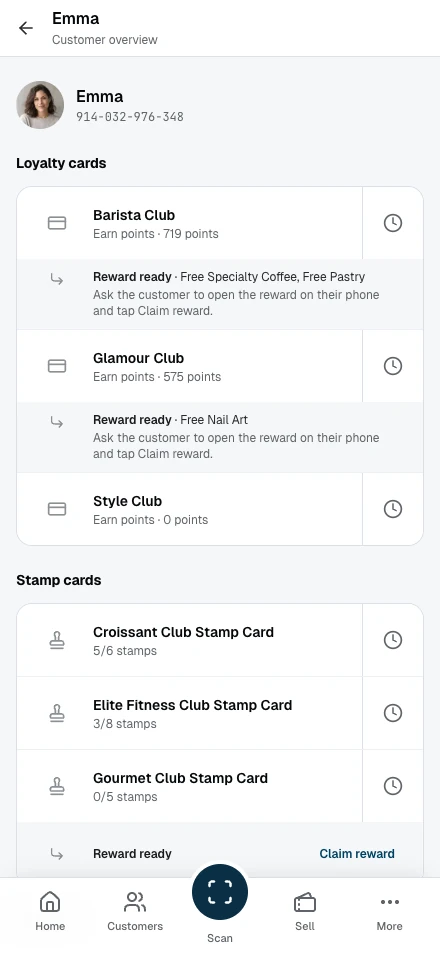
Every action then opens a page that shows the customer and the specific card, program, reward, pass, or voucher you're acting on, so you confirm against the right thing before you tap the button. For example, Add points shows the loyalty card and the member's balance; Claim reward shows the reward and which card it comes from.
Reading a member card at the counter
Some customers carry a member card: a printed card a business gave them, or a Show my code QR on their phone. A member card holds one code that identifies the customer, and the same code can arrive three ways at the counter. All three resolve to the same customer:
- Scan the card's QR or barcode with the in-app scanner, a phone camera, or a counter barcode reader.
- Swipe a card with a magnetic stripe. A swipe reader acts like a keyboard, so the swipe lands the same way a scan does.
- Type the card's number when nothing scans. The printed number uses clear characters (no
0,1,i,l, oro), so it reads out without confusion.
You do not choose a method; use whatever the customer has. Once the card resolves, the customer opens and you serve them the same way you would after a scan.
What presenting a card does, and does not, do. A presented card widens who you can serve for a short window, so you can help a customer you had not looked up yet. That window lasts 10 minutes. It does not grant any new power over that customer: you still do only what your role and club already allow. Presenting a card is never required either, so you serve a customer without one the usual way, by search or their program QR.
Start here. A Start here checkout surface makes the first action enroll the customer, so a first stamp or first points award brings a brand-new customer into the program in one step, with no separate sign-up.
A card reported lost or disabled will not resolve. Ask the customer to present another card or look them up by name or email instead.