Creating vouchers.
Set up individual discount codes with targeting rules, usage limits, and visual customization.
Creating a voucher takes a few minutes. You'll define what discount to offer, who can use it, how many times it can be redeemed, and how it looks to customers.
💡 Need multiple codes? This guide covers individual voucher creation. To generate hundreds or thousands of unique codes for marketing campaigns, see Batch Voucher Generation.
Before you begin
Make sure you have:
- At least one Club created (vouchers belong to clubs)
- Partner dashboard access
Quick start: Create your first voucher
To create a basic voucher:
- Go to Vouchers in the partner sidebar
- Click Create
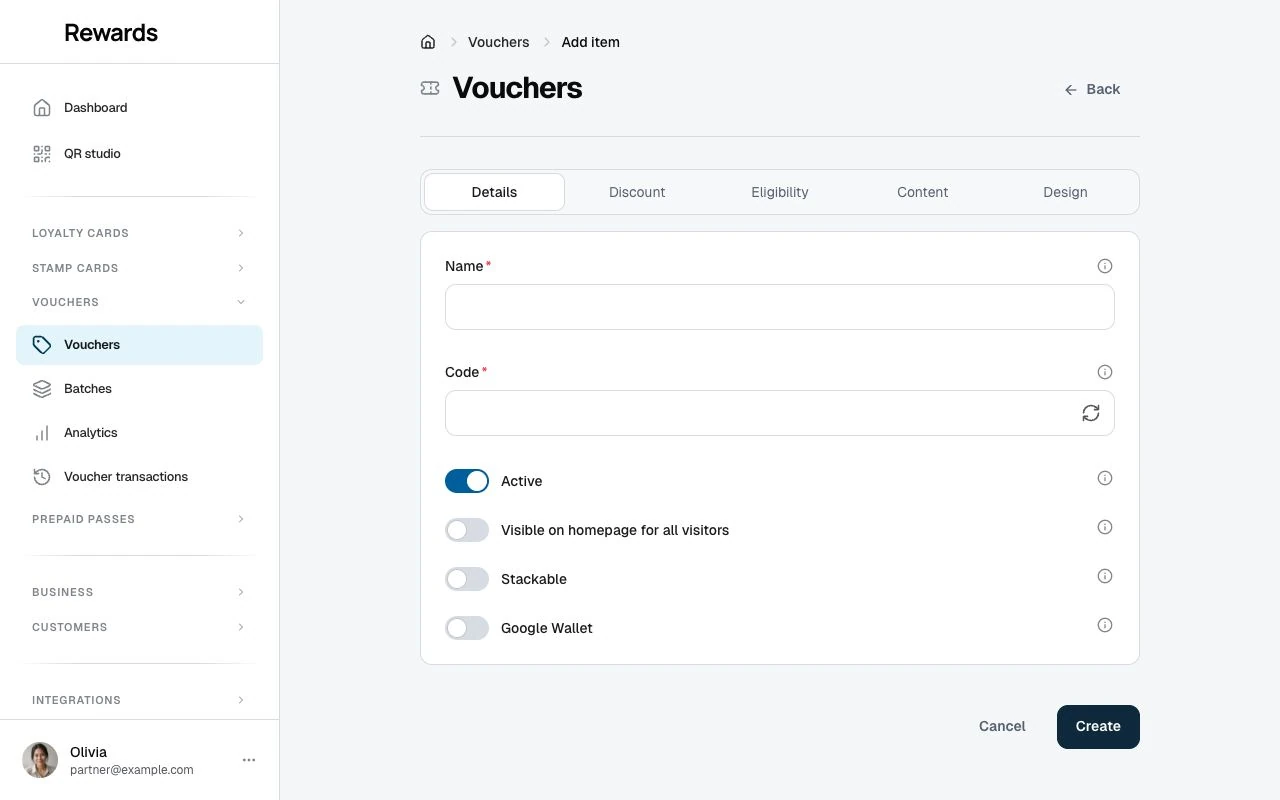
- On the Details tab, enter a Name and a Code. You can use Generate code instead. Select the Club if the form shows this choice.
- On Discount, choose percentage and set Value to 20
- On Content, write the Title (e.g., "20% Off Summer Sale") and a short Description
- Click Create
Your voucher appears in the list. Members can redeem it when it is active, within its dates and eligible for their account and purchase.
The creation form
The voucher creation form has five tabs: Details, Discount, Eligibility, Content, and Design. Eligibility contains Conditions and Targeting, so you can review purchase, date, usage and audience rules together.
Tab 1: Details
Name (required) Internal reference only. Customers don't see this. Use descriptive names like "Summer Sale 2025" or "Welcome Discount Q1."
Code (required) The code customers enter or scan. It appears below Name. Enter your own code, or use the Generate code button in the field to create a ten-character code. The generated code uses uppercase letters and numbers. You can edit it before saving. Generating a code does not save the voucher.
| Good Codes | Avoid |
|---|---|
| SUMMER20 | summer-sale-2025-promo |
| WELCOME10 | get10percentoff |
| BONUS500 | POINTS_BONUS_CODE |
Club (required) The club this voucher belongs to. Staff of this club redeem it, and its loyalty program receives any bonus points.
Active (checkbox, on by default) Master switch. Must be checked for customers to redeem. Uncheck to temporarily disable without deleting.
The list and details show Status from this switch, the validity dates and total usage limit. Scheduled means the start date is ahead; Available means it is active, within its dates and below its total limit; Expired means its end date has passed. Inactive takes priority when you turn Active off. Unavailable can indicate an exhausted total limit. Member-specific audience, purchase and usage rules still apply.
Visible on homepage for all visitors (checkbox) Controls distribution. When checked, the voucher appears in the homepage's public listing for anyone to discover. When unchecked, the voucher is unlisted: customers reach it through its QR code or a direct link you share. A voucher works the same once a customer opens it, whichever way they found it. QR codes and direct links keep working either way.
Your administrator controls whether you have permission to show vouchers on the homepage. If this toggle is not visible, ask your administrator to enable the "Cards on Homepage" permission.
Stackable (checkbox) Stored on the voucher as a note of intent. Redemption processes one code at a time and does not enforce combining rules, so don't rely on this setting to allow or block combined discounts.
Google Wallet (checkbox) Lets members add this voucher to Google Wallet. The toggle appears when the Google Wallet integration is enabled and your account has permission for it. See Google Wallet for setup.
Tab 2: Discount
Discount type (required) Choose how the discount works:
- Percentage off (e.g., 20% off)
- Fixed amount off (e.g., 10 USD off)
- Free product
- Bonus loyalty points
See Understanding Discount Types for details on each type.
💡 Smart Form: The form adapts based on your selected discount type. You'll only see fields relevant to your choice: no clutter from options that don't apply.
Value (required for percentage and fixed amount) Enter the amount as you'd write it:
- Percentage: enter 20 for 20% off
- Fixed amount: enter 10.00 for 10.00 off in your selected currency
Currency (for percentage and fixed amount) Select the currency for your discount value and cap. Defaults to your business currency.
Maximum discount cap (optional, percentage only) Limits how much discount can be given, entered as a normal amount.
Example: 20% off with a 50.00 cap. A $300 order gets $50 off (not $60).
Bonus points (required for bonus points type) The number of points to award on redemption.
Credit points to card (required for bonus points type) Select one of your loyalty cards. At redemption, points are credited to the member's loyalty card in the voucher's club; if the member holds no card in that club, no points are granted.
Free product name (required for free product type) The exact item the customer receives, translatable per language. It appears on the voucher, so be specific: "Medium Coffee", not "Beverage".
Tab 3: Eligibility
Conditions
Minimum purchase (optional) Order must reach this amount to use the voucher. Enter it as a normal amount (e.g., 25.00 for a 25.00 minimum).
Total usage limit (optional) Maximum times this voucher can be used across all customers. Leave empty for unlimited.
Example: "First 100 customers only" = set to 100.
Per-member limit (optional) Maximum times one customer can use this voucher. Leave empty for unlimited.
Example: "Limit 3 per customer" = set to 3.
Single use only (checkbox) If checked, each customer can only use this voucher once, ever. Overrides per-member limit.
Valid from / Valid until When the voucher becomes active and when it expires. Valid from defaults to the moment you create the voucher; choose No end date or Ends on to enter an end date and time. The creation form selects No end date by default.
Targeting
Limit to membership tiers (optional) Only members of the selected tiers receive this voucher. The list shows your own active tiers, labelled by club, and the field only appears when you have tiers.
Tier-targeted vouchers are delivered privately. The moment a member holds an eligible tier, or later reaches one, the voucher lands in their My Cards automatically and they get an email. It never appears on the homepage or in public browsing, and members outside the tier never see it. Homepage visibility does not apply to tier-targeted vouchers.
First voucher use only (checkbox) Only members with no successful, non-voided voucher redemption in this voucher's club can use it. Regular purchases do not count.
New members only (checkbox) Only customers who created their account on this installation recently can use this voucher.
New member period (number, shown when "New members only" is checked) How many days after account creation a member still counts as "new". Defaults to 30. Joining your club later does not restart the period.
Note: There is no field for targeting one specific member. Personal, single-use copies for individual members are issued automatically by the birthday reward and win-back reward.
See Advanced Targeting & Eligibility for detailed strategies.
Tab 4: Content
Title (required) Customer-facing headline, translatable per language. Make it clear and appealing.
| Good Titles | Avoid |
|---|---|
| "20% Off Summer Sale" | "Discount Code" |
| "500 Bonus Points" | "Points voucher" |
Description (required) Details shown to customers, translatable per language. Explain any requirements or restrictions in plain language.
Tab 5: Design
Background color Primary color for the voucher card. Click to open the color picker or enter a hex code. Defaults to #7C3AED.
Background color opacity How solid the background color appears (0-100). Default is 85, which works well with most images.
Text color Color for text on the voucher card. Defaults to white (#FFFFFF); use black (#000000) for light backgrounds.
Background image (optional) Upload a custom image for the voucher card. JPG, PNG, or GIF, up to 20 MiB (subject to lower hosting limits), between 320×240 and 1920×1440 pixels.
Logo (optional) Your brand logo displayed on the voucher. JPG, PNG, or GIF, up to 20 MiB (subject to lower hosting limits), between 20×20 and 800×800 pixels.
See Voucher Card Design for design tips.
After creating
On phones, the list keeps the voucher name, status, code and QR visible. Details shows secondary information. Show all columns reveals secondary columns on narrower table views.
Your voucher appears in the voucher list right away. From there you can:
- Edit: Change settings anytime (some restrictions apply after redemptions)
- View Analytics: Track performance
- Deactivate: Temporarily disable
- Delete: Remove permanently
Common voucher setups
Welcome discount
Encourage a member's first voucher redemption.
Code: WELCOME15
Title: 15% Off Your First Voucher
Type: Percentage off
Value: 15
First voucher use only: ✓
Minimum purchase incentive
Increase average order value.
Code: SPEND50
Title: $10 Off Orders Over $50
Type: Fixed amount off
Value: 10.00
Minimum purchase: 50.00
VIP exclusive
Reward your best customers.
Code: GOLDONLY
Title: Exclusive 25% Off for Gold Members
Type: Percentage off
Value: 25
Limit to membership tiers: Gold, Platinum
Limited time offer
Create urgency with expiration.
Code: FLASH20
Title: Flash Sale - 20% Off
Type: Percentage off
Value: 20
Valid from: Today
Valid until: 3 days from now
Total usage limit: 50
Free product promotion
Drive trials of new or featured products.
Code: FREECOFFEE
Title: Free Medium Coffee
Type: Free product
Free product name: Medium Coffee
Minimum purchase: 5.00
What customers see
After creation, customers can:
- Discover the voucher on the homepage (if homepage visibility is on) or open it via QR code or direct link
- View details including requirements
- Copy the code or generate a QR code
- Share with friends
- Redeem at checkout
Next steps
- Batch Voucher Generation: Create hundreds of unique codes
- Understanding Discount Types: Choose the right discount
- Advanced Targeting: Reach specific audiences
- Visual Customization: Brand your vouchers
- Voucher Analytics: Measure campaign success