
Smart wallet homepage.
Present selected loyalty programs through a calm, card-led member experience.
On this page
Choose Smart wallet to present selected loyalty cards, stamps, vouchers, and passes for one business or a curated network.
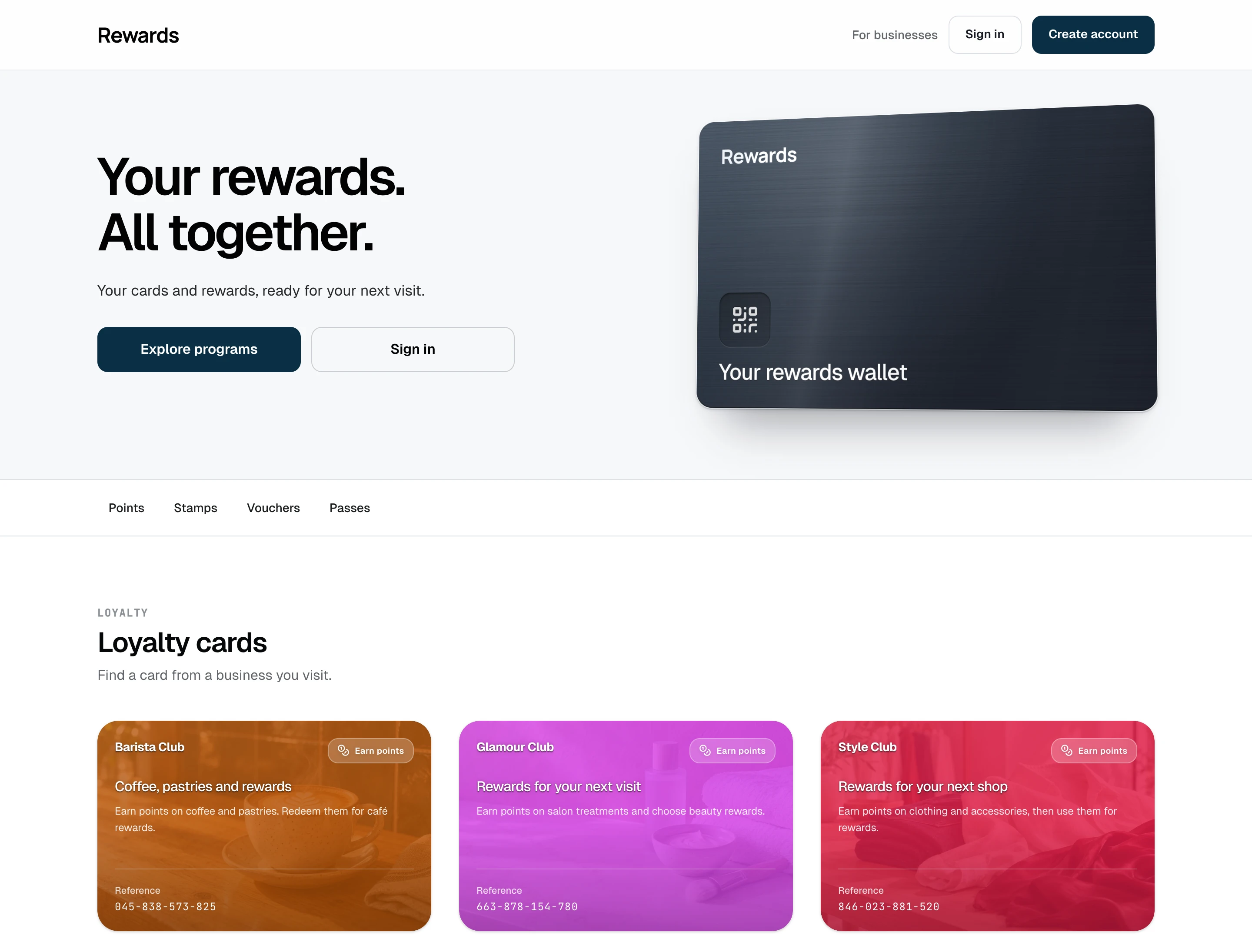
Desktop: The wallet hero, category shortcuts, and published loyalty cards on desktop.
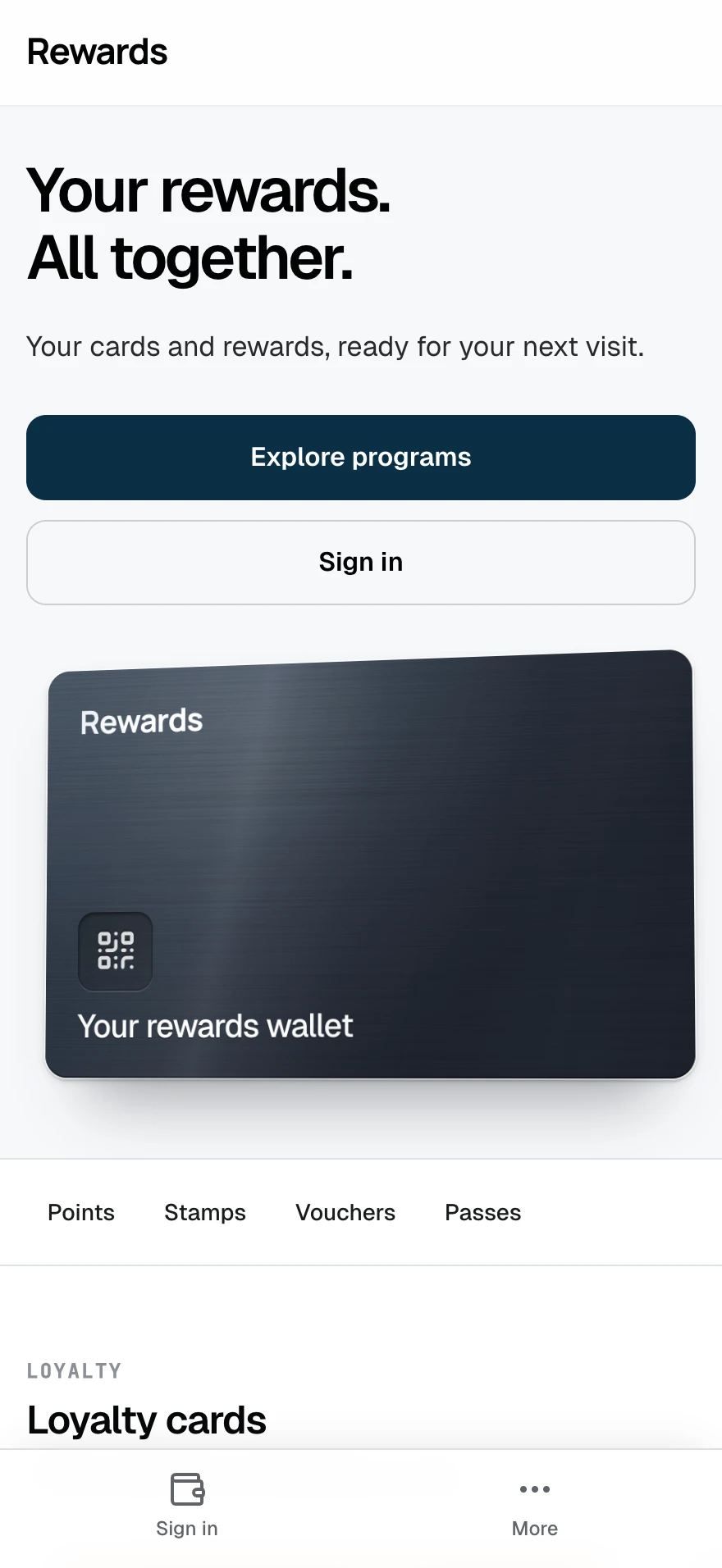
Mobile: The wallet card and program shortcuts on a phone.
How this homepage works
Smart wallet is the card-led homepage. One clear promise and a signature wallet card lead into the loyalty cards, stamp cards, vouchers, and prepaid passes you chose to publish. Visitors can jump to each available type without waiting through a product tour.
It is one homepage presentation, not another name for the shared wallet architecture. The architecture lets one member account work across isolated businesses. Smart wallet decides how selected programs are presented before the member signs in.
Best use cases
Smart wallet works best when the collection itself tells a useful story:
- One business with several campaigns: A coffee shop can present a points card, stamp card, seasonal voucher, and prepaid pass as one wallet.
- A flagship or single-brand installation: The card-led design makes the loyalty product feel like an app rather than a conventional marketing page.
- A curated group of complementary businesses: A hotel may feature its restaurant, spa, and activity partners. A franchise may feature selected locations or shared campaigns.
- A small network with intentional associations: Every business shown belongs together, and the combined wallet is part of the value proposition.
For a multi-business installation, do not turn Smart wallet into an accidental directory. Grant homepage publishing to the partners you want associated on the same page. An agency serving unrelated clients should start with Portal.
What visitors see
- A concise hero with direct actions for guests and signed-in members
- One brushed-metal wallet card that turns toward the pointer, leans as the page scrolls, and settles back into the same pose
- Category links for the program types that have published content
- Published loyalty cards, stamp cards, vouchers, and prepaid passes in wallet-style sections
- A short explanation of how the wallet works
- A business invitation when partner self-registration is open
On a phone, each program section becomes a swipeable card row. Larger screens use three-column shelves. Category links account for the fixed header, so the selected shelf starts in full view.
When no programs are ready, guests can create a wallet or sign in. Signed-in members keep a direct path to their wallet. The page never sends someone to an empty program section.
Curated, not automatic
Smart wallet never publishes every partner by default. It uses the shared homepage visibility controls:
- The partner's plan or admin override permits homepage publishing.
- The partner marks an individual program Visible on homepage.
- The partner and its network remain active.
This works for one business or many. On a single-business installation, grant the one partner permission and choose the campaigns worth featuring. On a multi-business installation, grant it to the partners that belong in the public collection.
Smart wallet or Public listing?
Both layouts show the same approved program set. The difference is how visitors use it.
| Smart wallet | Public listing | |
|---|---|---|
| Main job | Present the value of the wallet | Help visitors find a program or business |
| Shape | Focused hero and grouped shelves | Dense unified directory |
| Controls | Category shortcuts | Search, filters, sort, pagination |
| Best scale | A considered collection | A catalogue with enough entries to search |
| Strongest fit | One business or curated network | Public network, destination, or campaign |
Choose Smart wallet when you want visitors to understand and desire the wallet. Choose Public listing when they arrive with something specific to find.
When another layout is stronger
- Choose Showcase when one brand and its message should lead the page.
- Choose Portal when programs should stay out of public listings or another site explains them.
- Choose Public listing when search and discovery are central to the offer.
Configure Smart wallet
Open Settings → Homepage, select Smart wallet, and save. Then decide which partners may publish and which programs should appear. The Homepage layouts guide owns the setting values and full permission flow.
Demo content profile
Demo resets use the Smart wallet profile by default. It publishes three loyalty cards, three stamp cards, three vouchers, and three prepaid passes so the homepage shows a focused set.
Use the Public listing profile when you need the expanded discovery catalogue:
APP_DEMO_CONTENT_PROFILE=public_listing
The setting accepts smart_wallet or public_listing and affects demo seeding only. It does not change the selected homepage layout or any production content.
Related
- Homepage layouts: Compare and configure all four modes
- The shared wallet concept: Account sharing without partner data sharing
- Partner permissions: Grant homepage publishing
- Public listing homepage: Add search and filters to the approved catalogue