Viewing activity logs.
How to search, filter, and explore activity log records
The activity log list provides detailed access to every action recorded in your system. Use search and filtering tools to find exactly what you need.
Accessing activity logs
Administrators: Navigate to Activity logs in the admin sidebar.
Partners: Navigate to Business → Activity logs in the partner sidebar to view logs for your business.
Note: Partners require the Activity Log permission to access this feature. Administrators can enable this in partner settings.
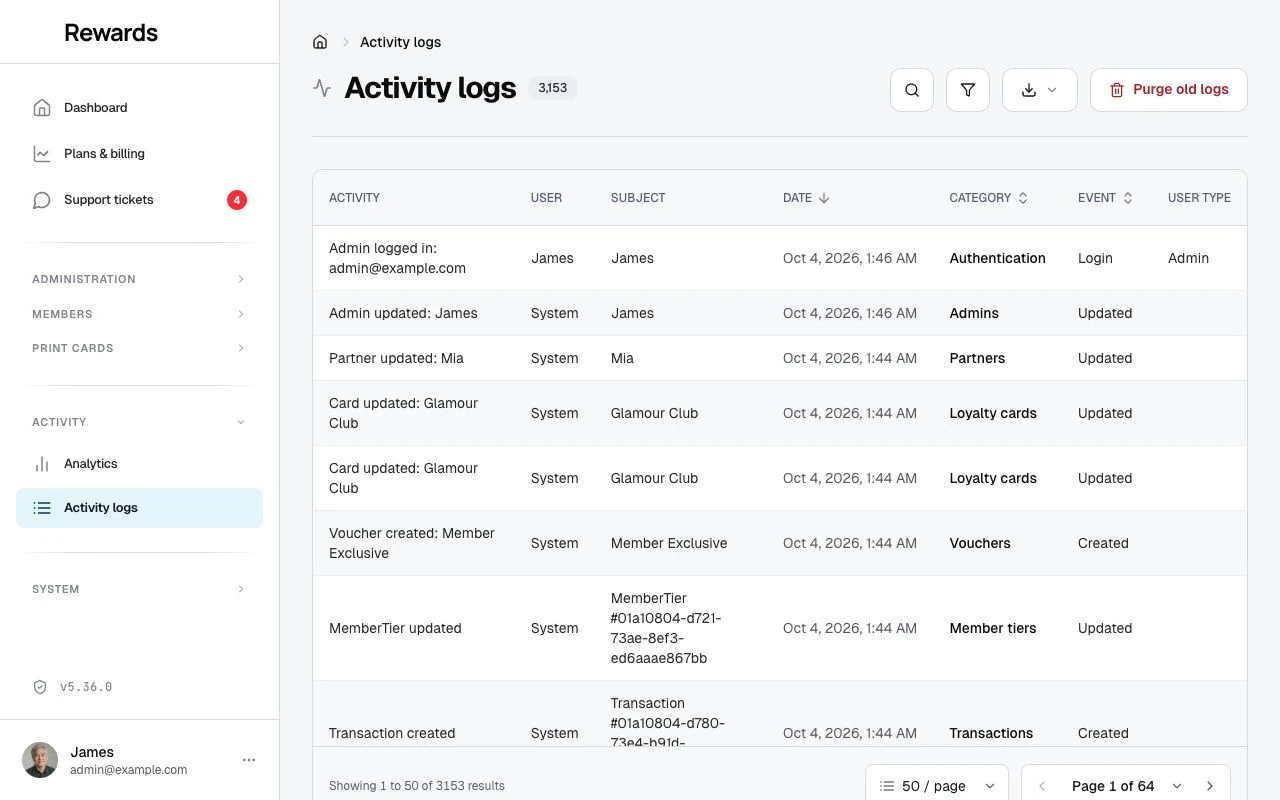
Searching activity logs
Use the search bar to find a description, a translated category or event, or a supported user or subject name. Search preserves each role's existing log access. Deleted related records cannot supply a current name; their recorded description and identifiers remain part of the audit history.
Example searches:
- "Card was updated": Find all card updates
- "Member was created": Find new member registrations
- "Reward was deleted": Find deleted rewards
- "Login failed": Find failed authentication attempts
Search results appear as you type.
Filtering activity logs
Click Filters (next to Export) to open the filter panel, then combine any of the filters below to narrow down results. Each filter you add shows as a removable chip below the header, and a count appears on the Filters button. Date filters use your account time zone and include the whole selected local day.
Category filter
Filter by resource type:
| Category | Description |
|---|---|
| All Categories | Show everything |
| Authentication | Login, logout, and failed login events |
| Privacy | Privacy-related actions (data exports, deletions) |
| Transactions | Points and stamps transactions |
| API | API request activities |
| Admins | Administrator account activities |
| Partners | Partner account activities |
| Staff | Staff account activities |
| Members | Member account activities |
| Member Tiers | Member tier assignment activities |
| Tiers | Tier configuration activities |
| Cards | Loyalty card activities |
| Rewards | Reward activities |
| Clubs | Club/program activities |
| Networks | Network activities (Admin only) |
| Vouchers | Voucher activities |
| Voucher Redemptions | Voucher redemption events |
| Voucher Voids | Voided voucher events |
| Voucher Exhausted | Fully used voucher events |
| Stamp cards | Stamp card activities |
| Stamp Transactions | Individual stamp events |
| Stamp Enrollments | Member enrollments in stamp programs |
| Stamp Completions | Completed stamp cards |
| Stamp Redemptions | Stamp reward redemptions |
| Prepaid passes | Prepaid pass activities |
| Support tickets | Support ticket activities |
| Integration API keys | Integration API key activities |
Event filter
Filter by action type:
| Event | Description |
|---|---|
| All Events | Show everything |
| Created | New records added |
| Updated | Existing records modified |
| Deleted | Records removed |
| Login | Successful authentications |
| Logout | User sign-outs |
| Login Failed | Failed authentication attempts |
| Lockout | Account temporarily locked |
| Password Reset | Password reset requests |
| OTP Sent | One-time password sent |
| OTP Login | Login via one-time password |
| API Request | External API calls |
| Data Export | Personal data exports |
| Partner Data Deleted | Member removed partner data |
| Account Deleted | Account deletion events |
| Member Enrolled | Member joined a program |
| Stamp Earned | Stamp collected on card |
| Stamp Card Completed | All stamps collected |
| Stamp Reward Redeemed | Stamp reward claimed |
| Points Credited | Loyalty points added |
| Tier Assigned | Member assigned to tier |
| Tier Upgraded | Member moved to higher tier |
| Tier Downgraded | Member moved to lower tier |
| Tier Changed | General tier change |
| Voucher Created | New voucher generated |
| Voucher Redeemed | Voucher used |
| Voucher Voided | Voucher cancelled |
| Voucher Exhausted | Voucher fully used |
| Agent Read | Agent API read operation |
| Agent Write | Agent API write operation |
| Agent Delete | Agent API delete operation |
Sign-ins through emailed login links, such as the links in store integration emails, log as the standard Login event; only one-time-password sign-ins get the separate OTP Login event.
Note: Event and category names show in your configured language across the analytics dashboards and the log viewer. Each one is stored under a fixed English identifier that never changes, so the record, the CSV export, and the Agent API stay stable in any language. See Log entry language and format for details.
Monetary pass events
Select Prepaid passes, then choose the monetary issue, spend, reversal, refund, sale, setup, or oversight event. Labels appear in your language; exports keep stable codes such as money_spent and money_refund_prepared. A pending refund records a reservation and business action to finish, not a completed external payment.
Financial event details include currency, integer amounts and balance changes where relevant, with pseudonymous record IDs. They do not include payment references or member names. Use the authorized monetary record or financial export for reconciliation. A generic User field may show System because these entries do not attach a named user.
Administrators can find Monetary operation denied under Authentication. That event records a failed authorization or restriction check and no financial mutation.
User type filter
Filter by who performed the action:
| User Type | Description |
|---|---|
| All User Types | Show everything |
| Admin | Actions by administrators |
| Partner | Actions by business owners |
| Staff | Actions by employees |
| Member | Actions by customers |
Note: "System" appears as a user name for automated processes, but you cannot filter it on its own.
Subject type filter
Filter by what was affected:
| Subject | Description |
|---|---|
| All Subject Types | Show everything |
| Admin | Activities affecting admin accounts (Admin view only) |
| Partner | Activities affecting partner accounts |
| Staff | Activities affecting staff accounts |
| Member | Activities affecting member accounts |
| Card | Activities affecting cards |
| Reward | Activities affecting rewards |
| Club | Activities affecting clubs |
| Network | Activities affecting networks (Admin view only) |
| Transaction | Activities affecting transactions |
| Integration API key | Activities affecting Integration API keys |
Understanding the results table
The list starts with Activity, User, Subject and Date.
Activity describes what happened in the configured language. Category and Event remain available as secondary information; on phones, open Details to see them.
User identifies the person who performed the action. A genuine event without a named actor shows System. An event whose recorded actor no longer exists shows an unavailable-user label.
Subject identifies the affected record where the log permits it. Historical identifiers remain available when the record no longer exists.
Date shows when the activity occurred in your account time zone. Open the detail view for the full timestamp, request IP address and other permitted technical details.
Viewing activity details
Click on any activity row to view full details:
Changes Section For update events, see what changed:
- Old value (before the change)
- New value (after the change)
Technical Details
- Full timestamp
- User agent (browser/device)
- IP address
- Database IDs
Purging old logs (administrators only)
Administrators can review old activity logs before deleting them:
- Open Activity logs in the admin sidebar.
- Select Purge old logs.
- Review Records to delete, Older than and the cutoff date. Breakdown by category shows the affected categories in the selected language.
- Select Purge [count] records.
- Select Delete in the confirmation dialog. Choose Cancel to keep the records.
If no records qualify, the page shows No old records to purge and hides the purge button.
Permanent deletion: Export any entries you must retain before confirming. The purge keeps records within the configured retention period, with a minimum of 90 days. It removes activity log entries only. Monetary balances and financial journals remain.
Common use cases
Finding who changed something
- Filter by Subject Type (e.g., Card)
- Filter by Event (Updated)
- Search for the item name if known
- Review user names and timestamps
Investigating failed logins
- Filter by Category: Authentication
- Filter by Event: Login Failed
- Look for patterns (same IP, same email)
- Check timestamps for attack timing
Tracking new registrations
- Filter by Category: Members
- Filter by Event: Created
- Review registration dates and sources
Auditing deletions
- Filter by Event: Deleted
- Review what was removed
- Identify who performed deletions
- Understand the context from related activities
Monitoring voucher usage
- Filter by Category: Voucher Redemptions
- Filter by Event: Voucher Redeemed
- Review redemption patterns and timing
Tracking tier progression
- Filter by Category: Member Tiers
- Filter by Event: Tier Upgraded or Tier Downgraded
- Monitor member progression through your loyalty tiers
Related topics
- Activity logs overview: Introduction to activity logging
- Activity analytics: Visual insights and metrics