Analytics & history.
Track pass sales, recorded revenue, visits, active passes, and unused expired visits. Browse and export the full pass ledger.
Analytics show you how your passes sell and how customers use them. The transaction history is the ledger behind those numbers. Both live in the Prepaid passes menu, beside the same pages your other card types have.
Monetary analytics and records
Use the Visits and Monetary tabs within Prepaid passes analytics. Visits keeps the existing visit reports. Monetary separates credit issued, net credit spent, net refunds recorded and the issued balance still outstanding. These figures are ledger and balance records, not recognised revenue or VAT calculations.
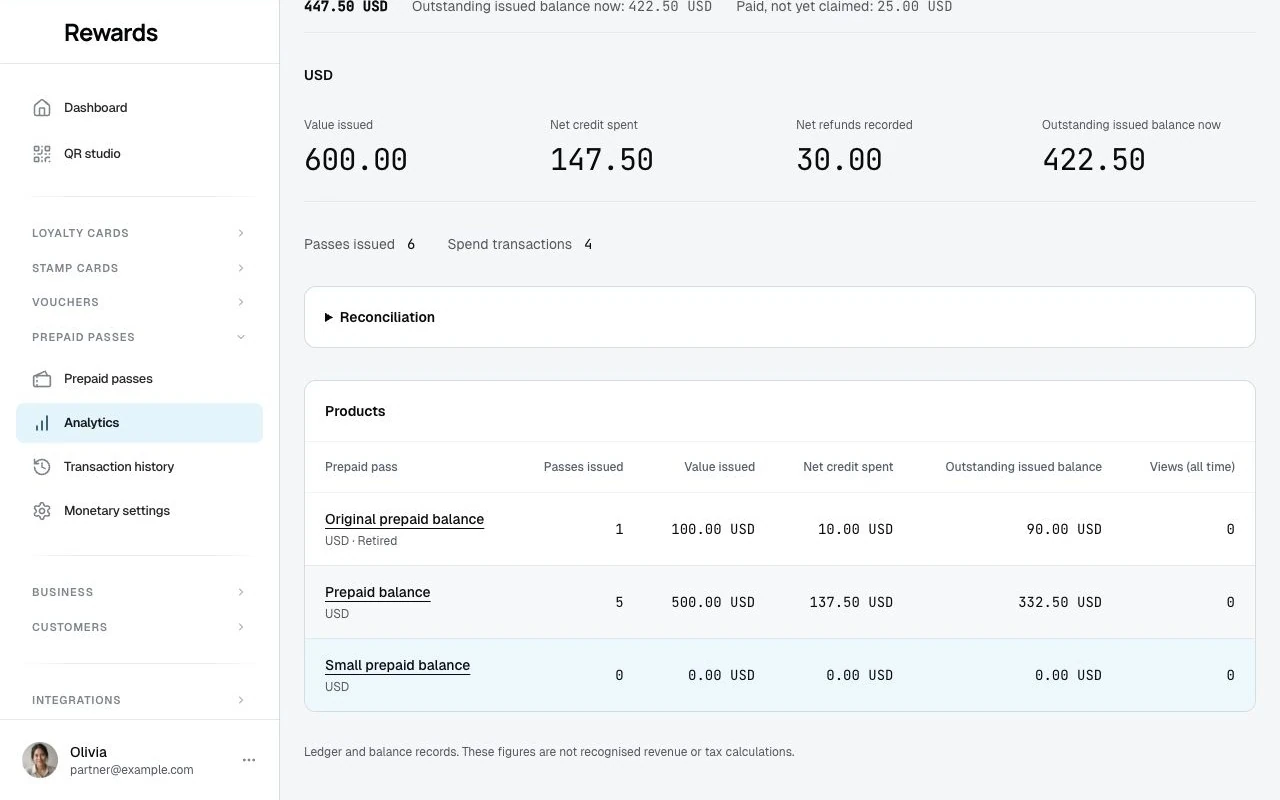
The monetary overview starts with retained all-time figures. Choose a day, week, month or year for dated movements and the credit chart. Reporting uses the partner's timezone; weeks start Monday. A refund reservation does not reduce the outstanding balance. Paid sales that have not been claimed remain separate obligations and become issued credit only when claimed, without a second collection.
The product list's Issued count includes claimed monetary passes and excludes paid sales awaiting a claim. Refunds, cancellations and removal of the wallet pass do not subtract monetary issuance. Keep this count separate from credit amounts, recorded collections and the outstanding balance.
Keep currencies separate. Products can be sorted by name, issue count, issue/payment date and monetary amounts; select one currency for an amount sort. Retired products and their outstanding credit remain part of the financial record. Current-product filters do not forgive obligations from old products.
Reconciliation opens Monetary pass records, with Issued passes and Recorded sales tabs. You can also open either view from Prepaid passes → Monetary settings. Open an account to inspect its immutable movements, prepare an external refund or make an authorized linked correction. A prepared refund blocks checkout until you confirm that the external refund completed or cancel it because no refund occurred. Full administrators also oversee orphaned records.
Export the journal, recorded collections or outstanding balances as CSV. Exports include exact integer amounts and currency, decimal display values, external references, source/actor references and reconciliation totals. They are financial records, not tax invoices. Protect downloaded files and keep database backups. The application does not automatically delete monetary financial records based on age. An older or imported database may already contain a recorded gap in its history; reports show that gap instead of inventing a full historical total. Use your external archive to reconcile missing periods. Continued access depends on your installation and hosting.
The dashboard shows outstanding monetary obligations separately from loyalty growth and visit counts. The visit analytics instructions below retain their existing meaning.
Analytics overview
Access pass analytics from Prepaid passes > Analytics in the partner sidebar, or from the Analytics dropdown on your dashboard.
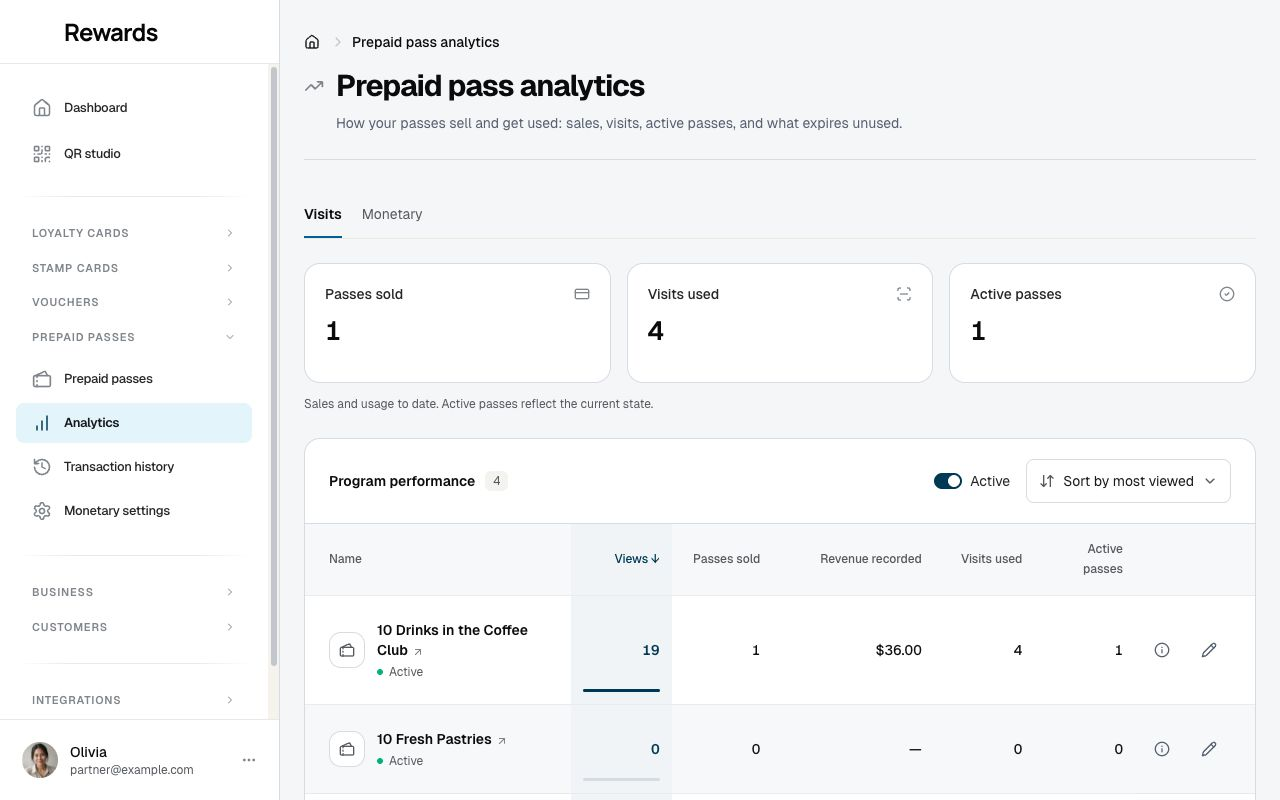
The overview compares pass products in aligned rows, with a labelled metric grid on phones. The summary shows sales and visits to date, plus passes active now, for the products currently shown:
| Metric | What it tells you |
|---|---|
| Views | How often the product page gets opened, for example through the counter QR |
| Passes Sold | Sales to date |
| Revenue Recorded | Amounts recorded at the counter |
| Visits Used | How many visits customers have ticked off |
| Active Passes | How many sold passes are usable right now |
Select a product name for its analytics detail page, or the pencil to edit it. The information button shows uses, validity, price, last view and unused expired visits where applicable. Sorting by a numeric metric adds proportional comparison bars; revenue is compared within each currency. Date sorts show the relevant timestamp beneath the product name.
Understanding each metric
Product page views
How many times the pass's public product page was opened. One view per visitor per session, so repeat opens by the same person do not inflate the number.
Why it matters: the product page is the top of your funnel. If you print the counter QR, views tell you how many customers scan it.
Interpretation:
- High views, few sales: the offer gets attention but the price or shape may not convince
- Few views, steady sales: staff sell it well; the printed QR could bring more
- Views climbing after a window sticker went up: the sticker works
Passes sold and revenue recorded
How many passes staff sold, and the sum of the amounts they recorded at the counter.
Why it matters: passes are prepaid money. Sales tell you how much commitment customers buy up front.
Remember that the platform records prices without charging anyone, so the revenue figure reflects what staff entered at the counter, including any discounts they gave.
Visits used
How many visits staff ticked off. Undone scans are netted out, so the number reflects real visits.
Why it matters: sold passes only build loyalty when they get used. Sales without visits mean customers forget they own the pass; a reminder at the counter helps.
Active passes and expiring soon
How many sold passes are usable right now, and how many of those enter their final week with visits left.
Why it matters: active passes show visits members can still use. They do not guarantee a return visit. The expiring-soon count helps you see how many passes are nearing their end date; eligible members may receive a reminder.
Note: The expiring-soon count includes unlimited passes in their final week, while the reminder email goes only to passes with visits left. An unlimited pass shows up in the count without triggering a reminder.
Unused expired visits
Visits customers paid for that expired before they were used.
Why it matters: this is breakage. It is margin today and disappointment tomorrow. A number that stays high means customers buy passes they cannot finish; a smaller pass or a longer validity window often fixes it.
The detail page
Select an active product’s name to open its dashboard:
- A grid of KPI tiles: page views, passes sold, revenue recorded, visits used, passes active now (with expiring-soon), and unused expired visits. Views, sold, and visits used each carry a period-over-period trend; the revenue tile shows the period's sum without a comparison badge
- A views chart for the selected period
- A Recent Activity feed of the latest sales and visits for this product, with a link to the full transaction ledger
- Edit the product or open its public page from the header
Time periods
The period selector covers today, yesterday, this and last week, this and last month, and this and last year. Weeks run Monday through Sunday.
Views, passes sold, revenue recorded, and visits used all follow the selected period. Views, sold, and visits used add a percentage comparison against the period before; revenue recorded carries no comparison. Active passes and unused expired visits stay as current totals, because "usable right now" has no period.
Sorting & filtering
Sort the overview by views, last viewed, name, most or fewest sold, highest or lowest revenue, or creation date. The Active toggle, beside the sort menu, hides deactivated products. Your sort and filter choices are remembered.
Transaction history
Prepaid passes > Transaction History is the pass ledger: every sale, every visit, every undo, every expiry, with the pass, the member, the visit count, and the staff member per entry.
The ledger is append-only. Corrections add an offsetting entry instead of editing history, so the numbers in analytics always reconcile with the ledger.
The page works like the other transaction histories: search across supported names, references and translated event labels, sortable columns, a detail view per entry with the before and after counts, and CSV, TSV, or JSON export. See Data export & Ledger History for the export mechanics.
One member's pass
The ledger covers every pass at once. To work with a single one, open it from the member list. Open Customers → Members and select a pass in the Cards column, or open the member and use the pass’s Transaction history link. A visit pass opens its own visit history: the sale, every visit, any correction, and the expiry, for that one pass and member.
The page shows the pass, member details, and timeline together. Its breadcrumbs and Overview link return to the member, with Members still selected in the sidebar.
Delete last visit opens a confirmation dialog. Review the member and pass, then confirm to return the latest eligible visit to the balance and record a separate correction. Cancel leaves the record untouched. Staff use their own counter-side history and Undo recent visit action (see Selling and scanning).
A monetary pass opens its credit history in the same member context. Each entry shows the movement, balance after the movement, date, and any recorded external reference. Retained accounts remain accessible when their wallet pass no longer exists. View record opens the account controls described under Monetary analytics and records.
This visit history also shows any private photo or note your staff attached to a sale or a visit, on the sale and visit entries. A photo appears as a small thumbnail; click or tap it to open the full-screen viewer, then use the arrows (or swipe) to move between photos and Escape (or swipe down) to close. These are internal: they appear here and on the staff counter view for your team, and never on the member's own pass page. Photos are kept private and served only over a signed, back-office-only link scoped to your business.
Related topics
- Partner setup: Creating and designing pass products
- Selling and scanning: The counter workflows behind these numbers
- Admin setup: The platform-wide ledger for administrators
- FAQ: Common questions