Finding and saving vouchers.
How to discover vouchers on the homepage, via links and QR codes, and add them to My Cards.
Save an available voucher to My cards so you can find it at checkout. Saving does not use the voucher or guarantee that it will remain available.
Finding vouchers
Open a voucher link from a business, scan its QR code, or browse the homepage when the installation lists public offers. A business can also share an unlisted offer through a direct link.
Batch QR codes assign a code through a separate claiming flow. Personal rewards can arrive in your wallet without a manual save.
Viewing voucher details
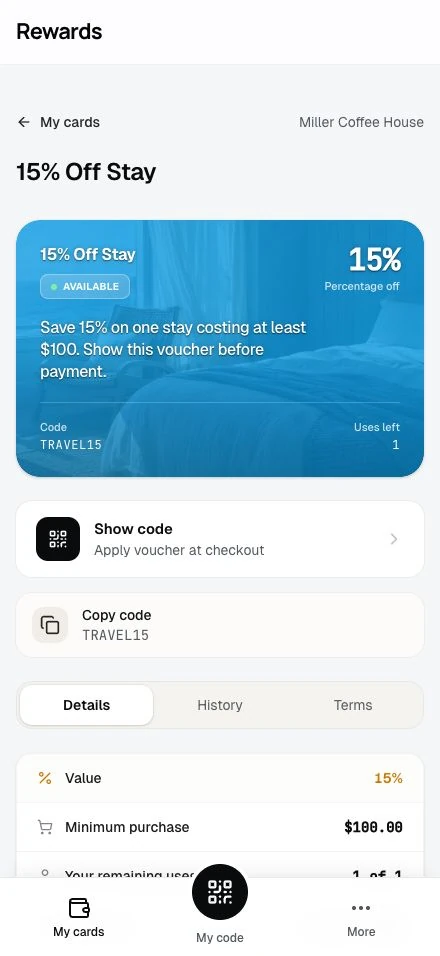
Check the offer, business, minimum purchase, validity dates, and remaining uses. Read the Terms before shopping.
Adding a voucher
- Open the voucher and sign in if needed.
- Check that it is available to you.
- Select Add to my cards.
- Open My cards and find it under Vouchers.
A confirmation at the top of the page has an Undo button if you change your mind.
If you sign in from a voucher page, the app can save the eligible voucher during sign-in. Remove from my cards means it is already in your wallet.
What adding means
Saving keeps a link to the voucher in your wallet. At redemption, the business still checks its current availability and purchase terms.
It stays yours to use
A voucher you received through a membership tier remains usable after a tier change, while its other conditions still hold. Expiry, remaining uses, first-use rules, and new-member rules still apply.
For example, an offer for recently joined members can stop applying when your account passes the offer's age limit.
Single-use & limited vouchers
A limited voucher can stop accepting new members once its claim allowance is full. Saving does not reserve a redemption or extend its expiry date.
A personal voucher belongs to its intended member. Another member cannot save it by receiving its link.
Viewing your vouchers
Open My cards, find Vouchers, and select the offer. Use Show code when staff ask for the code. See Redeeming a voucher for checkout steps.
Removing a voucher
- Open the voucher.
- Select Remove from my cards.
- Confirm removal.
Tap Undo in the confirmation to put it straight back while it is still available to you.
Removal hides it from your wallet. It does not undo a redemption or reset its allowance. You can add it again only while it is available to you. A used voucher cannot be restored for another use.
How vouchers reach My Cards
| Route | What happens |
|---|---|
| Save an offer | You add an eligible voucher from its page |
| Claim a code | A batch promotion assigns a voucher through its QR flow |
| Receive a reward | The business delivers a personal or tier reward |
You can remove a voucher regardless of how it arrived. Removing an automatic reward does not make the app deliver it again.
Voucher availability
Voucher states
| State | Meaning |
|---|---|
| Available | You can use it, subject to the purchase terms |
| Ending soon | It ends within seven days |
| Used | You have used your allowance; the last-use date appears |
| Expired | The validity period ended |
| Exhausted | The shared redemption allowance ran out |
| Unavailable | The offer is paused or you do not meet its rules |
| Scheduled | The offer starts on the date shown |
Sign in to see the state for your account. A remaining-use figure refers to your allowance when the voucher has a per-member limit.
When a voucher can't be used
The page shows the reason instead of a redemption action. A used voucher shows Used and its date, with no QR or add action. Removing it does not make it usable again.
Eligibility requirements
- Membership tier: Some offers require a tier before you receive them. A later tier change does not withdraw a voucher you already received.
- New members: Some offers apply only within a set number of days after you create your account on this installation.
- First voucher use: Some offers require that you have not redeemed a voucher in the relevant club before. Ordinary purchases alone do not disqualify you.
- Personal offer: Only the named recipient can save and use it.
Troubleshooting
| What you see | What to check |
|---|---|
| No add button | It may already be saved, require a batch claim, or be unavailable to you |
| Already claimed | The code has reached its limit for new claimants |
| No longer available | Check its expiry, current state, and eligibility terms |
| Missing from My cards | The offer may have ended, been deactivated, or been removed |
Opening a saved offer's link can explain its current state. Check that state before relying on the discount.
Related topics
- Claiming via QR code: Receive a code from a batch promotion.
- Redeeming in store: Use an available voucher.