
Overview.
What AI connections do, who can use them, what an AI client can and can't do, and how approvals keep you in control.
On this page
AI connections let you run Reward Loyalty from an AI client such as Claude, ChatGPT, Claude Code or Cursor. Which clients you can connect shows how each one connects. The AI client reads your data and prepares changes. Some actions run immediately when the connection permits changes. Actions marked as requiring approval wait for the connection owner to approve them in Reward Loyalty.
AI connections are optional. Reward Loyalty’s normal screens remain available without an AI account.
This page is for the platform owner and business owners who are deciding whether to connect an AI client.
What a connection is
An AI client talks to your installation at one address, https://your-domain.com/mcp, over MCP. MCP (Model Context Protocol) is the open standard AI clients use to call tools in other software. Each Reward Loyalty feature the AI can use is one tool, such as admin_get_platform_overview or list_stamp_cards.
A connection acts as the person who made it and can never do more than that person can. A business owner's connection never reaches another business. Every request uses the same rules as the dashboard.
Who can connect
-
The platform owner. A super admin can connect once AI connections are on. No plan is involved.
-
Business owners. A business owner can connect once AI connections are on and three things are in place:
- The Agent API switch under Settings → Integrations is on.
- The business has the Integration API keys permission on its Permissions tab.
- The business's plan includes the Agent API.
Without them, the business owner's AI connections page explains what is missing. Partner permissions shows where the platform owner sets them.
-
Member keys. A member key works over MCP for the member operations it already has over HTTP.
-
Nobody else. Admin managers, business sub-roles, staff and members can't sign an AI client in.
Which clients you can connect
Reward Loyalty answers MCP over HTTPS. A client connects with browser sign-in or with a key.
- Claude (claude.ai and desktop). Browser sign-in. See Connect Claude.
- ChatGPT. Browser sign-in. See Connect ChatGPT.
- Claude Code. A key or browser sign-in. See Connect Claude Code, Cursor and VS Code.
- Cursor and VS Code. A key, on the same page.
- Other MCP clients. Browser sign-in when the client supports OAuth for MCP servers, otherwise a key. See Connect other clients.
What your server needs
MCP uses plain HTTPS requests. The app answers each one and finishes, like any other web request, so it needs no background process, queue worker or open connection.
- Serve the app over HTTPS. Browser sign-in needs it, and the AI connections page checks it for you.
- Route
/.well-knownpaths to the app. Browser sign-in starts with discovery documents there. - Run the app at the root of its domain for browser sign-in. An app in a subfolder connects with keys instead.
Reward Loyalty needs no AI account or API key of its own. You choose the AI client and pay its provider directly.
Turn it on
The platform owner turns AI connections on.
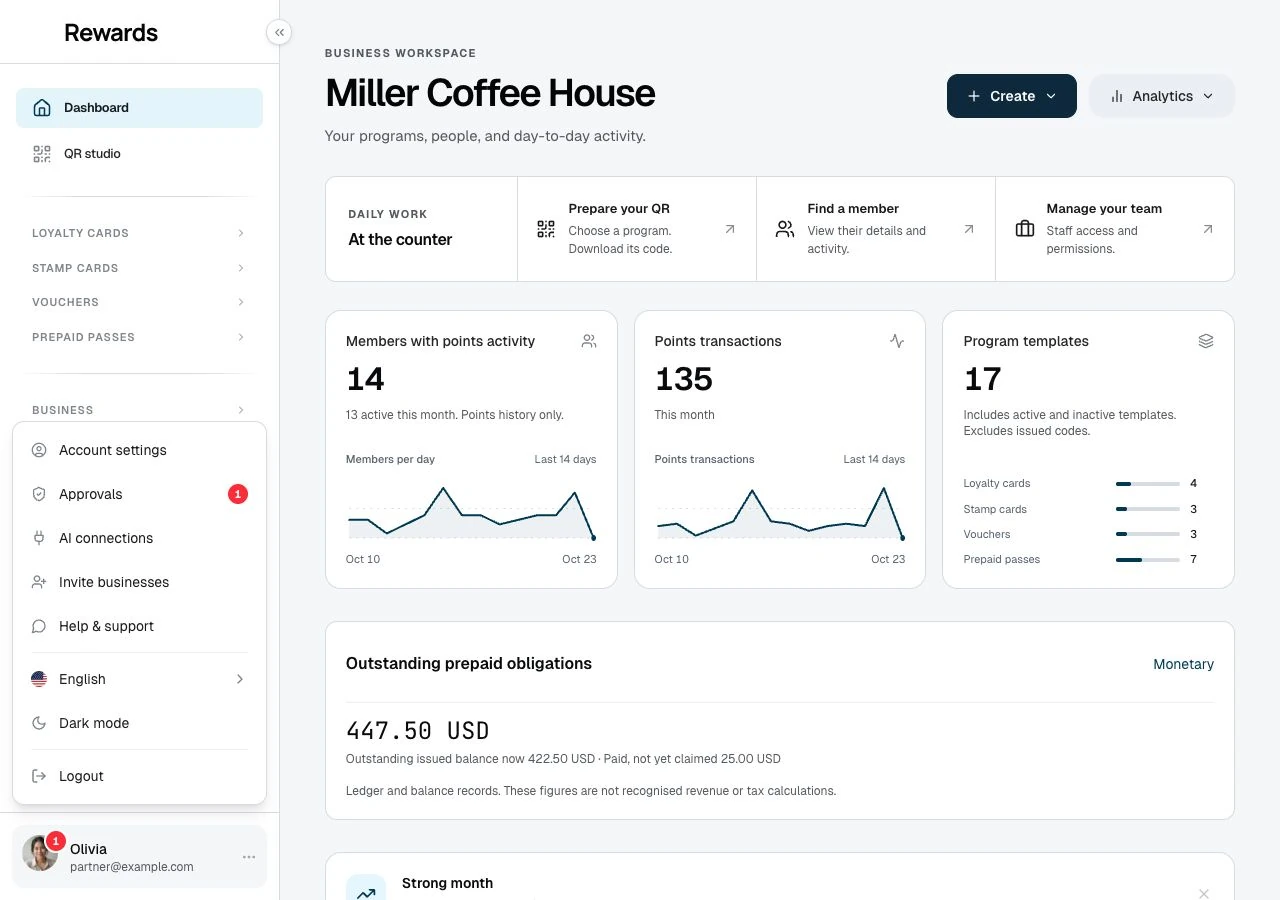
- Open your account menu at the bottom of the sidebar, then choose AI connections. On a phone, tap your avatar at the top.
- Click Turn on AI connections, then confirm.
- Copy the address the page shows.
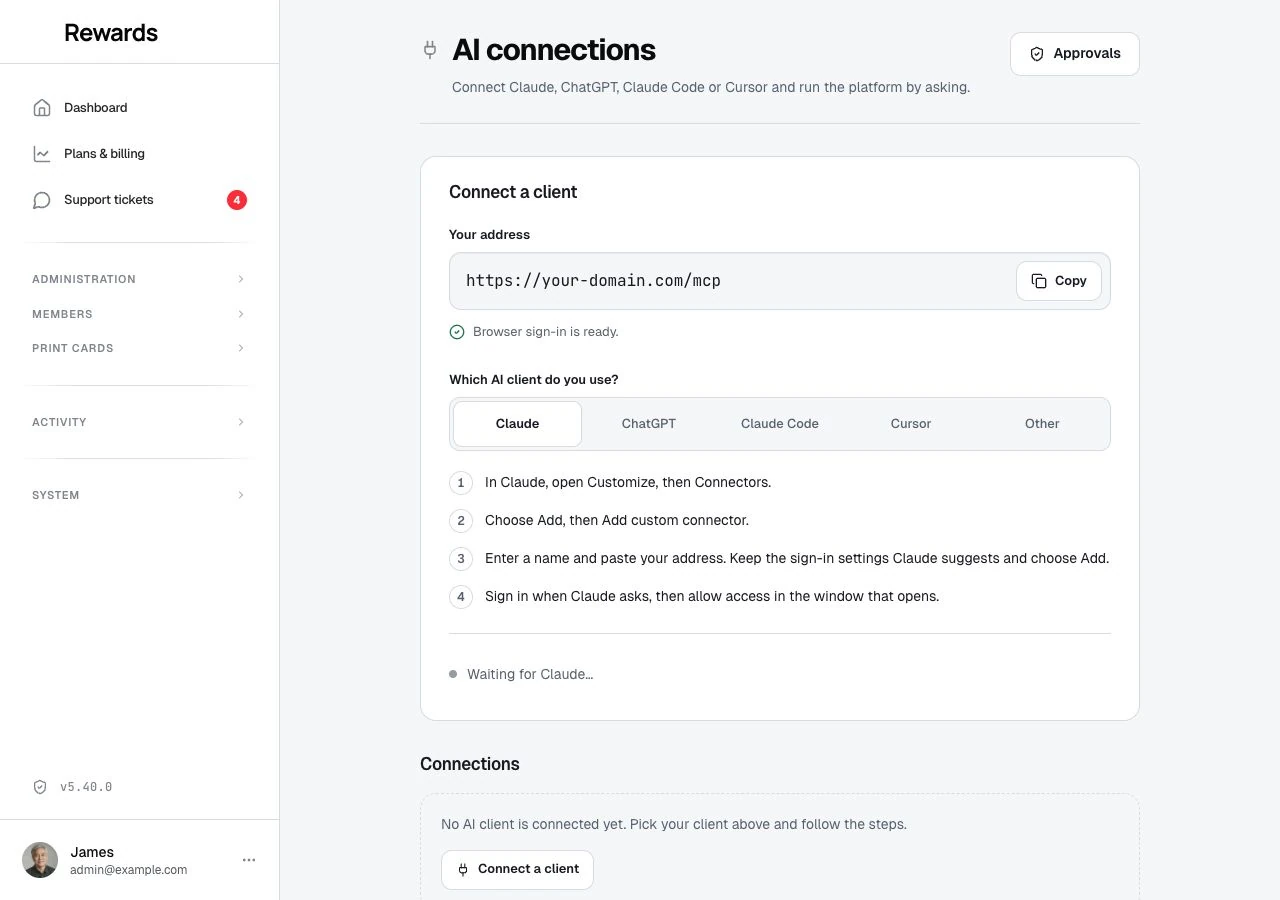
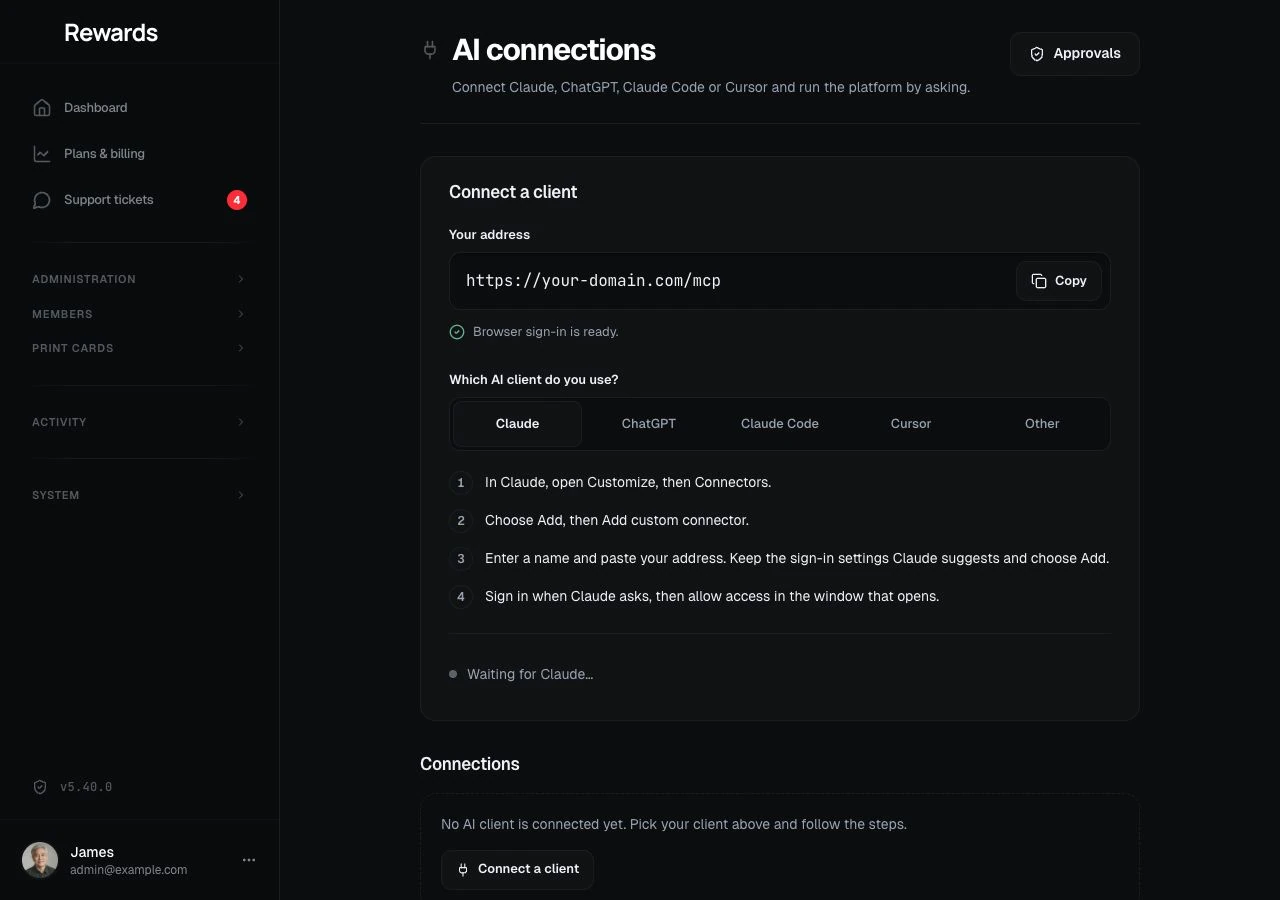
You can also use the AI connections switch under Settings → Integrations, or set the default in .env (The switches explains which wins). Business owners open AI connections from their account menu. The item appears only when their current plan includes Agent API and their administrator allows access. It stays hidden when the feature is off or the plan excludes it.
What you can ask
These requests are examples. The numbers in the answers come from your own data.
As the platform owner:
- "How did the platform do this week, and who is past due?"
- "Why is the Health center yellow?"
- "Show me everything about [email protected]."
- "Move a business to another plan."
As a business owner:
- "Which stamp card is doing best this month?"
- "Create a coffee card: buy 9, the 10th is free."
- "Who hasn't visited in 60 days? Draft a win-back email for them."
- "Give a member the 50 points she missed yesterday."
See What admins can ask and What business owners can ask for more.
What an AI client can and can't do
An AI client can read what the dashboard shows. It can also make the changes the dashboard allows, within the access you choose. Reads and everyday changes run at once and appear in the activity log.
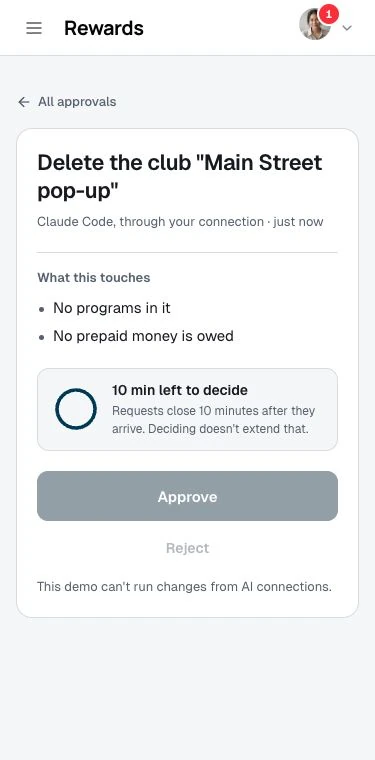
For a risky change, the AI client only prepares it. You get a review link, and nothing changes until you approve. Deleting a business, a member or a program, sending an email campaign, moving stored money and changing a plan are examples. Approvals lists them.
Some things have no tool at all. An AI client can't read provider secrets, install updates, change passwords, create keys or connections, turn AI connections on or off, or upload files. Access and security has the full list.
Whatever the client reads goes to the AI provider you use, under that provider's terms. What reaches the AI client explains it.
How approvals keep you in control
A risky change waits on a review page in Reward Loyalty until you click Approve or Reject, and it closes after 10 minutes. Approvals walks through the request, the page and each state.
Start a job in one click
Your AI client can list ready-made jobs, for example as slash commands: a weekly report, a health check, a member lookup, a stamp card launch and more. Reward Loyalty offers them to platform owner and business owner connections. They arrive as MCP prompts, and clients that support prompts show them as jobs.
A prompt appears only when the connection has every tool the job needs. It adds no access, and risky changes still wait for your approval. What admins can ask and What business owners can ask list them.
Views inside the AI client
Your AI client can draw a small view next to a tool answer, such as a loyalty card as members see it. Clients that support the MCP Apps extension do this. Reward Loyalty offers three views:
- Program preview. A loyalty card, stamp card, voucher or prepaid pass, drawn as members see it, after a tool creates, reads or updates one.
- Approval card. A change that waits for you, with the value before and after, what it touches, the time left and an Open in link that names your app. You approve or reject only on the review page in Reward Loyalty, never inside the AI client.
- Overview snapshot. The key figures, as tiles, from the platform overview, the plans and billing overview or a business dashboard.
Without the extension, the tool answer is the same text and data, so nothing is lost. The views load nothing from outside, and their links point only to your own address.
Next steps
- Connect Claude
- Connect ChatGPT
- Connect Claude Code, Cursor and VS Code
- Connect other clients
- Access and security
- Troubleshooting
Related topics
- Agent API overview: the HTTP interface that MCP tools run on.
- Partner permissions: give a business the Agent API.