
Updating.
Back up your installation, try the update on a private copy, and choose an update method for your hosting.
On this page
Keep Reward Loyalty up to date from License & updates in your admin dashboard.
Before updating: Back up your database, app settings, and uploaded files. Try the update on a private test copy before applying it to your live site.
Your license covers updates within the major version you purchased. See Update entitlement and Updates and support renewal below.
Three ways to update
| Method | When to use it |
|---|---|
| Dashboard update | Download and install through the app, with active support and compatible hosting |
| Install from package | Install a ZIP you already have through the dashboard; active support is not required |
| Manual file replacement | Upload the files yourself when the host cannot run the dashboard updater |
Dashboard update
- Open License & updates and select Check for updates.
- Read the release notes and select Install update when you're ready.
- Keep the progress page open until it finishes.
- Check sign-in, a staff checkout, and an image upload on the updated site.
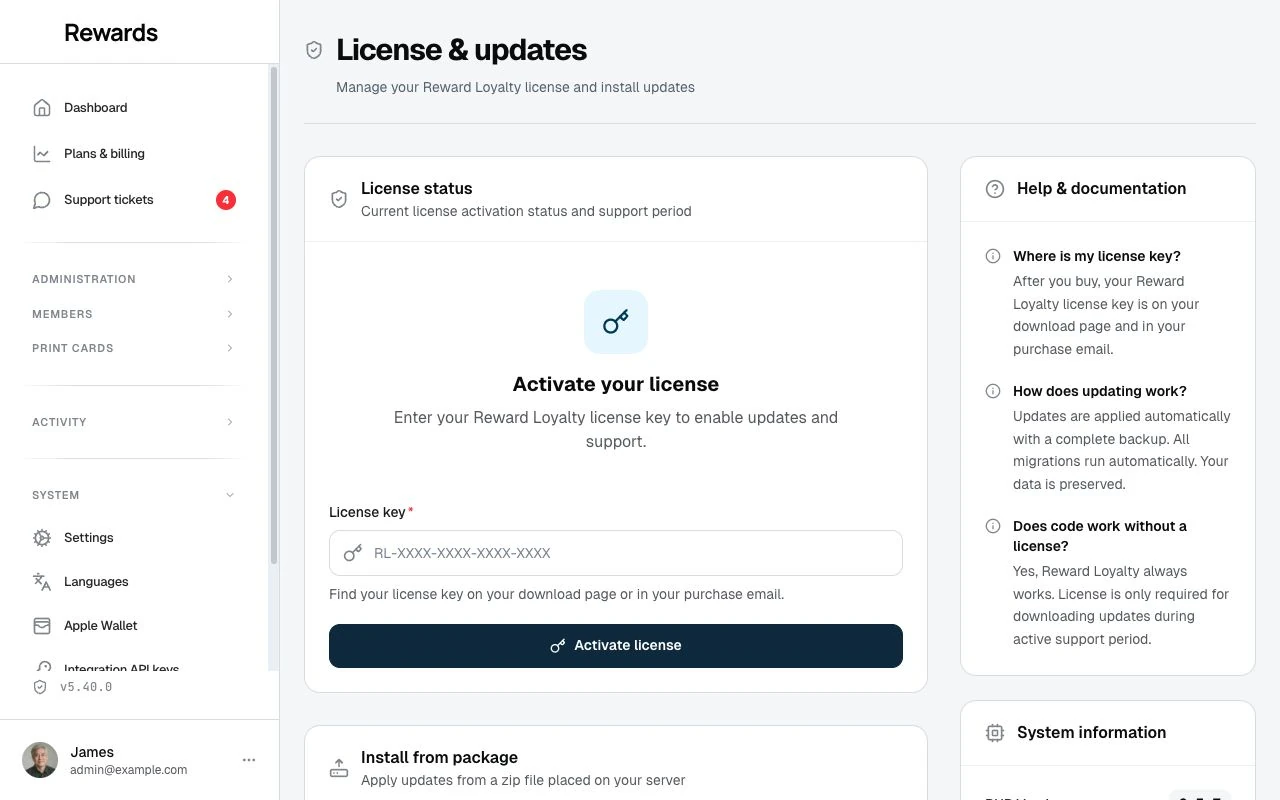
Reward Loyalty checks for updates when you select Check for updates. During installation it saves a file rollback, replaces the application files, updates the database, and clears caches.
What automatic updates need
Your host must allow the updater to run a background process and have enough space and resources to finish it. It does not need cron or a separate queue worker. If your host blocks it, the app reports the problem; use the manual method or share the updater requirements with hosting support. Uploading a ZIP to the dashboard uses the same process and hosting requirements.
Rollback backup
Before an update, a registered installation downloads and checks the official package for its current version. This avoids making a full copy of the application files on your server. It works after support expires, but needs access to the update server. An unregistered Install from Package run makes a full file backup instead.
Find these under Available backups. They restore application files only, not your database. Keep your own database and uploaded-file backups. See Restoring a backup.
Install from package
If you have the update ZIP, upload it to storage/app/manual-update/ using your hosting file manager. Open License & updates and apply the detected package. Active support is not required, but the same hosting requirements as a dashboard update apply.
Follow Install an update package for the steps.
Manual file replacement
If your host restricts the dashboard updater, you can upload the files through a hosting file manager or FTP/SFTP. You'll handle the backup, file replacement, database update, and cache clearing. Follow Manual file replacement in order.
Activating your license
Dashboard Update needs active support. Install from Package works without active support or registration. A registered installation uses the low-I/O rollback download; an unregistered installation keeps the full file backup for compatibility. Manual File Replacement does not contact the update server.
- Sign in as an administrator at
/en-us/admin - Go to License & updates in the sidebar
- Enter your license key
- Enter your Production domain, the primary domain where you installed Reward Loyalty (e.g.,
mysite.com) - Click Activate license
You receive your license key when you buy. Find it in your purchase confirmation email or in your account on the store where you bought.
The system validates the key for you, then shows your license status and support expiration date.
To move the license to another installation, click Deactivate license on the same screen. That removes the license from this installation, and you can reactivate it at any time with your license key.
Update entitlement
Your license includes updates for the major version available at the time of purchase. That includes patch and minor updates within the same major release line, but does not include the next major version unless we announce otherwise or provide it in writing.
If we keep an older major version updated, provide a free major upgrade, or extend update access beyond these terms, that does not waive our right to limit future update access to the licensed major version.
What gets preserved
Dashboard and package updates preserve the app's settings, uploaded media, and other protected paths. Database records, including translations edited in the dashboard, stay in place. Back up before updating: a file rollback does not restore the database.
If you have edited application files yourself, review the protected files and customization settings first. Files outside the protected list are replaced. With a manual update, you must preserve those files yourself.
Restoring a backup
Before every dashboard or package update, the updater creates a rollback backup for the version that is still running. Registered installations download a verified release package. An unregistered Install from Package run creates a full file backup instead. The License & updates screen lists the result under Available backups.
- Restore returns your application files to the backed-up version. It does not revert database changes from updates; if the older code has trouble with the newer schema, update to the latest version again. Rollback backups cover files only: your data, including languages and edited translations, stays in the database and is covered by your normal database backups.
- Delete backup removes a backup for good to free disk space.
The system never removes old backups on its own. Each update adds a new one, so delete backups you no longer need from this screen once in a while.
Checking your version
Your current version displays on the admin dashboard and in the License & Updates section.
Updates and support renewal
Your purchase includes 12 months of updates and product support. After that, renewal is optional: $99 a year. You can renew at any time, even after it has lapsed.
The install runs forever even if you stop renewing. You keep the last version you received. Renewal restores dashboard updates and product support when built-in features do not work as expected, including help with relevant update steps and suspected errors in the update process. Use this guide for update steps and read what support includes for the scope and reply times.
Even without an active renewal, you can download the version you already own from your purchase and use Install from Package or Manual File Replacement.