User roles.
The four account types, the manager sub-role, and what each may do.
The app has four account types, each with specific capabilities and access levels: Administrator, Partner, Staff, and Customer (member). You will also meet a fifth name, Manager. A manager is not a separate account type: it is an administrator account with the Role field set to Manager, which narrows what it can see and do.
Role hierarchy
graph TD
    A["Administrator"] --> B["Manager (admin sub-role)"]
    B --> C["Partner (Business Owner)"]
    C --> D["Staff Member"]
    D --> E["Customer (Member)"]
Administrators
What they are: Platform owners with full system access.
Typical users: Platform operators, SaaS providers, headquarters staff.
Capabilities
- Create and manage all networks
- Create partner and manager accounts
- Configure all system settings
- Access all analytics and reports
- Manage security and compliance settings
- View all activity logs
Access level
Administrators see everything across all networks and partners. They can impersonate any user for support purposes.
Managers
What they are: Administrator accounts with the Manager role: delegated admins with a narrow scope.
Typical users: Regional managers, franchise coordinators, area supervisors.
Capabilities
- Create and manage partners within their assigned networks
- Handle support tickets
- Cannot see analytics, activity logs, members, networks, or system settings (those stay with full administrators)
How to create one
Go to Administrators in the admin sidebar, create or edit an account, set Role to Manager, and pick one or more networks in the Networks multi-select.
When to use
Managers are optional. Use them when you need to delegate administration without giving full platform access.
Example: A coffee chain has East and West regions. Each region has a manager who creates and supports partners in their area.
Partners (business owners)
What they are: Business owners who run loyalty programs.
Typical users: Store owners, restaurant managers, business operators.
Capabilities
- Create and manage clubs
- Create loyalty cards and stamp cards
- Define rewards
- Manage staff accounts
- View business analytics
- Configure membership tiers
- Access activity logs for their business
Access level
Partners only see their own data. They cannot see other partners, networks, or system settings. This isolation carries the Shared Wallet architecture: multiple businesses share one installation while keeping private business records separate.
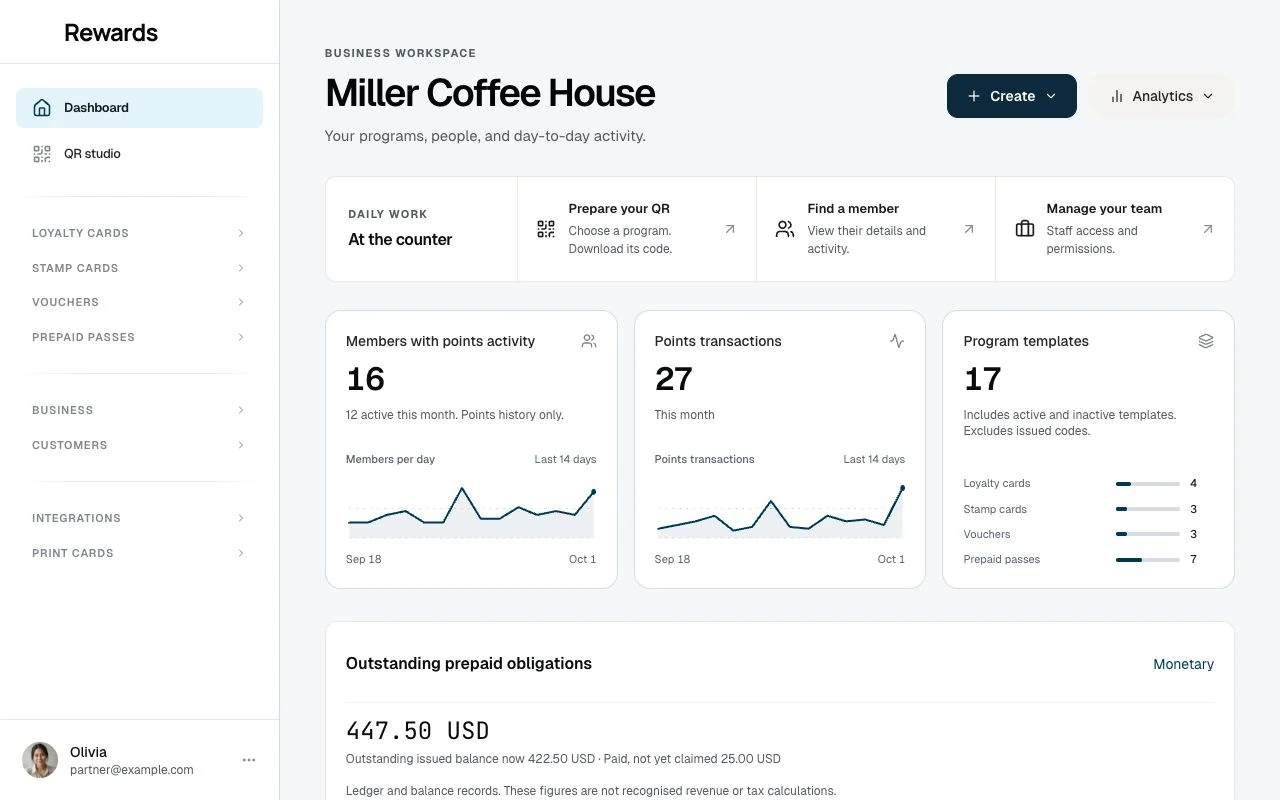
Dashboard
Partners access the platform through the Partner Dashboard, a dedicated interface for managing their loyalty programs.
Staff members
What they are: Point-of-sale employees who process transactions.
Typical users: Cashiers, servers, customer service representatives.
Capabilities
- Scan customer QR codes
- Award points on loyalty cards
- Add stamps to stamp cards
- Process reward redemptions
- View customer information (limited)
Limitations
- Cannot create or edit cards
- Cannot modify business settings
- Cannot view detailed analytics
- Limited to their assigned club
Access level
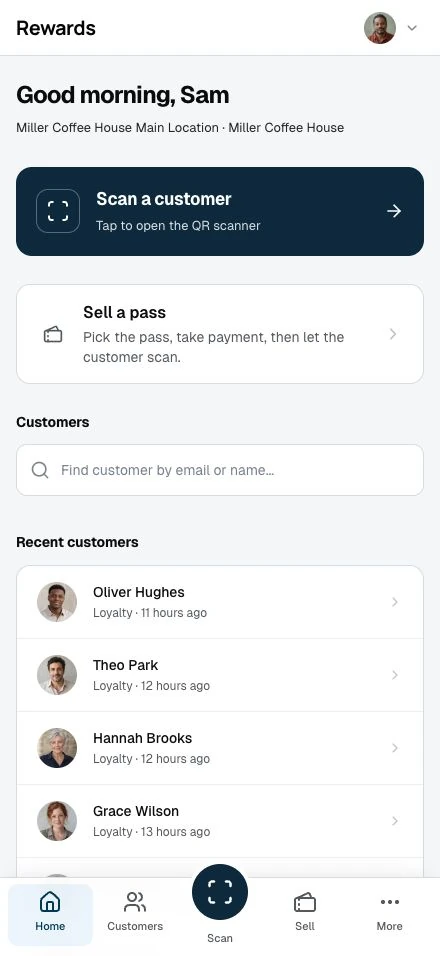
Staff only see customers and cards for their assigned club. They access the platform through the Staff Dashboard, a streamlined interface for transaction processing.
Customers (members)
What they are: End users who participate in loyalty programs.
Typical users: Shoppers, diners, service customers.
Capabilities
- Collect loyalty cards and stamp cards
- Earn points and stamps through purchases
- Track progress toward rewards
- Redeem earned rewards
- View transaction history
Access level
Customers only see their own data: their cards (in My Cards), their points, their stamps, their rewards.
How they join
Customers can:
- Scan a QR code at a business location
- Browse available cards on the homepage
- Place an order in a business's connected online store (an account is created from the order email)
Role comparison
| Capability | Admin | Manager | Partner | Staff | Customer |
|---|---|---|---|---|---|
| System settings | ✅ | ❌ | ❌ | ❌ | ❌ |
| Create partners | ✅ | ✅* | ❌ | ❌ | ❌ |
| Create clubs | ❌ | ❌ | ✅ | ❌ | ❌ |
| Create cards | ❌ | ❌ | ✅ | ❌ | ❌ |
| Manage staff | ❌ | ❌ | ✅ | ❌ | ❌ |
| Award points | ❌ | ❌ | ❌ | ✅ | ❌ |
| Process redemptions | ❌ | ❌ | ❌ | ✅ | ❌ |
| Earn points | ❌ | ❌ | ❌ | ❌ | ✅ |
| Redeem rewards | ❌ | ❌ | ❌ | ❌ | ✅ |
*Within their assigned networks only
Awarding points and processing redemptions are staff actions at the counter. Partner and admin dashboards show the transaction ledgers read-only; an administrator who needs to act as another user can impersonate one.
Related topics
- Partners overview: Partner dashboard and capabilities
- Staff overview: Staff dashboard and operations
- Members overview: Customer experience
- Administration overview: Admin settings