Skip to content

SaaS dashboard.

Monitor partner subscription health, plan distribution, and installation usage from a single admin page.

Jul 21, 2026

The SaaS dashboard gives super administrators a real-time view of the app as a business: partner growth, recurring revenue, plan mix, subscription health, and aggregate usage. Reach it from the SaaS overview button at the top of the admin sidebar, right below Dashboard.

Access: Super administrators only (role 1). Managers cannot access this page.

What you see

The page reads well in both billing modes. The dashboard always shows the headline metrics, plan mix, recent registrations, and usage; the subscription-status and attention sections appear only when an automated billing provider (Stripe or PayPal) is enabled. Under manual invoicing every partner resolves to the same "manual" state, so showing it would be noise.

Key metrics

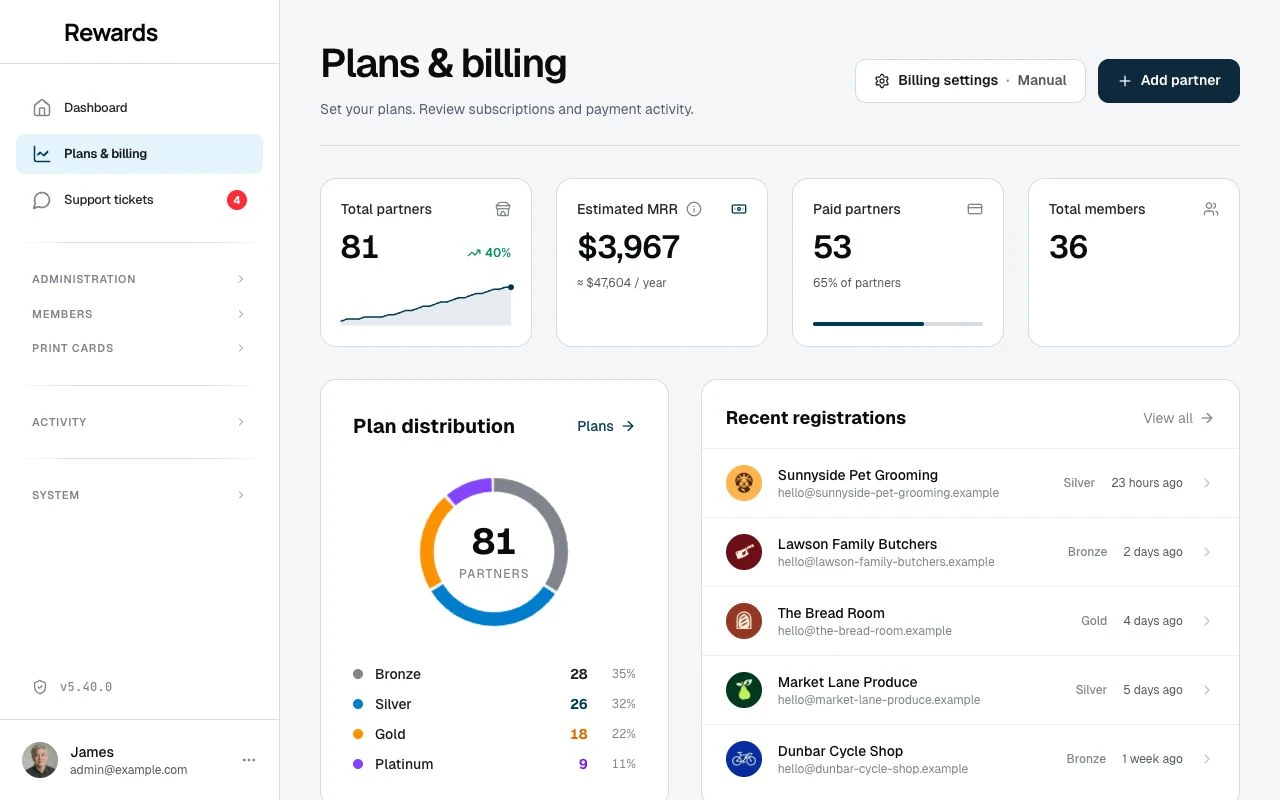
Four hero tiles summarise the app as a business:

Tile What it shows
Total partners The partner count, its month-over-month growth, and a 30-day signup curve (sparkline)
Estimated MRR Monthly recurring revenue, estimated from billable partners' plan prices; the caption shows the annual run-rate
Paid partners How many partners sit on a paid tier, and their share of all partners
Total members The app's total loyalty-member reach across every partner

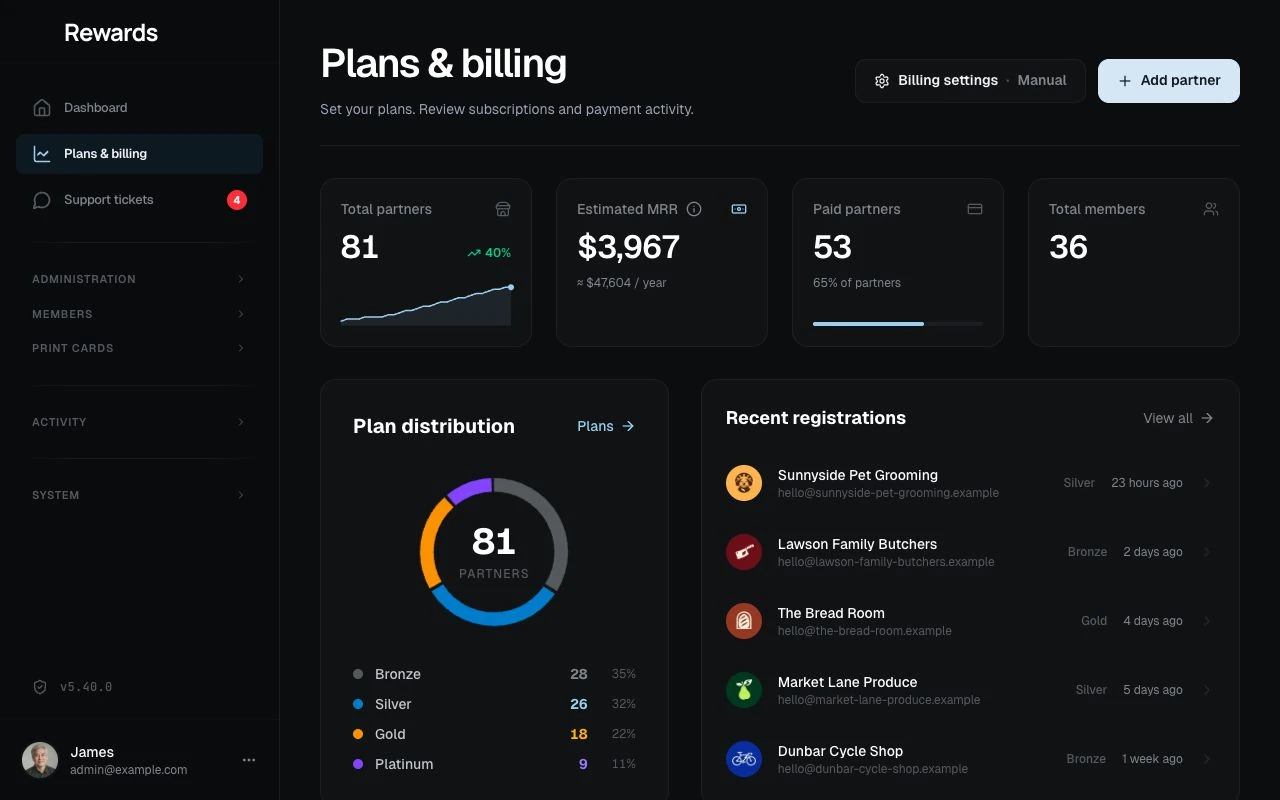
The SaaS overview with partner totals, estimated MRR, plan distribution, recent registrations, and installation usage counts.

A partner is billable when it is active (a live provider subscription) or manual (operator-invoiced), so the revenue estimate stays meaningful even without an automated provider. Plan prices come from the resolved plan definitions: the config/plans.php defaults with any environment and admin (Plans editor) overrides applied.

Billing mode

A badge in the header names the current mode: the provider (Stripe or PayPal) when one is enabled, or Manual when you invoice partners yourself.

Plan distribution

A donut chart shows how partners are spread across plan tiers, each tier a coloured arc, with the total partner count at its centre. A legend lists every tier with its count and percentage. Plan tiers are defined in config/plans.php.

Recent registrations

The newest partner registrations, showing business name, email, assigned plan, and time since joining. Each entry links to the partner's edit page in the admin CRUD.

Subscription status

Shown only when an automated billing provider (Stripe or PayPal) is enabled.

A composition bar and legend break every partner down by subscription state. Each partner is classified into exactly one of these states:

Status Meaning Access
Active Active paid subscription Full plan access
Trialing In trial period Full plan access
Past Due Payment failed, in grace period Restricted, shown in attention panel
Cancelled Subscription ended or expired Restricted
Incomplete Initial payment pending or failed Restricted
Suspended Subscription paused, unpaid, or admin-blocked Restricted
Manual Billing disabled or no provider configured; you manage plans externally Full plan access
Legacy Partner has a plan but no provider subscription; pre-existing from before billing was enabled Full plan access
Billing Disabled Billing provider is not configured for the installation Full plan access

How statuses are resolved: All status resolution goes through the EntitlementService, which delegates to the active billing provider. In manual mode, all partners show as Manual. In Stripe or PayPal mode, the app reads the status from the provider's subscription record. See Billing Configuration for the full mapping.

Attention required

Shown only when an automated billing provider is enabled.

A focused panel highlighting partners that need admin action:

  • Trial expiring soon: Partners whose trial period ends within 7 days, with a link to each partner's edit page and the days remaining
  • Past due: Partners with failed payments, linked to their management page

When no items need attention, the panel shows an "all clear" indicator.

Usage overview

Aggregate resource counts across the whole installation:

Metric What it counts
Partners Total partner accounts
Staff Total staff accounts across all partners
Loyalty cards Total loyalty cards created
Stamp cards Total stamp cards created
Vouchers Total vouchers created
Prepaid passes Total prepaid passes created

Choosing your billing provider

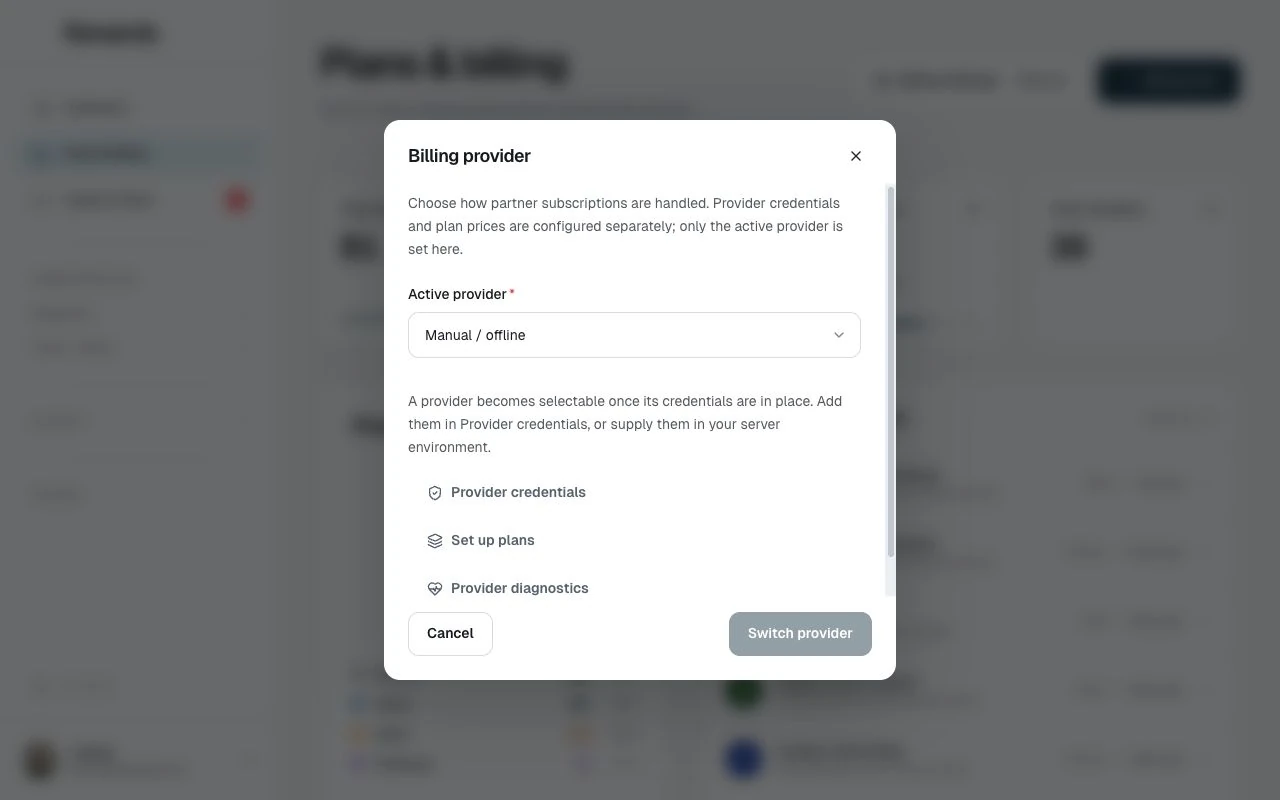
The dashboard leads with its metrics; billing is a setting, not a headline. A Billing settings button in the header (next to Add partner, showing the current mode) opens the Billing provider overlay, where a super administrator sets how partner subscriptions are handled without editing your environment file:

  • Manual / offline: You invoice partners yourself and assign plans by hand. Always available.
  • Stripe: Partners self-serve through Stripe.
  • PayPal: Partners self-serve through PayPal.

A provider can only be selected once its credentials are configured. Until then it appears as "credentials not set" and stays disabled, so you can't switch to a provider that wouldn't work.

Credentials can be supplied either way: store them from the admin on the Provider credentials screen, or set them in your server environment. Once a provider's credentials are in place, it becomes selectable here. (For setup steps, see Stripe setup or PayPal setup.)

The overlay links to three next steps: Provider credentials opens the credentials screen (below); Set up plans opens the Plans editor for tier flags, limits, and visibility (see Editing plans from the admin); and Provider diagnostics opens the Health center to check the current provider's status.

Provider credentials

The Provider credentials screen stores your Stripe and PayPal credentials from the dashboard, so you don't have to edit your environment file. (Google Wallet is an integration, not a billing provider. Set its credentials under System settings → Integrations.)

  • Secrets are write-only. A stored secret is never shown again; each field only tells you whether it is configured. Leave a field blank to keep its current value, or type a new value to replace it. Saved secrets are encrypted at rest and override the matching environment value.
  • Clear falls back to the environment. Each configured secret has a Clear checkbox. Checking it on save removes the stored value so the field reverts to your environment (.env) value. Clearing takes priority over anything typed in the same field.
  • Non-secret settings show their value. The PayPal mode displays its current value and can be edited inline.
  • Webhook endpoint URLs are shown. Each provider card shows the exact webhook endpoint to register in Stripe/PayPal (/api/stripe/webhook, /api/paypal/webhook), with a one-click Copy button, so you can finish the webhook secret/id field without leaving the page.
  • Test connection. Each provider has a Test connection button that runs a live check that the saved credentials authenticate with the provider right now. Save first, then test. It confirms only that the credentials are accepted, not your plans, prices, webhooks, or account standing, which stay provider-side. The result is a short status (connected, credentials rejected, provider unreachable, or not configured); the secret and the provider's raw response are never shown or logged.
  • Demo mode blocks saves, and the app records every change in the activity log without the secret value.

Switching affects active subscriptions. Changing providers can require partners to re-subscribe through the new one. The overlay asks you to confirm before the change is saved. Your choice overrides the BILLING_PROVIDER value, and is saved in the dashboard.

Empty state

When no partners exist, the dashboard shows a prompt to add the first partner, with a direct link to the partner creation page and a link to the Plans editor so you can set up your tiers before adding partners. The header's Billing settings button stays available here too.

Caching

The dashboard caches data for 5 minutes to avoid expensive queries on every page load. The data refreshes when the cache expires.

Localization

The dashboard uses the app's localization system across all 12 supported locales (English, Arabic, German, Spanish, French, Indonesian, Italian, Japanese, Dutch, Polish, Portuguese, Turkish).

Cookies on this site.

Google Analytics runs only if you allow it. Cookie policy