Validating & redeeming vouchers.
Process voucher redemptions by scanning a QR code or entering a code, with eligibility checks before redemption.
As a staff member, you validate and process voucher redemptions at checkout. Customers show you their voucher, either as a QR code or by telling you the code, and you apply the discount to their purchase.
Two ways to open a redemption
From the customer's wallet (the usual way). Open the customer from search or scan, then tap the voucher in their Vouchers list. The redemption opens with that voucher filled in and the code shown read-only: the voucher and customer are already confirmed, so you enter the purchase amount and redeem.
Manual entry (the fallback). When the customer presents a code that isn't saved in their wallet (a public code they found, or a printed or emailed one), open Redeem voucher, identify the customer first, then type the code they show you.
💡 Members get vouchers two ways: by saving public vouchers or by claiming batch vouchers via QR code. Both are redeemed the same way, and a customer can redeem a public code they haven't saved yet.
The redemption process
Step 1: Identify the customer
If you opened the redemption from the customer's wallet, this is already done. Their card shows at the top.
For manual entry, open More → Redeem voucher to reach the standalone page, then identify the customer:
Start typing to search. The search field finds customers linked to your club, including card holders who have not transacted yet. Type a name, email, or identifier and select the matching row. The customer appears as a selected card with a Change button if you need to switch.
Exact-ID fallback. If the customer is new to your system or doesn't appear in autocomplete, type their exact email address or member ID and tap Find member. This resolves the specific person by the value you enter. The Find member button is disabled until you have typed something, and it does nothing if a customer is already selected.
Once a customer is selected, their name and a masked email (or member ID for members without one) show in the card at the top of the form. Tap Change to pick a different customer before redeeming. Whether the voucher then applies (club, tier, eligibility) is confirmed at validation.
Step 2: Enter the voucher code
- Opened from the wallet: the code is already filled in and read-only. There's nothing to type.
- Manual entry: type the exact code the customer shows you (for example "SUMMER20"). Codes are case-insensitive.
There is no dropdown of "available vouchers." You redeem the specific voucher the customer presents; validation confirms it belongs to your club and that the customer may use it.
Step 3: Review voucher details
The redemption page uses the same phone-friendly layout as the add-points and claim-reward screens. When a voucher is preselected, the top of the redemption panel shows its name, description, and discount value (e.g. "20% off", "$15.00 off", "Free Medium Coffee"). This lets you confirm what you're applying before you touch the button. No need to expand any section.
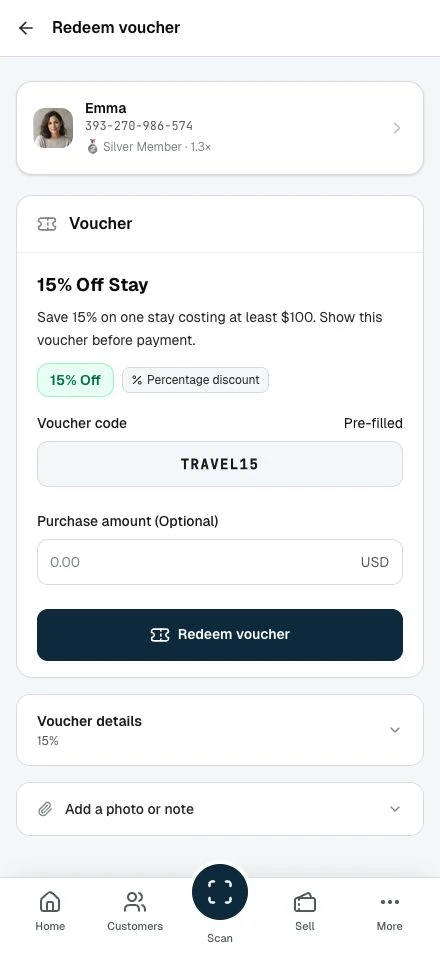
The preselected voucher shows its stated benefit and code. Review its conditions before proceeding. Final eligibility is checked when you select Redeem voucher; a prefilled code does not guarantee that every rule is satisfied.
Step 4: Enter purchase amount
Enter the order total in Purchase amount (optional) for percentage or fixed-amount discounts and whenever the voucher has a minimum purchase. A preselected percentage voucher shows a live discount preview and the amount remaining to pay. Other vouchers are checked on submission.
Example:
Purchase Amount: $50.00
Voucher: SUMMER20 (20% off)
Discount: $10.00
Final Amount: $40.00
Step 5: Add notes (optional)
Use the notes field for:
- Order or receipt numbers
- Special circumstances
- Any relevant details
Notes are internal only. Customers don't see them.
Step 6: Complete redemption
- Verify the discount with the customer
- Tap Redeem voucher
- Read the discount and remaining uses on the result screen
- Apply the discount to their purchase
Tap Done to return to the customer or History to open the voucher's redemption record.
Validation before redemption
Selecting Redeem voucher checks eligibility and purchase rules before recording the redemption:
Eligibility checks
| Check | What It Verifies |
|---|---|
| Code valid | Voucher exists and belongs to your club |
| Active | Voucher is active |
| Date range | Within valid_from and valid_until |
| Usage limits | Not exhausted (total or per-member) |
| Member eligible | Meets tier, new member, first voucher use requirements |
Purchase checks
| Check | What It Verifies |
|---|---|
| Minimum met | Entered purchase amount meets the minimum requirement |
| Discount calculated | Amount comes out right |
| Cap applied | Maximum discount cap enforced (if applicable) |
Validation messages
If a check fails, the page explains the reason and keeps the entered details so you can correct them. A discount preview does not replace these checks.
Handling common scenarios
Voucher won't validate
You entered the code, but validation rejects it.
Possible reasons:
- Customer not eligible (tier or new-member restriction)
- Voucher expired or not yet active
- Voucher inactive
- Customer already used their limit (or it's single-use)
- Code belongs to a different club
What to do:
- Re-check the exact code with the customer
- Read the error message, it names the specific reason
- Stay calm, explain the restriction, and offer an alternative if you have one
Minimum purchase not met
The order total is below the voucher's minimum requirement.
Example: Voucher requires $50 minimum, order is $40.
What to do:
- Inform customer: "This voucher requires a $50 minimum purchase"
- Customer can add items to reach minimum
- Or save the voucher for a future purchase
Maximum discount cap
For percentage vouchers with caps, the discount may be less than expected.
Example: 20% off with $25 cap. Customer expects 20% of $200 = $40, but gets $25.
What to do:
- Explain: "This voucher has a maximum discount of $25"
- The cap is working as designed
Single-use already redeemed
Customer already used this voucher.
Error: "This single-use voucher has already been redeemed"
What to do:
- Check member's voucher history if disputed
- Explain the voucher was already used on [date]
- Suggest alternative vouchers if available
Code doesn't exist
The code isn't recognized.
Error: "Invalid voucher code"
What to do:
- Verify spelling (codes are case-insensitive but must be exact)
- Check if code is for a different business
- Ask customer where they got the code
Viewing member's voucher history
Access a customer's complete voucher redemption history:
- From the customer overview, tap History on the voucher row
The history shows:
- All past redemptions
- Discount amounts received
- Dates and times
- Status (completed, voided)
- Your internal notes
This is useful for:
- Verifying past redemptions
- Checking if they've used a specific voucher
- Understanding their voucher usage patterns
Tips for efficient processing
Keep it quick
- Have scanner ready
- Know common voucher codes
- Practice the flow during slow periods
Communicate clearly
- Confirm the discount before applying
- Stay calm and explain any restrictions
- Offer alternatives when vouchers can't be used
Handle disputes
If a customer believes they should be eligible:
- Check the specific error message
- Explain the requirement clearly
- Offer to contact a manager if needed
- Suggest alternative vouchers or future use
Common codes to know
Ask your manager for a list of active voucher codes. Knowing them speeds up manual entry when QR scanning isn't practical.
Bonus points vouchers
When processing a bonus points voucher:
- Complete the redemption normally
- Points are credited to the customer's loyalty card in the voucher's club
- Customer sees points in their balance right away
- No monetary discount is applied to the order
The customer pays full price but receives loyalty points as the reward.
Important: If the customer holds no loyalty card in the voucher's club, the redemption still completes, but no points are granted: there is no error and no prompt. Check that they have the club's card before redeeming if the points are the whole reward.
After redemption
Success actions
After successful redemption:
- Done: Return to the customer
- History: Open the voucher's redemption record
Mistakes and corrections
Redeemed by mistake? Open the customer, tap History on the voucher row to reach its redemption history, then tap Undo recent redemption and confirm. It reverses your most recent redemption (your own, never a colleague's), restoring the voucher's remaining count and reversing any bonus points awarded, as an audited entry on the record, never a deletion. Then process the correct redemption if needed.
Each redemption can be undone once; an already-undone one is no longer offered. The undo covers your club's own vouchers.
Batch vouchers vs. manual vouchers
From the staff perspective, there's no difference. The redemption process is identical. However, you may notice:
| Voucher Type | Code Format | Source |
|---|---|---|
| Manual voucher | Custom (e.g., SUMMER20) | Partner created one at a time |
| Batch voucher | Random (e.g., ABCD1234) | Part of campaign batch |
Both work the same at checkout.
Related topics
- Scanning QR Codes: QR scanning basics
- Staff Overview: Your full capabilities
- Common Voucher Issues: Troubleshooting help