Email campaigns overview.
Send targeted promotional emails to your loyalty program members.
Email campaigns let you reach your loyalty members directly from your dashboard. Target specific segments, compose rich-text emails in multiple languages, and track delivery in real-time, all without leaving the platform.
What you can do
With email campaigns, partners can:
| Feature | Description |
|---|---|
| Target specific audiences | Send to all members or segment by points, stamps, vouchers, prepaid passes, tier, or language |
| Compose rich emails | Use the built-in editor for formatting with headings, lists, and links |
| Personalize messages | Insert member names with simple placeholders |
| Support multiple languages | Each member receives the email in their preferred language |
| Track delivery | Watch your campaign progress with live statistics |
| Offer an opt-out | Every email includes a one-click unsubscribe link |
How it works
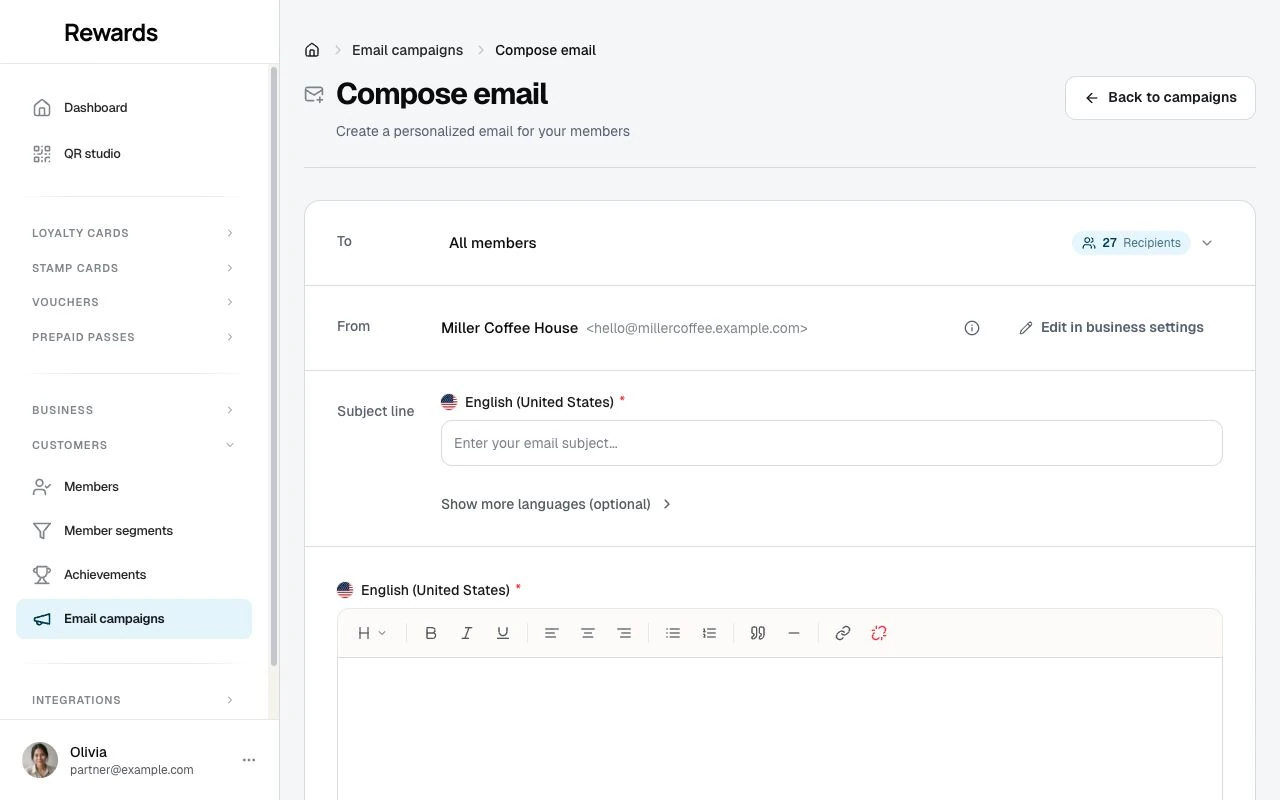
Composing a campaign feels like writing an email, not filling in a form. Everything lives on one screen. There are no separate steps to click through:
To (audience + live count) · From (your sender) · Subject · Message → Preview & Send
To: Choose your audience
The To line is where you pick who receives the email. Click it to open the audience picker and choose a segment. A live counter shows exactly how many members match, with a few sample recipients so you know who you're reaching. Available segments include:
| Segment | Description |
|---|---|
| All Members | Every customer who holds a loyalty card, stamp card, voucher, or prepaid pass and accepts marketing emails |
| Card Members | Members using a specific loyalty card |
| Points Below/Above | Target by points balance (re-engagement) |
| Stamps In Progress | Members close to completing a stamp card |
| Pass holders | Members with an active prepaid pass, for one pass you choose |
| Pass almost used up | Members with a set number of visits or fewer left on a prepaid pass |
| Has Voucher | Members who hold a voucher you pick and have not redeemed it. The list shows your voucher templates, not the personal vouchers issued for birthdays, win-backs, activations or achievements |
| Inactive Members | Members with no recent activity |
| Not active yet | Members who added one of your cards but haven't earned, redeemed, or used anything with you |
| Membership Tier | Target specific VIP levels |
| Saved Segment | Members matching one of your saved member segments: reuse an audience without rebuilding its rules |
| By Language | Target by member's preferred language |
💡 Note: Segment types are filtered by your active feature permissions. For example, "Card members" and "Points below" only appear if Loyalty cards is enabled for your account. "Stamps in progress" requires Stamp cards, "Has voucher" requires Vouchers, "Pass holders" and "Pass almost used up" require Prepaid passes, and "Saved segment" requires Member segments. This keeps the audience picker relevant to your setup.
Pass almost used up. Use this audience to offer another visit pass. Pick one of your prepaid passes and a number of visits. The campaign reaches members whose pass is still active and has that many visits or fewer left. A member counts at the number itself: with the field set to 3, a pass with 3 visits left matches. Unlimited passes never match, because they have no visit balance. Used-up and expired passes stay out; you can reach recent expiries with a saved segment instead.
Not active yet. This audience reaches members who added one of your cards to their wallet but have not earned, redeemed, or used anything with you. Give new members a little time first: the Added at least this many days ago control starts at 7. Set it to 0 to include everyone, whatever day they joined. Only members who accept Offers and news receive the campaign, so the live count shows the people you can email, not the whole group. To see the whole group, including members who have not opted in, use the dashboard insight or the member list.
The recipient count belongs to the audience you have selected. When you change that audience, wait for its count and sample recipients to load. If the request fails, select Retry. Sending stays unavailable until the audience check succeeds; you can still save a draft.
From: Your sender identity
The From line shows how the email lands in your members' inboxes: your Business Name as the sender and your Business Email as the reply-to address. These come straight from Business settings → General, and you can jump there to edit them right from the From line. The rest of the message carries the same identity: the email header, the browser title, and the copyright line all show your business name, never the platform brand.
Subject and message
Write your subject in the Subject line, then compose your email in the editor below:
- Formatting: Bold, italic, underline, headings
- Structure: Bullet lists, numbered lists, blockquotes
- Links: Add clickable URLs
- Personalization: Use
{name}for the member's name,{email}for their email
Multi-language support: Write a subject and body in your primary language. Select Show more languages (optional) to open language headings and add translations. Remembered languages stay visible across forms, and a green check marks fields with content. See the shared translation controls. The primary language stays the same when you switch dashboard languages. Each member receives a complete subject and body from one language: their preferred language when it has both, then the available family and fallback choices. A subject in one language is never combined with a body in another. The searchable language selector in Preview uses the same selection as delivery.
Drafts may be incomplete. Activation and sending require at least one language with both a subject and a body. Missing campaign content stops sending before recipients are marked as failed. Language-based audience filters still match the member’s saved language exactly; fallback does not add recipients.
Preview & send
Everything is on one screen, so there is no separate review step. What you see is what sends. When you're ready:
- Preview: See exactly what members will receive, in each language, from your business name in the header down to the email-preference links at the foot
- Send Campaign: Send now, or Save for Later to keep it as a draft
How sending works
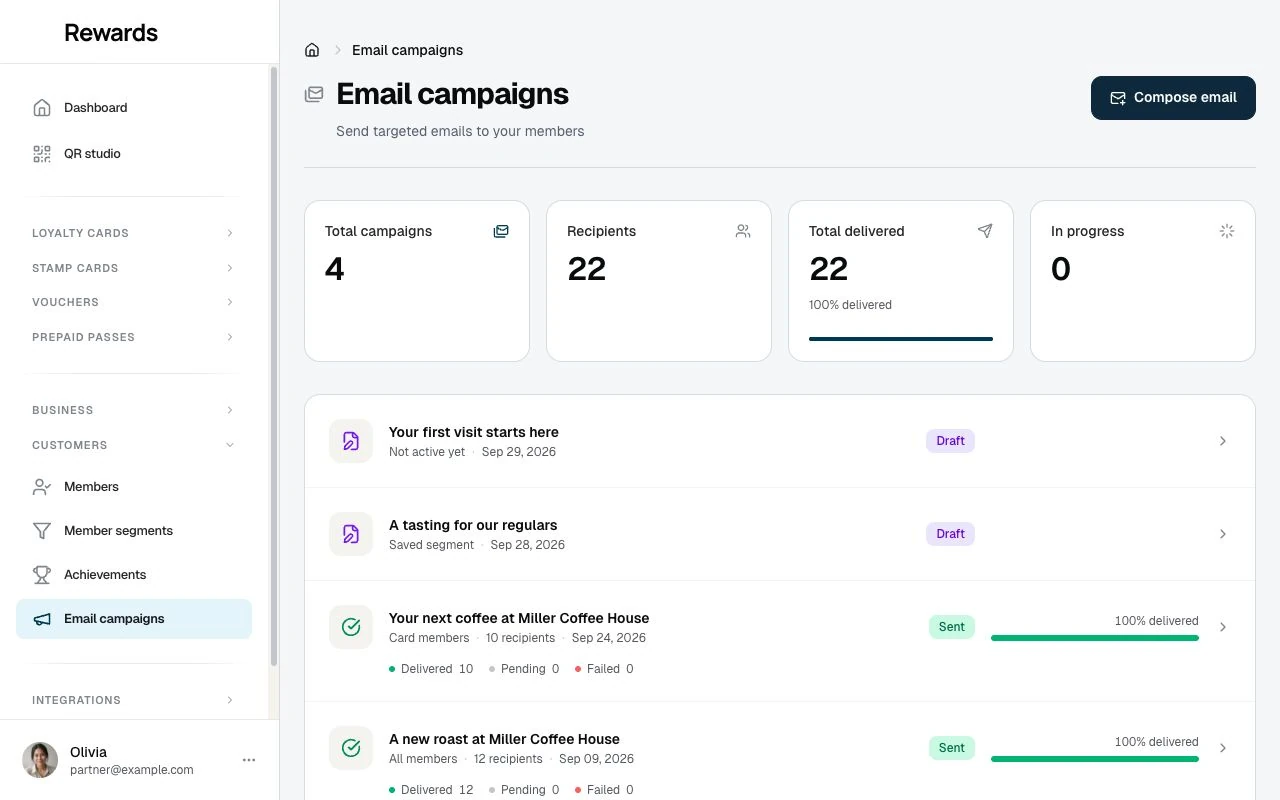
Sending runs from your open browser tab: the campaign page delivers the emails one at a time, in sequence, and shows live progress while it works. Keep the page open until it finishes; the page warns you before you leave mid-send. If the tab does close partway, nothing is lost: reopen the campaign and sending resumes where it left off.
Temporary connection or server failures trigger up to three retries. If sending stops, the page keeps the recorded progress and shows the error with a retry control. If your session expires or access is denied, sign in again or resolve access before retrying.
There is no scheduling (a campaign sends when you start it) and no open or click tracking: the statuses below count deliveries, not reads.
Getting started
- Go to Partner Dashboard > Customers > Email campaigns
- Click Compose Email
- Select your audience segment
- Write your subject line and email content
- Preview and send
Campaign statuses
| Status | Meaning |
|---|---|
| Draft | Saved but not yet sent |
| Pending | Ready to start sending |
| Sending | Delivery in progress |
| Sent | Completed |
| Failed | Error occurred |
Member unsubscribe
Every campaign includes a one-click unsubscribe link at the bottom, alongside a "Manage email preferences" link. Unsubscribing turns off the member's Offers and news preference only. When members unsubscribe:
- They stop receiving campaigns, birthday offers, and win-back offers
- Their Loyalty updates (receipts, expiry reminders, reward-ready, pass and stamp news) keep arriving, because those are a separate preference
- Account and security email is unaffected
- You cannot re-subscribe them; the member turns Offers and news back on themselves in their account settings
The app is self-hosted software. The legal basis for marketing email, and your local marketing rules, remain your responsibility as the operator.
Best practices
Subject lines
- Keep under 50 characters for mobile
- Be specific about the value inside
- Use personalization when relevant
Content
- Get to the point in the first sentence
- Use formatting to make it easy to scan
- Include a clear call-to-action
Targeting
- Start with engaged segments (recent activity, high points)
- Test with small audiences first
- Use language targeting for international audiences
Troubleshooting
Campaign shows 0 recipients
Cause: No members match your criteria with accepts_emails enabled.
Solution:
- Try a broader segment
- Check if members have opted out
- Ensure you've selected required configuration options
Emails not arriving
Cause: SMTP configuration issues or spam filters.
Solution:
- Verify system email settings in Administration
- Ask recipients to check spam folders
- Ensure your sending domain has proper SPF/DKIM records
Preview shows {name} instead of actual name
Expected behavior: The preview uses sample data. Live emails will show real member names.
Which plans include it
Email campaigns are a plan feature. Switch them per tier under Settings → Set up plans in the Plans editor, or grant them to a single business on the partner's Permissions tab. A partner without the feature sees no Email campaigns entry under Customers, while a partner who already holds it keeps it until their plan or permission changes. Once no active plan offers the feature and no partner holds a grant, the My plan comparison stops listing it. Campaigns already sent stay sent.
Related topics
- Partners Overview: Partner dashboard capabilities
- Customers Overview: Member email preferences
- Email Configuration: SMTP setup