Data export & ledger history.
Export transaction history, stamp transactions, voucher redemptions, and pass transactions from the dashboard
Partners and admins can browse and export complete ledger history for points transactions, stamp transactions, voucher redemptions, and prepaid pass transactions from the dashboard sidebar.
Where to find it
Partner sidebar
Each loyalty program in the partner sidebar has its own Transaction History page:
| Sidebar location | What it shows |
|---|---|
| Loyalty cards → Transaction history | Point transaction history (credits, redemptions, adjustments) scoped to the partner's loyalty cards |
| Stamp cards → Transaction history | Stamp transaction history (stamps earned, bonus stamps, card completions) scoped to the partner's stamp cards |
| Vouchers → Voucher transactions | Voucher redemption log (voucher name, member, status, order reference) scoped to the partner's vouchers. The voucher code is searchable and appears on each record's detail view. |
| Prepaid passes → Transaction history | Prepaid pass ledger (sales, visits, corrections, expirations) scoped to the partner's pass products |
Admin sidebar
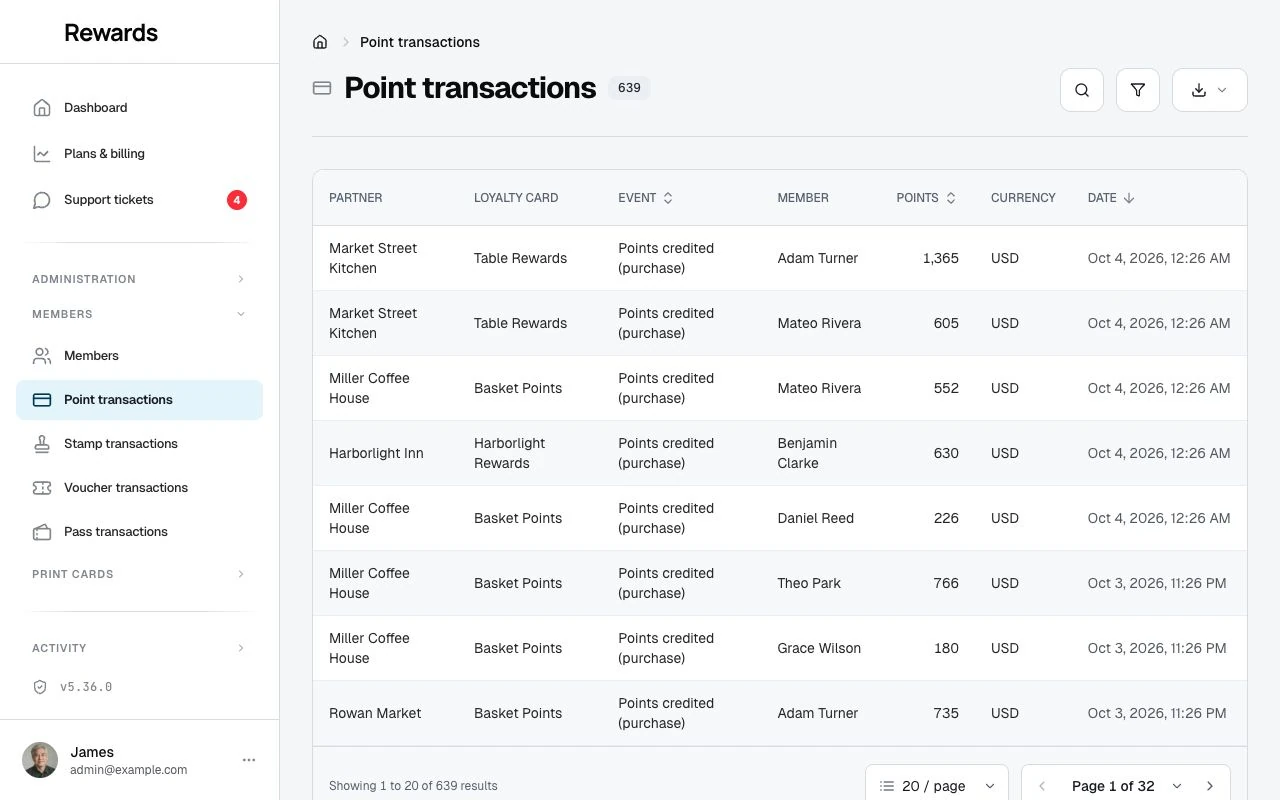
Admins see the same four ledgers platform-wide, labelled by type: Point Transactions, Stamp Transactions, Voucher Transactions, and Pass Transactions. Each row includes the partner name for context.
Browsing history
Each ledger page shows a searchable, sortable table with:
- Translated event labels (localized to the current language)
- Member name and card/stamp card name
- Points/stamps/amounts
- Staff attribution (who processed it)
- Timestamps
Voucher transaction lists and details show translated status badges. They describe the recorded redemption and keep its original stored status code.
Click any row to see the full detail view. Point, stamp, visit-pass and voucher records show a summary of the recorded amount, member and date. Voucher summaries show the discount applied. The fields below retain the transaction details.
On lists with a mobile summary, the main facts stay visible. Select Details to show the remaining fields for that record. On narrower table views, Show all columns reveals secondary columns. Wide tables can still scroll sideways. These display choices do not change export fields.
Empty values have field-specific labels. A key can show Never used or No expiry, and an uncalculated segment count shows Not yet counted. A missing member in a historical transaction shows Member unavailable. Zero remains zero. Exports retain their existing values and placeholders.
Management lists that allow new records show Create with a plus icon in the toolbar. The label stays visible on phones. Create, edit and detail pages show Back in the header to return to the list. Edit and detail pages retain the carried list filters, sort and page. Create and edit forms also provide Cancel beside the saving action.
Where a list provides a help block, select its heading to open the instructions. It starts collapsed on each page load and remains available to reopen.
Focus a sortable column heading and press Enter to sort. Where a list offers selection, its heading checkbox selects the current page. Select an individual record with its own checkbox.
Filters
Click Filters (next to Export) to open the filter panel and narrow a ledger to the rows you want. You can apply several filters at once; each one narrows the list further. Active filters show as removable chips below the page header, with a count on the Filters button.
The available filters depend on the ledger:
- Product: Narrow the ledger to one or more specific loyalty cards, stamp cards, vouchers, or pass products. On your own partner ledgers, which list only your products, you pick them from a checklist. On the admin ledgers, where the history spans every business, you type to search: start typing a product or business name and matching options appear, each labelled with the business that owns it, so two businesses' products with the same name stay separate choices (the list adds a city or short reference when even the business names match). Searching keeps the page fast no matter how many products exist across every business.
- Event / Status: Pick one or more transaction types (or, for voucher redemptions, statuses such as Completed or Voided).
- Numeric: Filter points, stamps, pass uses, or the voucher discount amount with a condition: equals, at least, at most, greater than, less than, or between two values. You enter and see money amounts in your own currency.
- Date: Filter by when it happened: on a day, before, after, or between two dates.
The same panel powers every management list in the dashboard, not only the ledgers: filter the members list by membership tier, your loyalty cards / stamp cards / vouchers / passes / tiers / staff by active status, homepage visibility, type, or creation date, and the admin lists by plan, network, role, and more. All list filtering lives in this one panel.
Filters carry into exports. Whatever you filter and search on the list is what the export contains. Narrow the list, then click Export.
Remember a list's filters
Turn on Remember filters for this list at the bottom of the Filters panel and your filters come back the next time you open that list. The app saves it per person and per list, so it never changes what anyone else sees. The web address still shows what you filtered, so the view stays easy to share and matches your exports. To stop remembering, open the panel and turn the toggle off, or click Clear all.
Search engine
Open search from the search icon at the top of a list. Search checks the fields supported by that list; display-only amounts, dates and summaries may need filters instead:
- Member name and email: Find all transactions for a specific customer
- Card name: Find transactions on a specific loyalty card, stamp card, or pass product
- Voucher code: Find a specific voucher redemption
- Business name: Find admin transactions by the business name shown in the list. Historical account-name snapshots remain searchable.
- Voucher status: Search for its label in your current language or its stored code
- Event labels: Search by what you see on screen. Typing "Points Credited" (or the equivalent in your language, e.g., "Punkte gutgeschrieben" in German) finds matching transactions even though the database stores machine-readable event codes
How translated search works
The database stores transaction events as machine-readable slugs (e.g., staff_credited_points_for_purchase). The list and detail views show translated labels (e.g., "Points Credited (Purchase)"). When you search, the system maps your search term against all translated labels in the current locale and finds matching database records.
Translated event and voucher-status searches match supported labels in your current language, including regional languages. Stored codes remain searchable for historical records and integrations.
Autocomplete suggestions
As you type, matching records appear with multi-field labels:
Points Credited (Purchase) Gold Card · John Smith · 1,500
The first line shows the event or primary identifier. The second line shows contextual details (card name, member name) in muted text, along with a headline value such as a transaction's points or a card's view count, so you can tell near-identical rows apart.
Use the arrow keys to move between results and Enter to choose one, or press Enter on your own text to filter the whole list.
Exporting data
Click the Export button at the top of any ledger page to download data.
Formats
| Format | Best for |
|---|---|
| CSV (default) | Spreadsheets (Excel, Google Sheets). Comma-separated values. |
| TSV | Tab-separated values. Useful when data contains commas. |
| JSON | Programmatic access. Includes structured metadata envelope. |
What's included in exports
Exports use raw event codes (not translated labels) so they remain consistent regardless of the user's language setting. This makes exports suitable for automation and cross-locale reporting.
Transaction export columns
| Column | Description |
|---|---|
| Event | Raw event code (e.g., staff_credited_points_for_purchase) |
| Event Code | Same as event, a stable machine identifier |
| Member Name | Customer's name |
| Member Email | Customer's email |
| Points | Points credited or debited |
| Points Used | Points spent on a redemption |
| Purchase Amount | Purchase amount behind the transaction, when there is one |
| Currency | Currency of the purchase amount |
| Reward | Reward redeemed, for redemption transactions |
| Card | Loyalty card name |
| Staff | Staff member who processed the transaction |
| Note | Transaction note or description |
| Created | Timestamp |
Stamp transaction export columns
| Column | Description |
|---|---|
| Event | Raw event code (e.g., stamp_earned, card_completed) |
| Stamp Card | Stamp card name |
| Member Name | Customer's name |
| Member Email | Customer's email |
| Stamps | Number of stamps in this event |
| Staff | Staff member who processed the transaction |
| Created | Timestamp |
Voucher transaction export columns
| Column | Description |
|---|---|
| Voucher Code | The unique voucher code |
| Voucher Name | Voucher title/description |
| Member | Customer who redeemed |
| Status | Raw redemption status code, such as completed or voided, independent of the interface language |
| Order Reference | External order reference (if applicable) |
| Redeemed At | Redemption timestamp |
Export limits
Ledger exports have a safety cap of 50,000 rows to prevent timeouts on large installations. The cap applies to the admin ledgers and to partner ledger exports alike.
- CSV/TSV: A footer row marks a truncated export, so spreadsheet users see the cap at once
- JSON: Includes
total_available,truncated, andexport_limitfields in the metadata envelope so API consumers can detect partial exports
Partner isolation
Reward Loyalty scopes every partner export to the authenticated partner's data. A partner can never access another partner's transactions, stamps, or voucher redemptions, even by manipulating export URLs. Admin exports include all data across all partners.
Correcting a member's ledger
When a counter mistake needs undoing, admins have per-member correction tools. Open Members in the admin sidebar: each member's row shows chips for the loyalty cards, stamp cards, vouchers, and passes they hold, and a chip opens that member's ledger for the item. Each ledger page carries a delete-last action (Delete last transaction, Delete last stamp, Delete last redemption, or Delete last visit) that removes the newest entry only, one at a time. This corrects a double scan or a mistyped amount without editing history by hand.
Related topics
- Activity logs: Recorded account and platform actions (different from ledger history)
- Loyalty cards: Points-based loyalty programs
- Stamp cards: Stamp card programs
- Vouchers: Voucher campaigns