Overview.
Find, customise, download, and print a QR code for every program you run, plus a staff sign-in code, from one calm screen.
QR studio is one place to turn every program you run into a QR code your customers can scan. Each loyalty card, stamp card, voucher, voucher batch, and prepaid pass already has a public member page; the studio gives you that page as a QR code you can colour, mark, download, and print. It also gives you a staff sign-in code for the counter.
You reach it from QR studio in the partner dashboard. It is available on every plan, because a QR code is how members and staff get in. The studio shows only the program types your plan includes.
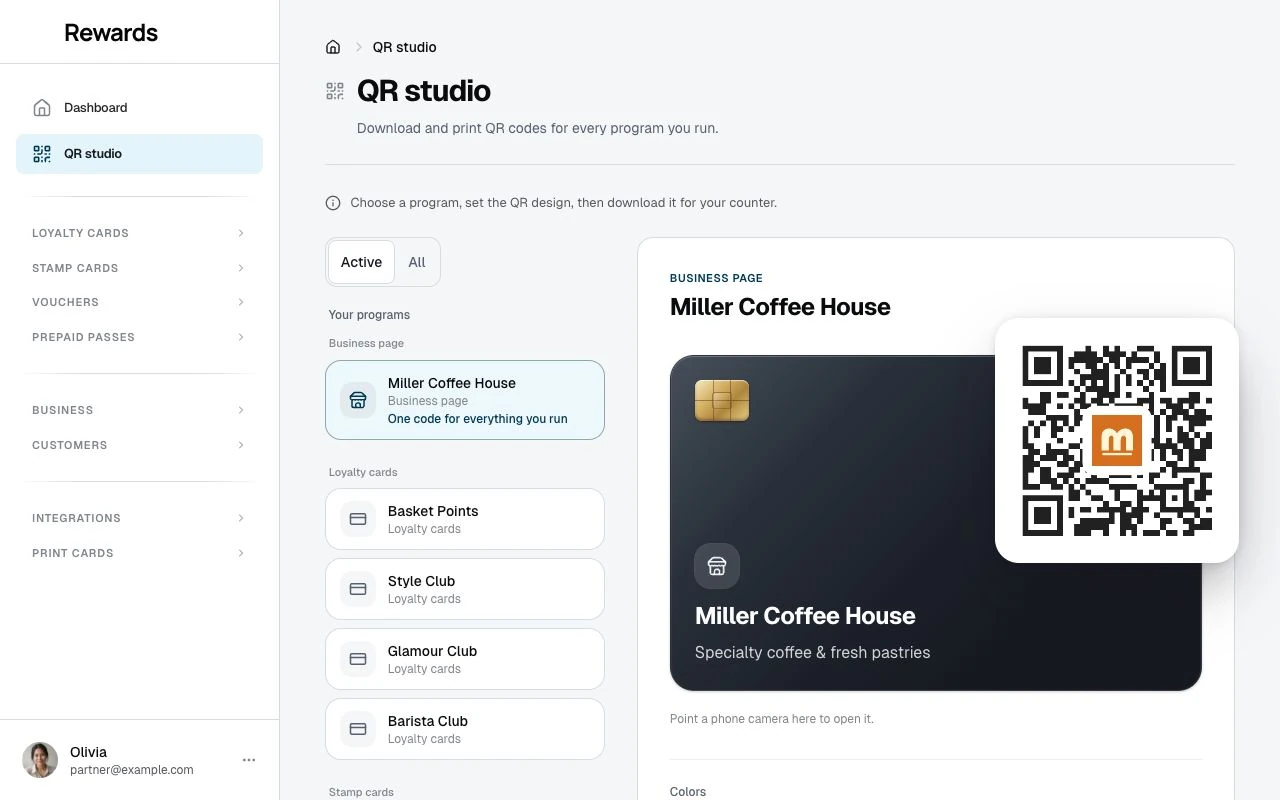
Your programs sit in a list down the left, grouped by type. Select one and it opens on the stage: the program's own card together with the QR code it produces, ready to colour, mark, and download. The code updates as you work, so what you see is what prints.
What you can make a code for
Every code points at the same public member page a customer would reach by tapping a link. Loyalty and stamp cards have one extra option, Auto-add on scan (see below), that changes what happens on arrival; every other code opens the page, the same as a shared link.
- Business page. Pinned first, and always available. One code for your whole business page. Every program you run, in one place. Its code is permanent, so a rename or a new campaign never breaks a printed sticker, and it detects each visitor's language on its own.
- Loyalty cards. Put this at the counter so customers join your points program.
- Stamp cards. Use this for repeat-visit campaigns.
- Single vouchers. Share one public offer.
- Voucher batches. Printed, handed-out claim codes for limited campaigns, events, flyers, table cards, or one-off promotions. A batch code opens the secure claim page where each member receives their own code.
- Prepaid passes. Print a purchase or discovery code for memberships and visit packs you sell at the counter.
- Staff sign-in. Print this or hand it to your team so they can sign in at the counter without scanning a member first. It is always available.
- Shared homepage. A poster code that opens the installation's Public listing homepage. Its stage shows a visual Shared homepage card beside the QR code. Choose a city from a searchable list, then add a category, program type, or sort. Newest is the default sort; Ending soon and Name add an explicit sort to the link. Standard switches add Open by regular hours or Added this month. Use the result for a district poster ("Old Town cafés"), a mall campaign ("Offers ending soon"), or a tourism flyer. Opening it never asks anyone for their location. This target appears when the operator runs the Public listing homepage with discovery on.
Active by default
The studio opens on the programs you can use right now, so you never get a stale code. A loyalty card or pass that is switched off, a voucher or stamp card past its end date, a batch that is no longer active: none of these appear by default.
When you have older programs to reach, an Active / All control sits above your programs. Active is the default. All brings back inactive, paused, and expired programs, each marked with a quiet "Inactive" tag, for the times you need to reprint something from an earlier campaign. The control appears only when you have programs to filter.
Customise a code
Select a program and craft its code on the stage. Changes save on their own and are shared across everyone on your account and every device, so a code you brand once looks the same wherever your team prints it. The code updates live as you work.
- Colours. Set a foreground and a background colour. The studio starts from the program's own colour and warns you when a combination is too light or inverted to scan.
- Centre mark. Drop an emoji, a country flag, or your own logo into the middle of the code. The emojis are grouped for quick picking: food and drink, shops and services, sports and activities, and travel and places for a business's own world, then smileys, symbols, and a flag for every language. A stamp card starts with its own stamp icon in the middle, since that glyph is the card's identity; clear it with one tap if you would rather not. The mark sits on a clean patch and stays size-capped so the code still scans.
- Logo. Upload a PNG, JPG, or WebP up to 2 MB. It is stored with the code and reused every time, and you can replace or remove it whenever you like.
- Size. A slider sets how large the centre mark sits, within a safe range.
- Auto-add on scan (loyalty and stamp cards only). Off by default. Turn it on and scanning this code adds the program to the member's My Cards the moment they land, with an "Added to your cards" note and a one-tap undo, which suits a counter or flyer where you want joining to be automatic. Leave it off and the code opens the program page, where the member taps Add to My Cards themselves. The setting applies only to the code you set it on, so already-printed codes are unaffected; regenerate a code to turn it on.
Languages
When a program has content in more than one language, the studio offers a language picker, so you can print the French code for a French audience and the Dutch code for a Dutch one. A program is offered in a language only when it has content in that language. The staff sign-in and batch claim codes are generic, so they are offered in every active language.
Download and print
Download PNG is one tap for documents and everyday print. A small menu beside it holds Download SVG, for designers and large-format printing that stays crisp at any size, and Copy link, which copies the underlying URL when you would rather share it than print it.
Open page opens the page a code points at, in the language shown in the studio, so you can preview what a scan lands on before you print. For the business page it opens your public page; for a program it opens that program's member page. A preview only opens the page; it never adds the card to a wallet, even for a code set to auto-add.
When a code will not scan
A QR code needs strong contrast and a clear centre. The studio guards both: it warns when your colours are too close or inverted, and it caps the centre mark so it never covers too much of the code. If a code looks right on screen but will not scan, raise the contrast (a dark code on a light background is safest) or shrink the centre mark.
Where to find a program that is missing
If a program is not in the studio, check three things. It is active: switch the Active / All control to All to see paused or expired ones. Your plan includes that program type. And the program belongs to you, because the studio only ever shows your own programs.