Tracking your progress.
View your stamp collection and see how close you are to rewards
Your stamp card shows where you stand. Visual progress indicators, detailed history, and clear milestones make it easy to track your progress toward rewards.
Viewing your stamp cards
My Cards view
My Cards displays all your stamp cards with quick progress summaries:
To access:
- Sign in to your account
- Click My Cards in the header navigation
- View the stamp cards section
Each card shows:
- Card title and business name
- Progress bar (percentage complete)
- Stamps collected vs stamps required
- Quick link to full details
Tap any card to view complete information. The list sorts cards by business, making it easy to find specific programs.
Understanding the progress display
When you open a stamp card, you'll see progress information:
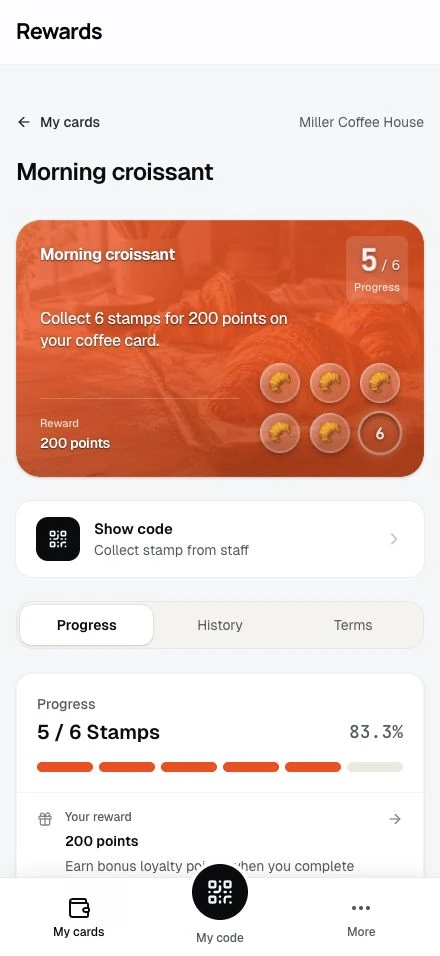
Progress bar
A visual indicator showing your completion percentage:
- Empty (gray): Stamps not yet collected
- Filled (colored): Stamps you've earned
- Percentage: Exact progress (e.g., "70% complete")
The progress bar updates when you earn new stamps.
Stamp count
Clear numbers showing your current status:
Example: "7 of 10 stamps"
This tells you:
- 7: Stamps you've collected
- 10: Total stamps required
- 3: Stamps remaining (calculated for you)
Visual stamp grid
A grid of circular stamp indicators shows each individual stamp:
Filled stamps:
- Colored background
- Stamp icon displayed
- Represents stamps you've earned
Empty stamps:
- Outlined border
- Grayed out
- Represents stamps still needed
The grid layout matches the program's stamp count:
| Stamps | Grid layout |
|---|---|
| 5 | 5×1 (single row) |
| 6 | 3×2 |
| 8 | 4×2 |
| 9 | 3×3 |
| 10 | 5×2 |
| 12 | 4×3 |
Viewing your stamp history
The History tab shows your complete stamp collection timeline:
To access:
- Open your stamp card
- Tap the History tab
- Review your stamp activity
What's included
The History tab lists your transactions on this card:
Stamps earned:
- Date and time of each stamp
- How many stamps were added
- Running total after each addition
Other transactions:
- Bonus stamps and adjustments
- Card completions
- Reward redemptions
- Voided or expired stamps
Milestone celebrations (at 50% and 80%) arrive as notifications; they are not history entries.
What's not shown
For privacy and simplicity, the history tab doesn't display:
- Staff member names
- Purchase amounts
- Internal notes
- Adjustment details
This keeps your view clean and focused on your progress.
Checking program requirements
The Terms tab explains how the program works:
To access:
- Open your stamp card
- Tap the Terms tab
- Review program details
Information displayed
How to earn stamps:
- Qualifying purchase requirements
- Minimum purchase amount (if applicable)
- Maximum stamps per transaction
- Daily limits (if applicable)
Stamps required:
- Total stamps needed to complete the card
- Current progress toward that goal
Validity period:
- When the program started (if applicable)
- When the program ends (if applicable)
- Time remaining (if expiring soon)
Reward details:
- What you'll receive upon completion
- How to claim your reward
- Any special instructions
Terms and conditions:
- Program-specific rules
- Restrictions or limitations
- Contact information for questions
Expiry: two different rules
Stamp cards have two separate expiry concepts. The Terms tab shows which ones apply to your card.
Program end date
Some programs run for a limited period. When the end date passes:
- You cannot earn additional stamps
- Your collected stamps stay on the card, nothing is removed
- You cannot claim rewards after the program expires; the card moves to History
Stamp expiry after inactivity
A program can also clear your collected stamps after a period without visits (for example, 90 days). Each new stamp restarts the countdown. This is the only rule that removes stamps, and the removal appears in your History tab. If the business later turns this rule off, the countdown on your card ends and your stamps are no longer at risk.
Your history stays in both cases; expiry never deletes your records.
Multiple cards from the same business
You can have multiple stamp cards from the same business if they offer different programs:
Example:
- Coffee Card (10 stamps for free coffee)
- Pastry Card (5 stamps for free pastry)
- Seasonal Card (12 stamps for special reward)
Each card tracks on its own:
- Separate stamp counts
- Different requirements
- Unique rewards
- Individual expiration dates
Make sure to show the correct QR code when collecting stamps for a specific program.
Completion status
When you collect the final stamp, the card completes and resets in the same moment:
What happens at completion:
- A "Reward Ready!" celebration appears
- A reward joins your Rewards ready count
- The stamp count resets, and any extra stamps above the requirement carry over to the next round
- Bonus points (if the program awards them) land right away
Claiming: Your reward waits under Rewards ready until you claim it. For physical rewards, a Collect reward button shows the QR code for staff. You keep collecting stamps toward your next reward in the meantime; claiming does not touch your current progress.
You can complete the same stamp card multiple times if the program remains active, and unclaimed rewards accumulate.
Tracking statistics
Your stamp card shows three counters below the progress bar:
Rewards ready: Rewards you have earned and not yet claimed.
Completed: How many times you've completed this specific card.
Redeemed: How many rewards you've claimed.
These stats celebrate your loyalty and engagement with the business.
Notifications
You'll receive notifications for important stamp card events:
Stamp earned: Confirmation when staff adds stamps to your card.
Milestone reached: Celebrations at 50% and 80% completion. The business chooses whether these milestone emails go out; see Automatic messages.
Card completed: Congratulations when you've collected all stamps.
Reward ready: Alert when your reward is available to claim.
Manage notification preferences in your account settings.
Tips for effective tracking
Check progress after each visit: Verify stamps were added and see how close you are to completion.
Review the terms tab: Understand requirements before making purchases to ensure you qualify.
Watch expiration dates: Plan your visits to complete cards before programs end.
Track multiple programs: Use My Cards to monitor all your active cards at once.
Celebrate milestones: Acknowledge your progress to stay motivated.
Next steps
- Redeeming Rewards: Learn how to claim your earned rewards
- Stamp cards FAQ: Common questions answered
- Collecting Stamps: Review how to earn stamps