
Business controls and pass design.
Enable Apple Wallet per program, choose appearance, download a safe sample, and understand download analytics.
On this page
Once your plan or administrator includes Apple Wallet and the installation signing identity is healthy, open Apple Wallet in the business dashboard.
Enable one program
- Find the loyalty card, stamp card, voucher, or prepaid-pass product.
- Switch on Offer this item in Apple Wallet.
- Choose Inherit item design or Apple-specific colors.
- Select the primary business language and save.
The switch applies only to that product. Each sold prepaid pass becomes a separate pass for the member who owns it.
If the switch cannot be enabled, the page names the next step: upgrade or ask the administrator for access, or ask the installation operator to finish Apple Wallet signing setup. You can always switch an item off, even after the entitlement is removed.
Appearance
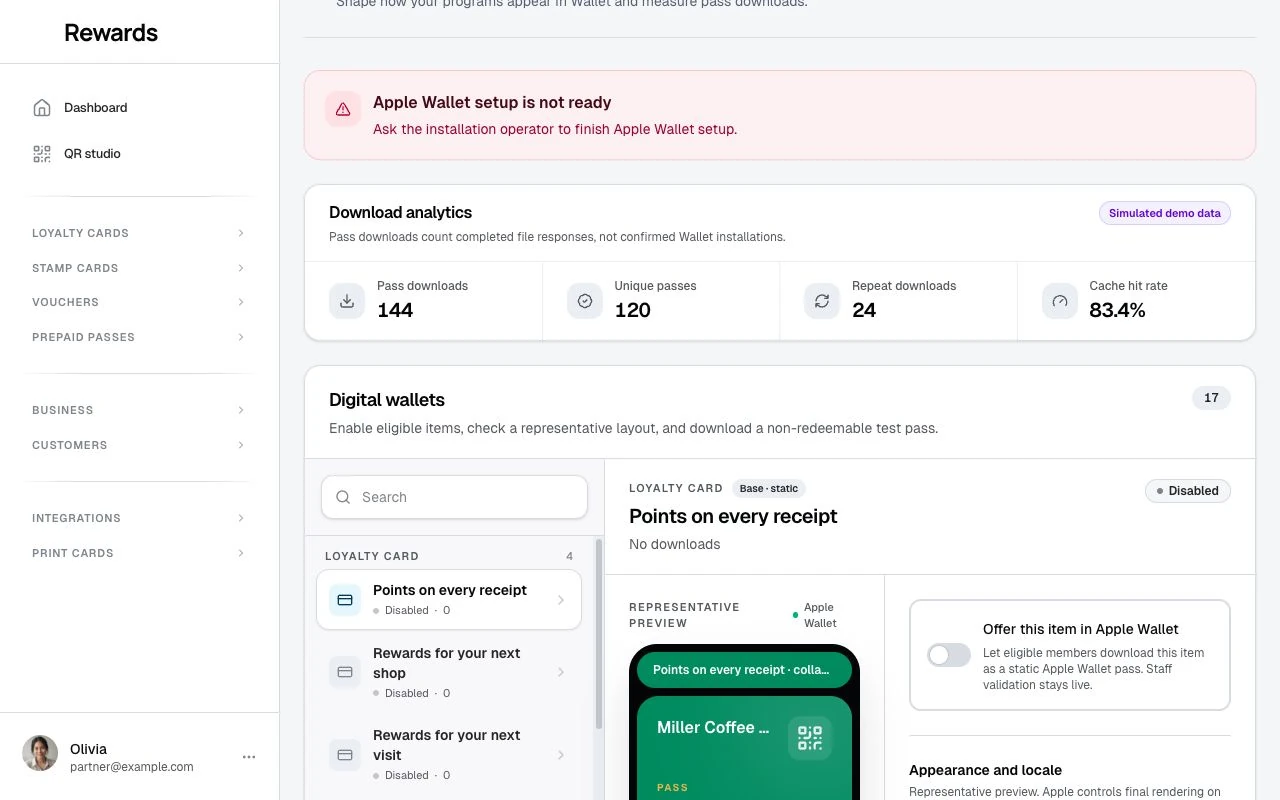
The preview shows the design controls. Live pass downloads require the administrator to complete signing setup.
Inherited mode uses the program and business assets when possible. Custom mode accepts six-digit hexadecimal colors for the background, text, and labels. If text or labels have too little contrast against the background, the pass uses a readable dark or light color.
You can also upload:
- a square Wallet logo;
- a wide strip image without embedded text;
- horizontal and vertical focal points from 0 to 100 so the important part survives Apple's crop.
An Apple-specific image overrides the inherited image without changing the original program. Removing the override returns to the inherited source. The on-page iPhone and compact hierarchy are representative previews; Apple controls the final layout on each device and OS version.
What each pass shows
The front shows your logo, artwork, program name with a compact pass-kind label, and the staff QR with a fallback scan code. When a logo is present, the pass omits the extra business-name text beside it. Without a logo, it shows the business name.
Scan instructions appear on the back, followed by links to the member's current details, support page, and privacy page.
The pass does not contain points, stamp totals, tier, voucher state or code, remaining visits, or dates. The QR opens the existing staff flow for that pass kind. Staff must sign in, then the server checks ownership, program state, member relationship, limits, and redemption rules.
Download a test pass
Use Download test pass to sign a sample with this product's current appearance. The sample is intentionally conspicuous, has no member account or operational registry row, and carries no redeemable value. Use it to review colors, crop, labels, and the Wallet add sheet before offering the product.
Analytics
Choose 7, 30, or 90 days. The page reports:
- completed package downloads;
- unique pass records;
- repeat downloads;
- validated cache-hit rate;
- totals by pass kind and product.
These are download measurements. Reward Loyalty cannot tell whether the member completed Apple's add sheet, kept the pass, viewed it later, or removed it.
When members need another download
Changing points, stamps, voucher state, or prepaid visits does not require another download because the Apple pass does not show those values. Members use Current details on the back of the pass, and staff validation stays live.
Ask a member to add the pass again after you change the business name, colors, or Wallet artwork. A member may also need a new copy after suspension, revocation, or recovery.
Turning a program off
Switching the item off stops new member downloads and clears its private cached packages. Existing copies are not remotely removed from Apple Wallet. Their QR still reaches Reward Loyalty, where current permissions and program state decide what staff may do.