Finding programs.
Discover available stamp card programs and add them to My Cards
Stamp card programs are easy to find and even easier to start. Browse available programs, learn about their rewards, and start collecting stamps with your first purchase.
Discovering stamp card programs
Homepage display
Featured stamp card programs appear on your homepage when you sign in. Businesses choose to showcase their most popular or current programs here.
Each card shows:
- Program title and description
- Background image and logo
- Brief overview of the reward
- "Learn More" button
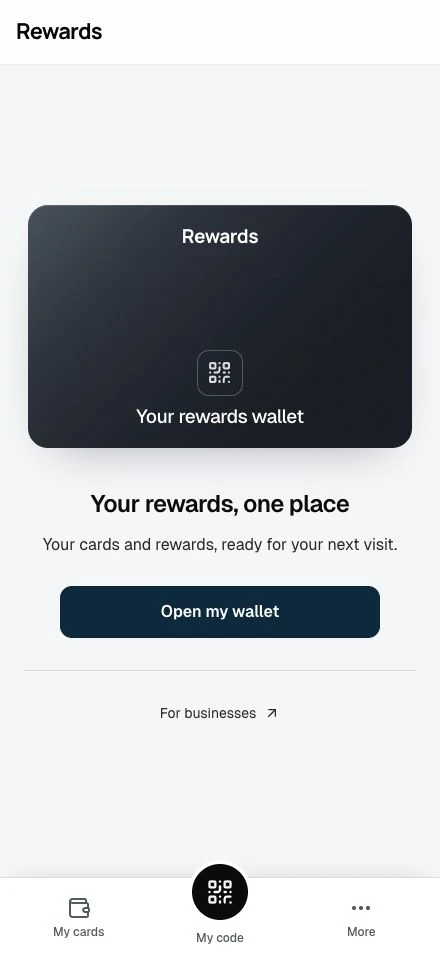
Tap any card to view full details.
My Cards view
My Cards lists all stamp card programs you've added, organized by business. This is where you track your active collections.
To access My Cards:
- Sign in to your account
- Click My Cards in the header navigation
- View all your stamp cards with progress indicators
Viewing program details
Before collecting your first stamp, review the program requirements:
To view details:
- Click on any stamp card from the homepage or My Cards
- Review the program information
What you'll see
Program Description A clear explanation of what the program offers and how it works.
Stamps Required How many stamps you need to collect to complete the card. Programs use 5, 6, 8, 9, 10, or 12 stamps.
Reward Information What you'll receive when you complete the card:
- Points added to your loyalty account, or
- Physical reward (free product, discount, service)
Minimum Purchase (if applicable) Some programs require a minimum purchase amount to earn a stamp. The rules section shows it.
Validity Period (if applicable) When the program starts and ends. Seasonal or limited-time programs show expiration dates.
How to Earn Stamps Instructions on qualifying purchases and any special requirements.
How cards get added
Cards appear in My Cards in three ways:
When you use a card (most common)
When you earn your first stamp, the card lands in My Cards:
- Make a qualifying purchase at a participating business
- Show your QR code to staff at checkout
- Staff adds your first stamp
- The stamp card appears in My Cards
No manual action needed. Start collecting, and your account saves the card.
By scanning the program's QR
Some businesses set their stamp card QR to add the program the moment you scan it:
- Scan the QR
- The program opens
- If the business turned on auto-add for that code, it lands in My Cards right away, with an "Added to your cards" note and an Undo link
If the code is not set to auto-add, it only opens the program page, so tap Add to My Cards to keep it. Reading a program you found by browsing the homepage does not add it either.
By hand (bookmark for later)
To save a program before your first stamp, add it by hand:
- View program details from the homepage
- Read the requirements and rewards
- Click Add to My Cards to save it
- Visit the business when ready to start collecting
This is useful for bookmarking programs you plan to use later.
Multiple programs
You can participate in multiple stamp card programs at once. There's no limit to how many cards you can collect.
Each program is independent:
- Separate stamp counts
- Different requirements
- Unique rewards
- Individual expiration dates (if applicable)
My Cards organizes all your active programs in one place.
Program availability
Individual businesses create and manage stamp card programs. Availability depends on:
- Which businesses you have access to
- Active programs the business is running
- Seasonal or limited-time offerings
If you don't see any stamp cards:
- Businesses may not have created programs yet
- Current programs may have ended
- Check back later for new offerings
A stamp card you left leaves My Cards for your History, where you can reopen it read-only with its stamp record intact. A card the business retired while you still hold stamps moves to your wallet's Winding down section, where a completed reward stays redeemable, and joins History once it ends for good.
Understanding program requirements
Before starting a stamp card, review the requirements:
Minimum purchase amount
Some programs require a minimum purchase to earn a stamp.
Example: "Spend at least $5 per transaction to earn a stamp"
Purchases below the minimum won't qualify for stamps. The program rules show the amount.
Daily limits
Businesses may limit how many stamps you can earn per day to ensure fair use.
Example: "Maximum 3 stamps per day"
If you reach the daily limit, you can continue earning stamps the next day.
Validity periods
Some programs have start and end dates:
Example: "Valid from January 1 - March 31"
You can only earn stamps during the active period. Complete your card before the expiration date to claim your reward.
What happens after adding
Once a card is in My Cards:
- Progress visible: See your current stamp count and progress
- QR code access: Quick access to your QR code for future stamps
- Progress tracking: Visual indicators show stamps collected
- Notifications: Updates when you earn stamps or reach milestones
You're now collecting stamps toward your reward.
Removing and re-adding cards
Removing a card
If you no longer want a card visible in My Cards:
- Open the stamp card
- Click Remove from My Cards
- Confirm the removal
A "Removed from your cards." note appears at the top of the page. Tap Undo to put the card straight back.
Your progress stays saved. Removing a card hides it from view. Your stamps, history, and rewards remain intact.
Re-adding a card
Add the card back anytime:
- Find the card on the homepage or via a link
- Click Add to My Cards
- Your previous progress returns at once
You'll continue where you left off.
Next steps
- Collecting Stamps: Learn how to earn stamps at checkout
- Tracking Your Progress: Monitor your stamp collection
- Redeeming Rewards: Claim your earned rewards