
Install an update package.
Apply updates from a downloaded zip file using the admin dashboard.
On this page
Use Install from Package when you have an update ZIP. Upload it through your hosting file manager, then let the dashboard apply it. Active support is not required.
Before updating: Back up your database, app settings, and uploads. Try the package on a private test copy before applying it to your live site.
How it works
This uses the same background updater as dashboard updates. If your host cannot run that process, use Manual file replacement. See hosting requirements if your host needs the details.
Step by step
1. Download the update
Download the latest version from the purchase store. The file name doesn't matter. The system reads the version from inside the archive.
2. Upload to your server
Upload the zip file to:
storage/app/manual-update/
Use FTP, SFTP, or your hosting file manager. The file must be a .zip archive. You can place multiple zip files in this directory. The dashboard lists all of them.
💡 Tip: The directory is at the same level as
storage/app/backups/. If you can find your backups directory,manual-updateis right next to it.
3. Open License & Updates
Sign in as an administrator and go to License & Updates in the sidebar. Scroll down to the Install from Package card.
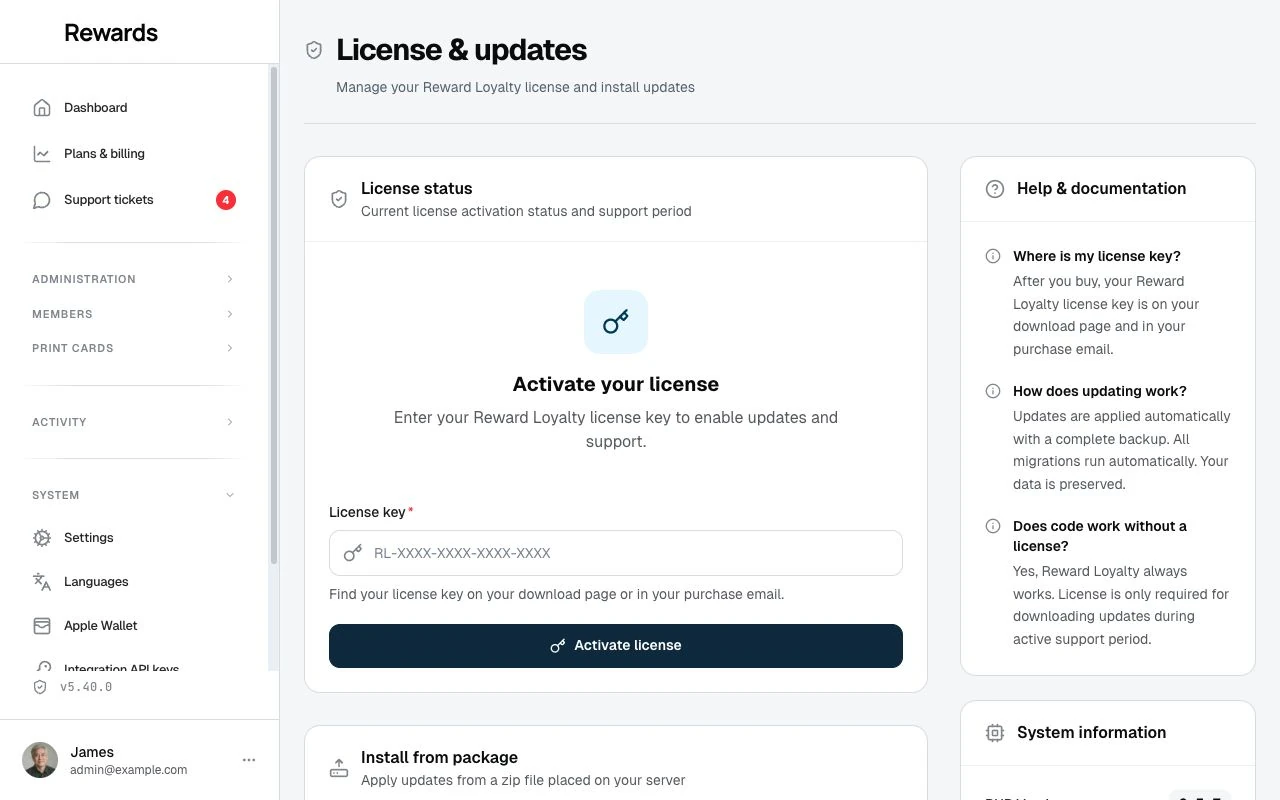
The card shows each detected package with:
- Version number extracted from the archive
- Status badge: Upgrade, Reinstall, or Downgrade relative to your current version
- File size of the zip
4. Apply the update
Click Apply Update next to the package you want to install. A confirmation dialog appears showing the version and update type.
Keep the progress page open while the app saves a file rollback, installs the package, updates the database, and clears caches. Check sign-in, a staff checkout, and an image upload when it finishes.
The app keeps the ZIP after installation. You can remove it from the upload folder once you no longer need it.
Package format
The system accepts zip files with any filename. It reads the version from config/version.php inside the archive.
The system handles several common structures:
- Direct layout:
app/,public/,config/at the root of the zip - Named wrapper:
reward-loyalty/app/,reward-loyalty/public/, etc. - Release wrapper:
Product-Name-vX.Y.Z/app/,Product-Name-vX.Y.Z/public/, etc.
If the system cannot locate a valid application structure (a directory containing both app/ and public/), the package will show as "Unrecognized" and you cannot install it.
Requirements
Your host must allow the same background process as dashboard updates, with archive support and enough disk space and resources. It does not need a cron job or queue worker. Share the updater requirements with your host if needed.
Troubleshooting
Package shows "unrecognized"
The system couldn't find config/version.php inside the zip, or the archive doesn't contain a valid application structure. Verify you're using the correct zip file (the full product download, not a partial export).
500 error after update
Follow the cache-clearing steps. Remove only the .php files in bootstrap/cache/, keeping the directory itself. If the error remains, contact support with the message and the version you were installing.
Update fails with "exec() disabled"
Install from Package requires the same exec() function as dashboard updates. It is not the shared-hosting fallback. Use Manual File Replacement for environments without exec().