The member view.
Where members find their passes, what the pass page shows, and which emails they receive.
Buy a pass from staff at the counter; the app does not take your payment. A business can also issue a free visit pass as an achievement reward. Each issued pass appears in your wallet.
Businesses can display a QR code for a pass they sell. Scanning it opens the pass's public page: what it covers, the validity, and the price, with a note that staff sell it at the counter. Members who already hold that pass get a shortcut to their remaining count.
An expired purchase link explains that it has expired and asks you to get a fresh code from staff.
Buying works in two directions from there. Logged-in members see a Buy at the counter code on that page; staff scan it and complete the sale for exactly that pass. Or staff start it: after payment they show a purchase code on their screen, the member scans it with their phone camera, and the pass lands in the wallet right away (after signing in, for new customers).
Monetary passes
A monetary pass shows the issuing business, the exact remaining credit and currency, its original value, a short pass reference and No expiry. Each pass stays separate, even when you buy the same product twice. Show its code to staff and check the amount with them before they use the credit.
For a staff purchase code, scanning first opens the amount and terms. Confirm the claim to add the pass to your wallet. An expired handover code does not expire paid credit: staff can replace the code against the existing recorded sale.
A pending refund pauses checkout and shows the amount reserved. The business must return money through its external system. Restricted and exhausted passes explain their state and keep their history. Credit changes appear quietly, without a reward celebration. An offline label means the amount may be out of date; staff must confirm the current balance online.
When the provider is enabled, Google Wallet carries the current recorded balance. Apple Wallet carries identification and a link to live details; its static card does not promise a live balance. Neither provider moves money.
Link an email to keep access to an anonymous wallet. If you lose access, contact the issuing business with your proof of purchase. If the business disappears, your retained claim shows the original issuer, contact, balance and history. Account deletion removes wallet access and personal links, while the financial evidence remains saved with access limited to authorized oversight. The application does not automatically delete monetary financial records based on age. Deletion does not cancel credit owed to you; resolve recovery with the business or its lawful representative before deleting your account.
Monetary notices appear in the app. They do not use the visit-receipt or expiry email flow described below. Monetary passes cannot be free achievement rewards.
In the wallet
My Cards gains a Passes section between stamp cards and vouchers. Each pass shows the product name, the remaining count (for example "6 of 10 left") or Unlimited, and the expiry date. Passes from different businesses sit side by side; each business sees only its own.
When every pass is used up or expired, the section explains where passes come from: they are sold at the counter, and the next one lands here.
The pass page
Tapping a pass opens its page:
- The remaining count, with one mark per visit under the description: solid marks are visits still to use, hollow ones are used.
- Show code. Staff scan this code to tick off a visit. The code works from the phone screen at the counter.
- Details. The business, the validity window, and what the pass covers.
- History. Every movement in plain words: when the pass was sold, each visit, any correction by staff, and the expiry. The history never hides anything; a corrected scan shows both the scan and the undo.
- Add to Google Wallet, when the business enabled it. The wallet copy carries the remaining count and updates after every visit.
- Add to Apple Wallet, when the business enabled it. The Apple pass carries a staff QR and opens the current remaining visits and status from its back.
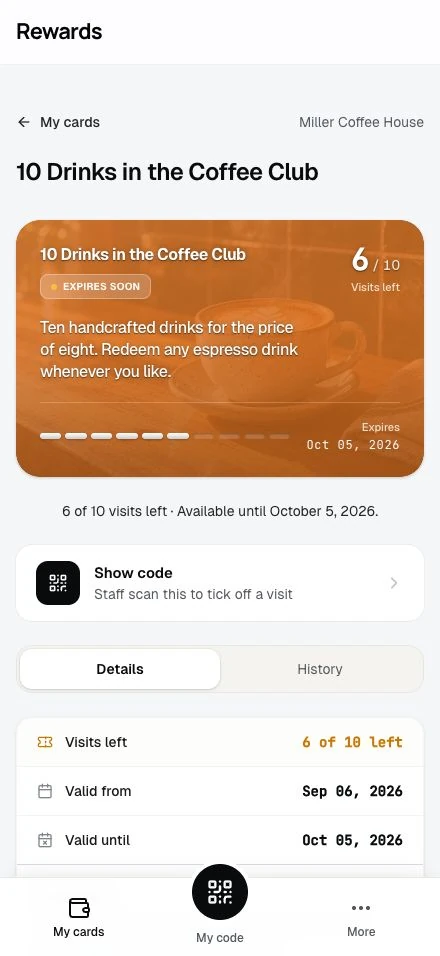
Navigation names the business when the site has more than one active business. The QR sheet always names the business. A short line states your remaining visits and end date. An expired pass has a dimmed face marked Expired, and never says it is ending soon. A used-up or expired pass keeps its page and history, marked with its state. The QR disappears; there is nothing left to scan. A Remove from my cards button appears here so you can clear a finished pass out of your wallet. Its history stays on record with the business, and a pass you can still use can never be removed. Finished and removed passes remain in your History, where you can reopen them read-only.
A pass moves through a short lifecycle:
stateDiagram-v2
    state "Used up" as UsedUp
    [*] --> Active: Staff sell the pass
    Active --> UsedUp: Last visit ticked off
    Active --> Expired: Validity window closes
    UsedUp --> Removed: Member clears it
    Expired --> Removed: Member clears it
    Removed --> [*]
The count drops live. If the pass page is open when staff tick off a visit, the remaining count, the visit marks, and the history update on the spot, with a small celebration in the business's colours. See Live updates and celebrations.
Emails
A sale and an approaching expiry can each send an email with the business's name as sender:
- The receipt, at the moment of sale: pass name, visits, validity, and the price paid at the counter.
- One reminder, when a pass enters its final week with visits left: "Your pass expires on this date, you still have this many visits." Each pass sends this at most once.
These emails follow the member's Loyalty updates preference. Turning it off leaves the pass and wallet unchanged; the pass still expires on its date. The business may also enable automatic messages when a pass is used up or expires with unused visits.
Privacy
Passes follow the same rules as the rest of the wallet. The business that sold the pass sees it; no other business does. A member's data export includes their passes and pass history. Account deletion removes visit-pass data and anonymizes the account. Monetary financial records remain saved without automatic age-based deletion, under the claim and access rules above. See Account privacy.