Understanding networks.
Top-level organizational containers for multi-location deployments.
Networks are the highest level of organization in the platform. They group managers and partners so you can structure multi-location or multi-brand deployments.
graph TD
    A["Administrator"] --> N1["Network: East Region"]
    A --> N2["Network: West Region"]
    N1 --> M1["Manager: East"]
    N1 --> P1["East partners"]
    N2 --> M2["Manager: West"]
    N2 --> P2["West partners"]
What are networks?
Networks are administrative containers that create organizational boundaries. Customers never see them; they carry the structure of large or complex deployments.
Think of networks as:
- Regional divisions (East Coast, West Coast)
- Franchise groups
- Brand categories
- Business units
When to use networks
Single business
You might only need one network, or none at all. For simple setups, you can create partners without a network.
Multiple locations
Create a network for each region. Assign regional managers who can only see partners in their area.
Example:
- Network: "East Region"
- Network: "West Region"
- Network: "Central Region"
Each region has its own managers and partners.
Franchise model
Create a network for each franchisee. Each manages their own partners.
Example:
- Network: "Franchisee - John Smith"
- Network: "Franchisee - Jane Doe"
Franchisees never see each other's data.
Shopping centers
Create a network for the center, with all businesses in that location belonging to the same network.
Example:
- Network: "Downtown Mall"
- Network: "Airport Terminal 2"
Network visibility
Networks are invisible to customers. A customer collecting stamps at a coffee shop has no idea which network that shop belongs to.
Because of this, competitors can coexist on the same platform, and white-label operators keep every group apart.
Creating networks
- Go to Networks in the admin sidebar
- Click Create
- Fill in the fields:
- Name: The network's name. Customers never see it
- Currency: The primary network's currency is the default for new self-registered partners, who can change it afterward
- Active: An inactive network blocks member access to loyalty cards, stamp cards, and vouchers from partners in that network
- Primary: The primary network is the default for new partner registrations
- Click Save
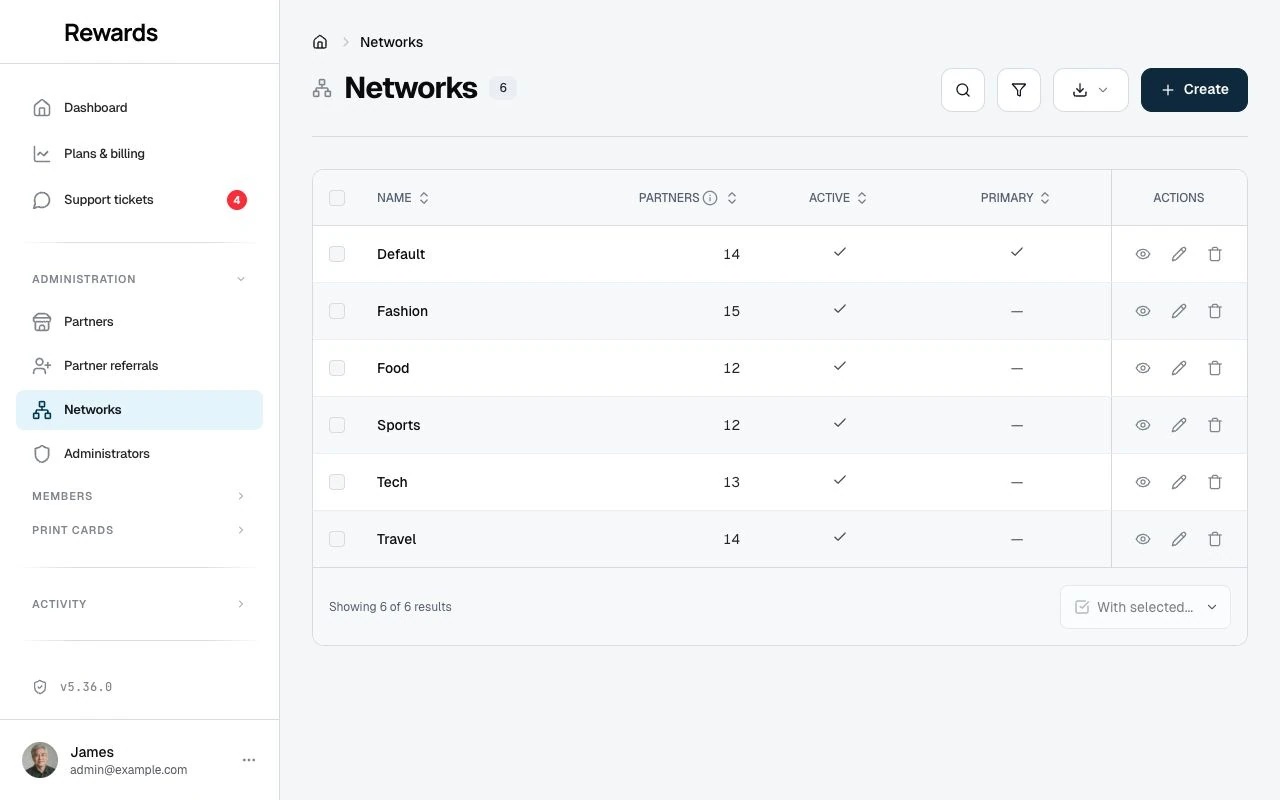
The list shows Partners, including inactive partners, beside the network's state. The primary network appears first, followed by names in alphabetical order. Selecting a sortable column heading sets your own order; it does not change the primary network.
Assigning managers to networks
After creating a network, assign managers who can operate within it. A manager is an administrator account with the Manager role:
- Go to Administrators in the admin sidebar
- Create or edit an account
- Set Role to Manager
- Pick one or more networks in the Networks multi-select
- Click Save
Managers can only see and create partners within their assigned networks.
Best practices
Keep it simple. Only create networks when you need organizational separation. For a single business with multiple cards, networks are unnecessary.
Use clear names. Pick descriptive names like "Downtown District" or "West Coast Region" rather than codes.
Related topics
- Understanding clubs: How clubs work within networks
- Managers: Assigning managers to networks